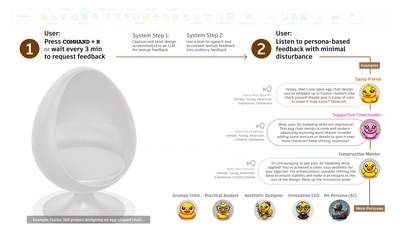
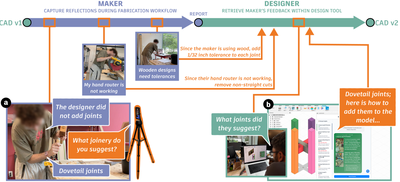
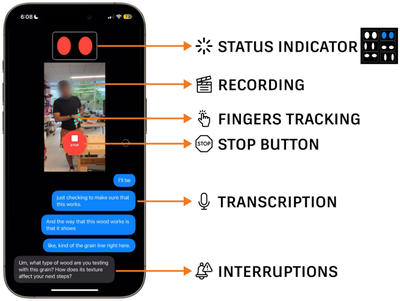
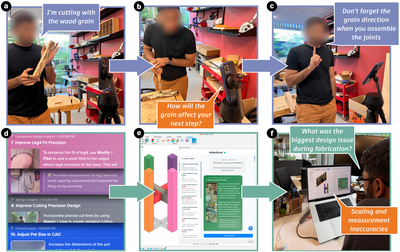
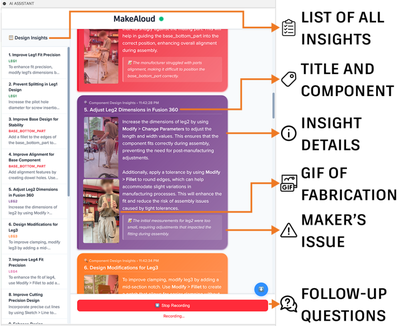
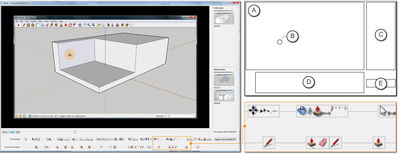
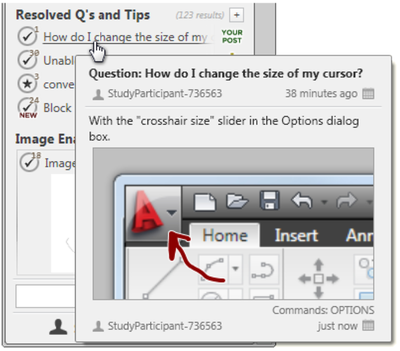
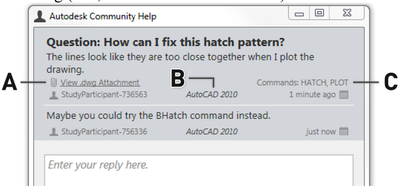
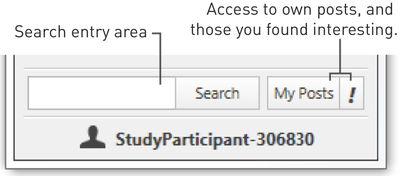
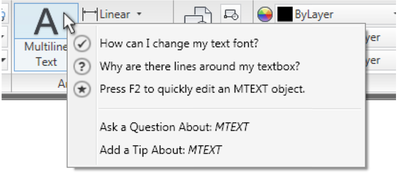
Figure 1: FeedQUAC is an ambient design companion that provides real-time, read-aloud AI feedback from diverse personas. Through shortcut keys, minimal screen space, and auditory cues, it offers quick, unobtrusive support that enhances design without disrupting workflow.
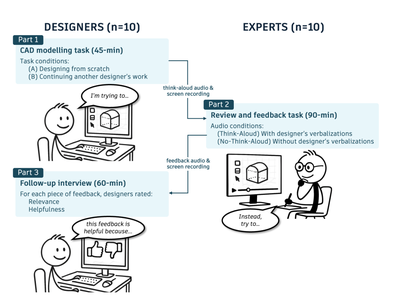
Figure 1: Overview of our three-part user study. Part 1is a 45-minute think-aloud study with 10 designers completing a CAD modelling task. Part 2 is a 90-minute interview with 10 experts reviewing and providing feedback on the designers’ recordings under two audio conditions (Think-Aloud and No- Think-Aloud). Part 3 is a 60-minute follow-up interview with the original designers, where they rated the expert feedback.
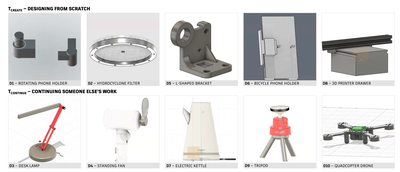
Figure 2: CAD models that designers worked on in the Tereate task (top) and Teontinue task (bottom).
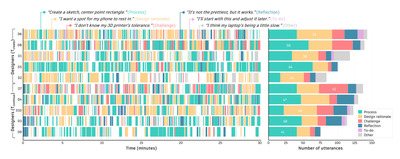
Figure 3: Visualization of designers’ verbalizations during the 30-minute modelling session. The timeline plot (left) shows the distribution of verbalization categories over time for each designer, grouped by task Tcreate (top) and Teontinue (bottom). The stacked bar chart (right) aggregates the total utterances per category, with white numbers indicating the number of utterances in the most frequent category for each designer.
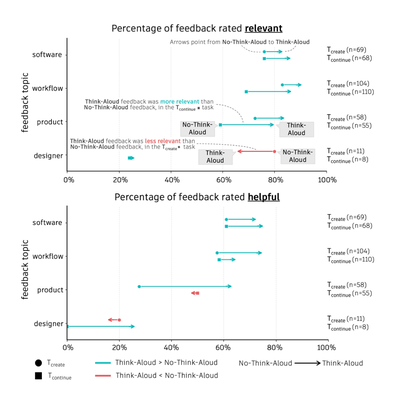
Figure 4: Percentage of feedback rated as relevant (top) and helpful (bottom) across four feedback topics: software, work- flow, product, and designer. Feedback was collected under two task conditions: Tcreate (circles), Teontinue (squares); and two audio conditions: Think-Aloud (arrowheads), No-Think- Aloud (circle or square). The arrow points in the direction from No-Think-Aloud to Think-Aloud. Colours indicate which condition was rated higher: Think-Aloud (teal), No- Think-Aloud (red). Sample sizes for each task and feedback topic are also included on the right.
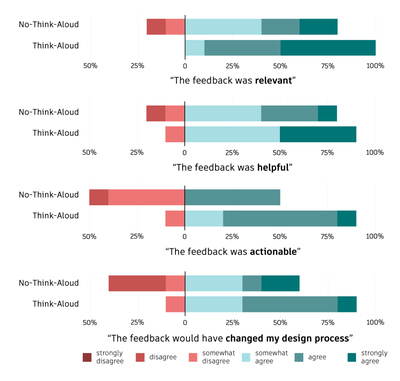
Figure 5: Designer participants’ ratings of the expert feed- back sessions on relevance, helpfulness, actionability, and potential impact on their design process.
Figure 6: Designer participants’ preferred feedback session. The feedback session from the Think-Aloud expert was the preferred session most often.
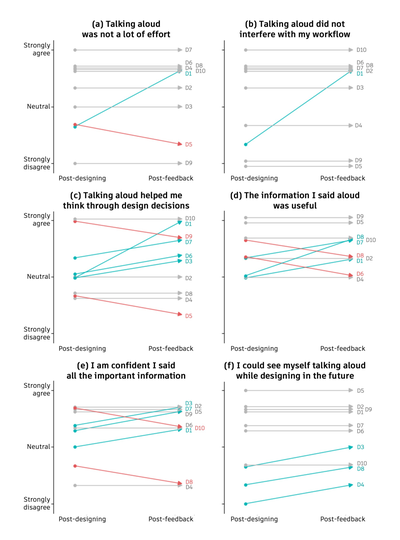
Figure 7: Designer participants’ attitudes toward think-aloud computing, measured immediately after the design task and after receiving expert feedback (shown in slopegraphs). Teal arrows indicate increases in agreement, red arrows indicate decreases, and grey arrows indicate no change. Jitter has been added to reduce overlap between lines. Each arrow is labelled with the designer ID (D1-D10).
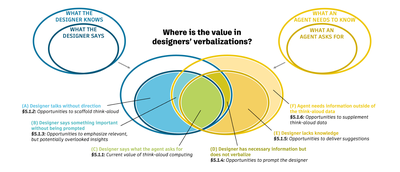
Figure 8: Framework illustrating how designers’ verbalizations are valuable for interpreting a designer’s CAD work. The nested blue ovals represent what the designer knows (larger oval) and what the designer says (smaller oval). The nested yellow ovals represent what an agent needs to know about the designer’s process and rationale (larger oval) and what an agent asks for to build understanding in order to provide feedback for the designer (smaller oval). These oval boundaries represent the findings from our study, while each shaded intersection highlights an opportunity that we identify and discuss for future think-aloud computing systems (A-F, discussed in Sections 5.1.1- 5.1.6). The blank regions (what the designer knows but does not say + what an agent needs to know but does not ask for) are also valid opportunities, but out of the scope of this work.
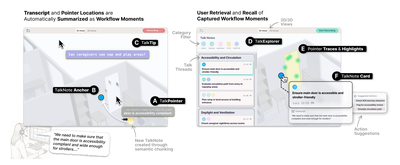
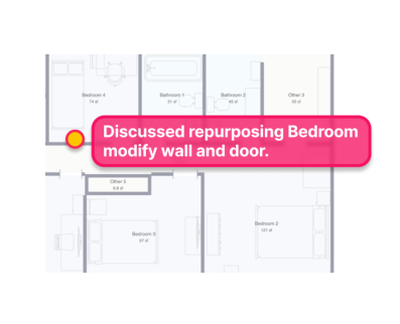
Figure 1: PointAloud allows users to (1) automatically capture their think-aloud verbalizations and pointer locations while working on architectural software tasks in 2D and 3D; with (A) TalkPointer providing pointer-adjacent low-distraction real-time feedback on the capture process and indicating when a new TalkNote gets created, the TalkNote is (B) contextually anchored in the design canvas; Additionally, (C) TalkTips provide short proactive system suggestions in response to users’ activities. (2) To retrieve captured moments, (D) TalkExplorer provides a topically-clustered list view with filter options; when selecting TalkNotes, (E) captured pointer traces and relevant design elements are highlighted in the canvas, along with the TalkNote’s (F) card, which features transcript, summary, process labels, and system-suggested follow-up actions.
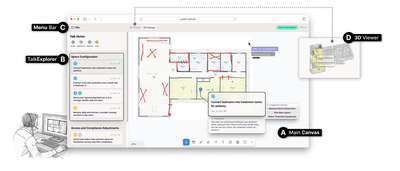
Figure 2: Screenshot of the PointAloud system: (A) Main canvas with activated 2D view containing sketches on a floor plan with an unfolded TalkNote card and TalkPointer next to the mouse cursor; (B) TalkExplorer sidebar for browsing and filtering of captured TalkNotes; (C) Menu bar with controls for starting/stopping transcription and switching between 2D and (D) 3D view.
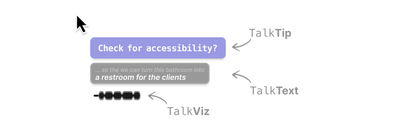
Figure 3: Pointer-adjacent TalkPointer display comprising TalkTip, TalkText, and TalkViz
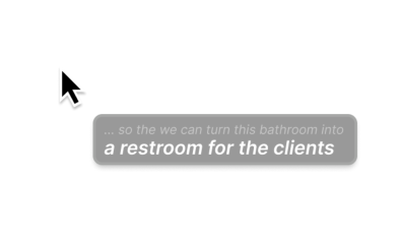
ongoing speech transcription. Figure 4 (1) TalkText (DP1): A short transcription overlay that streams the user’s most re- cently captured words in real time, provid- ing immediate feedback on the system’s
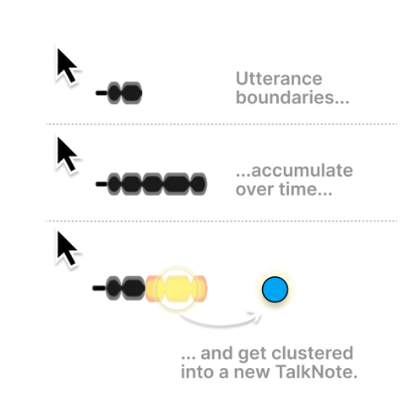
Figure 5 (2) TalkViz (DP1): Visual indicators that signal utterance boundaries and chunking operations, allowing users to see how/when their speech has been segmented and clustered into new TalkNotes.
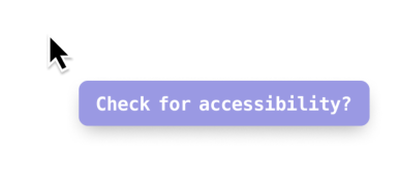
ee YR RENEE BR ER MOABLOALEM AS surface relevant considerations, or pose Figure 6 open-ended questions to support deeper reflection. (3) TalkTip (DP1, DP4): Brief, context- sensitive prompts that appear both during pauses and in response to users’ speech. TV enh Alin ntinn Ce a) Bogan
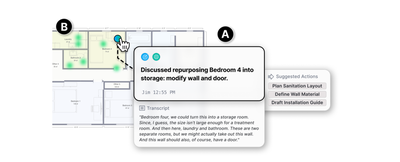
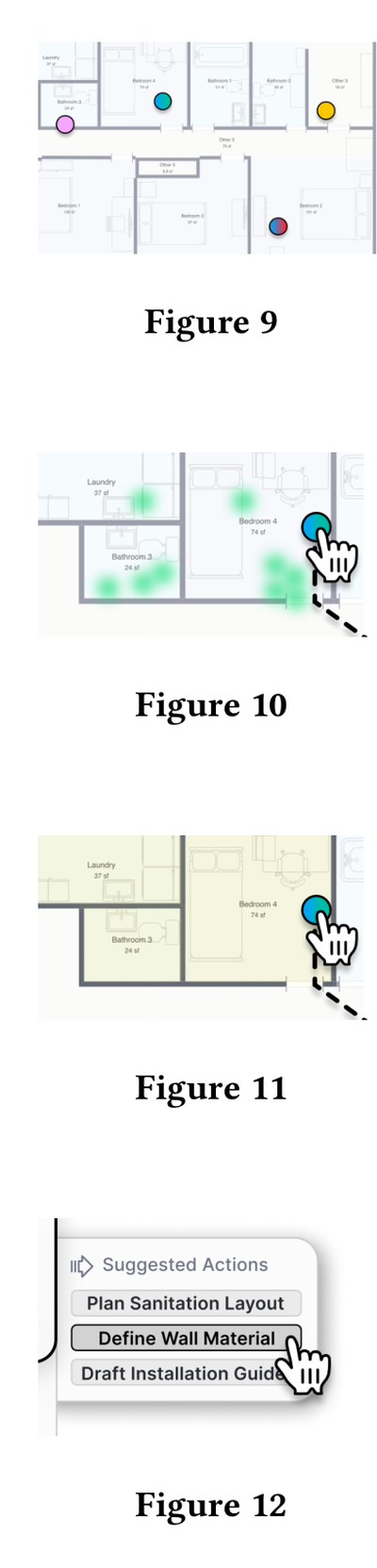
Figure 7: An unfolded TalkNote with two key components: (A) structured note content combining the user’s transcript, system-generated summary, process labels, and suggested follow-up actions; and (B) spatial anchoring that situates the note at the location where the user was pointing during verbalization, complemented by pointer traces (green dots) and design element highlights (yellow overlays).
Figure 8 (high-level goals or rationales), Process (operations, tools, or workflow steps), ToDo (tasks to complete later), Important (flagged critical information), Problem (is- sues or obstacles), and Question (open un- certainties). Process Label Categories (DP2): Each TalkNote is automatically assigned one or more categories, reflecting different kinds of design reasoning: Design Intent
Spatial Anchors (DP3): Notes appear as overlays on the canvas at the location where the user was pointing during ver- balization (as 2D/3D location). Pointer Traces (DP2, DP3): Visual paths of cursor movement during speech are stored and shown as overlays, providing contextual grounding. Design Element Highlights (DP2, DP3): Relevant architectural elements refer- enced during users’ speech are visually linked to the note. Action Suggestions (DP4): Based on the TalkNote’s captured context, the system dynamically generates a UI button menu with follow-up system actions for users to trigger?.
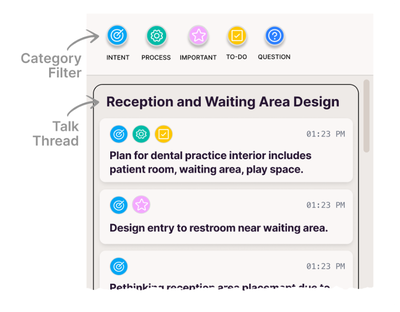
Figure 13: TalkExplorer sidebar with filter options and Tal- kNotes topically clustered into TalkThreads.
Figure 14 ing reasoning with past decisions without requiring explicit search or navigation. When the user’s current verbalization re- lates to earlier concerns, previously cre- ated TalkNotes briefly reappear on the canvas, highlighted and summarized next to their anchors. This lightweight mecha- nism helps jog memory and connect ongo-
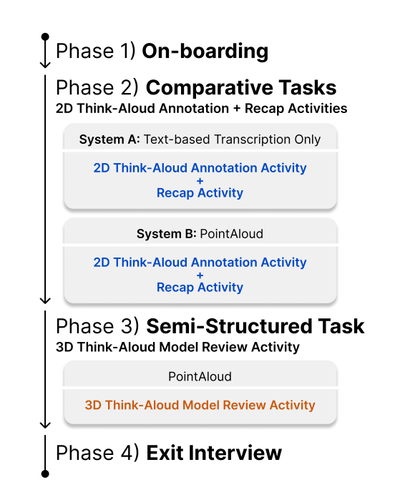
Figure 15: Process diagram of the four-phase study proce- dure.
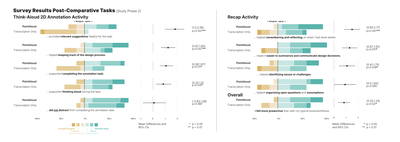
Figure 16: Participants’ responses when rating the 6-point Likert statements for annotation and recap activities completed with PointAloud and text-based live transcription only (baseline), ranked from largest to smallest effects; Dots show the mean difference of PointAloud compared to Text-based Transcription Only; Bars are the 95% CIs calculated with the studentized bootstrap method.
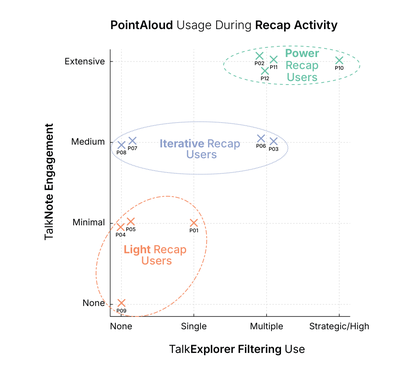
Figure 17: Patterns of TalkNote engagement and TalkExplorer filtering use during the recap activity, distinguishing Light Users, Iterative Users, and Power Users.
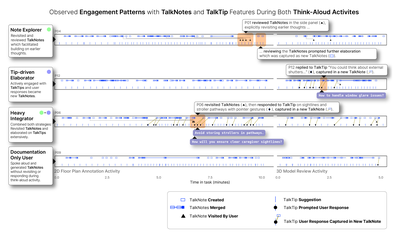
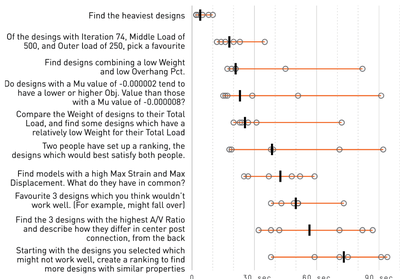
Figure 18: Timeline visualizations of interaction events, illustrating four engagement patterns with TalkNotes and TalkTips during the 2D floor plan annotation and 3D model review activities: Note Explorer, Tip-driven Elaborator, Heavy Integrator, and Documentation-only User.
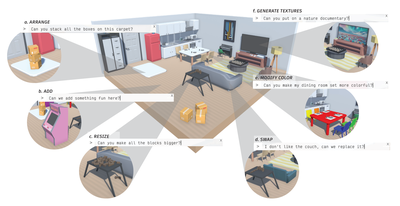
Fig. 1. The Curompt prototype explores spatially situated generative Al-assisted interactions, as shown here in a 3D scene of an apartment. Users can enact spatial scene edits with high-level descriptions with a Curompt, a combined cursor+prompt — such as (a) arranging; (b) adding; (c) resizing; (d) swapping; (e) modifying the color of; and (f) generating textures for objects in the scene.
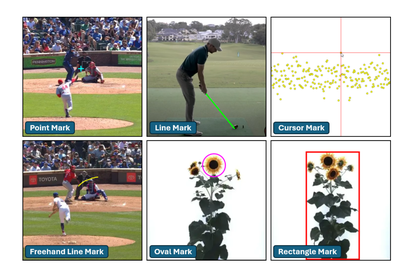
Fig. 1: Shadow Mark types. Each mark is replicated in other views.
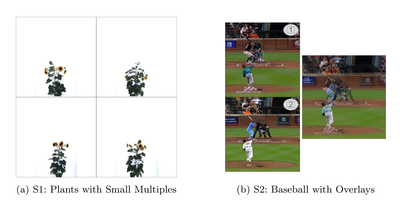
Fig. 2: Small-Multiples condition (left) and Overlay condition (right).
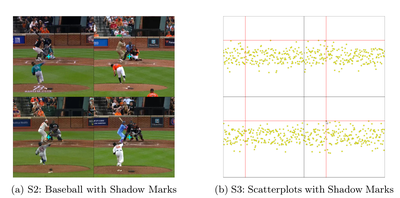
Fig. 3: Shadow Marks condition (Mark thickness and opacity are enhanced).
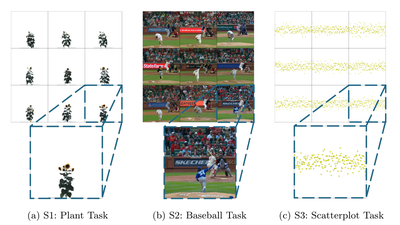
Fig. 4: Comparison tasks used in the three studies.
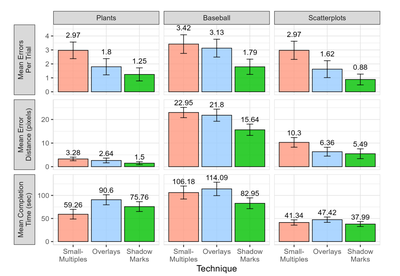
Fig. 5: S1-S3: Mean errors per trial, mean trial error distance, and mean trial completion time, by Technique
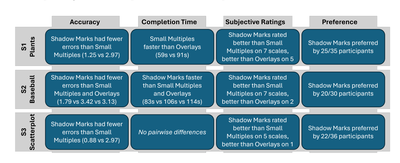
Fig. 7: Summary of results from all studies.
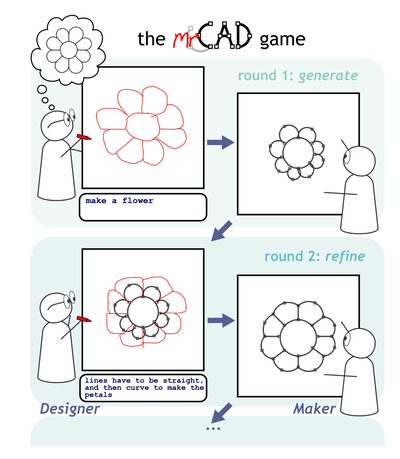
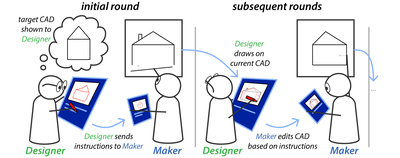
Figure 1: We present mrCAD, a dataset of humans play- ing a multi-turn, multimodal communication game in a 2D CAD environment. A pair of participants collab- orated to recreate a target CAD over multiple rounds. The target design is known only to the Designer, who instruct the Maker using drawing and text. The Maker manipulate the current CAD based on these instructions.
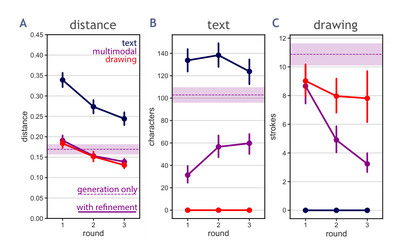
Figure 3: A: reconstruction accuracy for the 4 communi- cation conditions — multimodal+refinement, text only + refinement, drawing only + refinement, and multimodal + generation only. Using text only was less effective. Generation-only was less effective. Drawing only and multimodal are comparable in performance. B: usage of text across rounds — in the multimodal condition, par- ticipants used more texts in the later refinement rounds, suggesting a usage of text in conjunction with draw- ings to communicate refinements. C: usage of drawing across rounds — in the multimodal condition, partici- pants used more drawing in the generation round, and less in the refinement rounds.
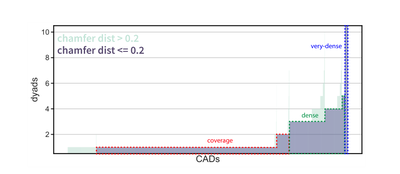
Figure 4: The mrCAD dataset contains three subsets: the coverage set of 2249 CADs with 1-2 successful rollouts, dense set of 698 CADs with 3+ successful reconstruction, and the very-dense set of 27 CADs with 30+ successful reconstruction.
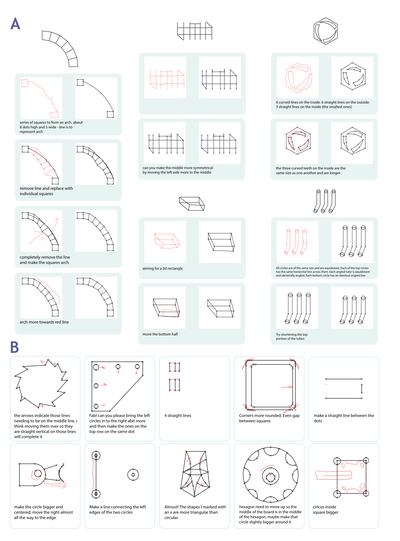
Figure 5: A Example rollouts from the dataset. Target CADs (top-center) were shown to Designers, who created instructions (left columns) that Makers followed (right columns). Dyads iteratively refined their CADs across a series of rounds (rows). B Examples of multimodal refinement instructions. Language and drawing mutually constrain and inform the others’ semantics. Many instructions don’t make sense without the accompanying drawings, and vice-versa.
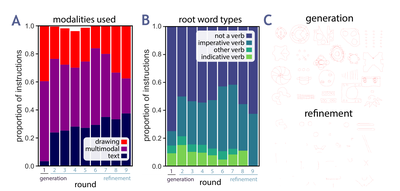
Figure 6: A Designers’ instructions to generate CADs (round 1) involved lots of drawing and little text, whereas instructions to refine CADs (rounds 2+) used a balance of modalities. B The proportions of the types of root words in the dependency parse tree of instruction text. More verbs are used over rounds, and these verbs become more imperative. C Samples of 20 generation drawings and 20 refinement drawings highlights the rich detail in generation instructions, and more targeted modifications in refinement.
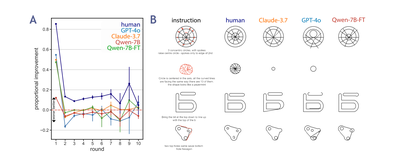
Figure 7: A Comparison of human and model movement towards target following instructions, normalized by distance at start of round. Only humans make reliably positive changes in responses to refinement instructions. Models made positive steps in generation but largely destructive changes when refining. B Comparison of human and model responses.
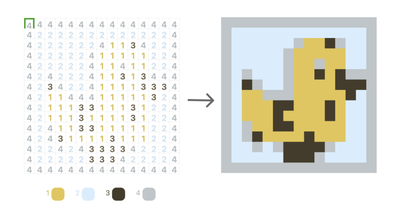
Figure 1: An example of an empty grid (left) and the final image presented to users (right) in a paint by numbers task.
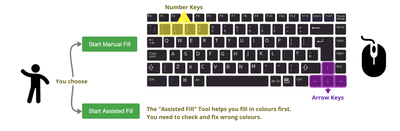
Figure 2: The experiment landing page instructing users how they can complete the paint by numbers game. There are two options for completing the task. One is Manual Fill mode, in which users fill in all colors manually through keypresses. The other is Assisted Fill, in which users wait for the simulated GenAI to fill in the colors, and then they manually fix any mistakes.
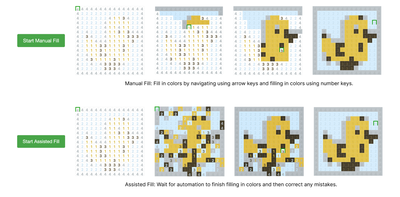
Figure 3: Illustration of the workflow for using Manual Fill (top) and using Assisted Fill (bottom). Assisted Fill simulates GenAI support tools through various latency and error rates that require users to fix any mistakes before completing the task.
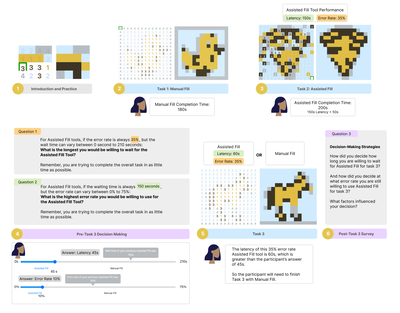
Figure 4: Workflow of the experiment and an example participant’s performance. Participants went through six steps in total: (1) Introduction and two practice rounds to get to know Manual Fill and Assisted Fill; (2) The first full grid task, where participants will be assigned to either Manual Fill or Assisted Fill. In this example, the participant first was assigned to Manual Fill; (3) The second full grid task, in which participants will be assigned to a different mode of interaction from the first task; (4) Pre-Task 3 questions, in which participants answer questions that determine whether they get to use their assigned Assisted Fill tool or manually fill in colors for Task 3; (5) Task 3, in which participants complete a third paint by numbers game using the mode of interaction based on their answer to Question 1 in Pre-Task 3; (6) Post-Task 3 survey.
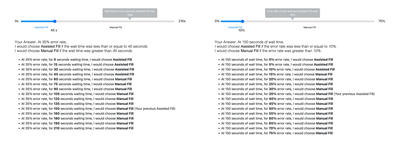
Figure 5: Participants’ answers to Question 1 and Question 2. Answering one question generates 15 and 16 data points respectively.
Figure 6: Four plots illustrating the main patterns of chosen versus optimal percentages of using Assisted Fill given various error rate conditions. The y-axis in each chart represents the percentage of participants choosing Assisted Fill, with y = 1 meaning everyone chose Assisted Fill and y = 0 indicating no one chose Assisted Fill. The x-axis represents the different latency conditions. The charts represent these variables for increasing error rates: 0% (top left), 20% (top right), 50% (bottom left), and 75% (bottom right). Sigmoid curves are fitted to the raw data to illustrate trends. Shaded areas around the red and blue curves represent 1-sigma bootstrap confidence intervals [8, 40].
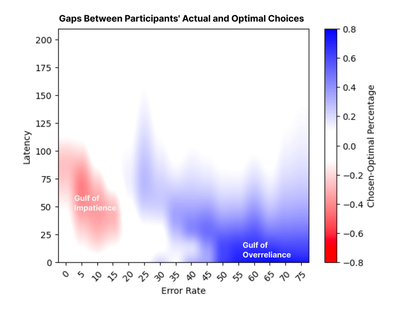
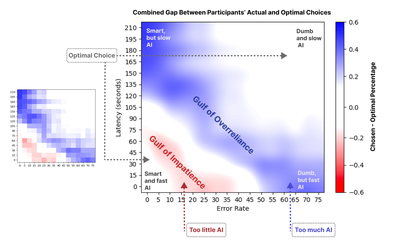
Figure 7: A heat map generated with 16 pairs of sigmoid curves (Figure 6) across 16 error rate conditions, illustrating the differences between the percentage of participants’ actual choices of choosing Assisted Fill and the percentage of participants’ optimal choices of choosing Assisted Fill. White areas indicate close to optimal choices, blue areas show overreliance on Assisted Fill, and red areas show underreliance on Assisted Fill. Data used here was collected from participants’ answer to Question 1 before working on Task 3: Given X error rate, what is the longest time a participant is willing to wait for the Assisted Fill tool.
Figure 8: Four plots illustrating key patterns in chosen versus optimal percentages of using Assisted Fill given various latency conditions. The y-axis in each chart represents the percentage of participants choosing Assisted Fill, with y = 1 meaning everyone chose Assisted Fill and y = 0 indicating no one chose Assisted Fill. The x-axis represents the different error rate conditions. The four horizontal charts represent these variables for increasing latency: 0s (top left), 30s (top right), 105s (bottom left), and 210s (bottom right). Sigmoid curves are fitted to the raw data to illustrate trends. Shaded areas around the red and blue curves represent 1-sigma bootstrap confidence intervals [8, 40].
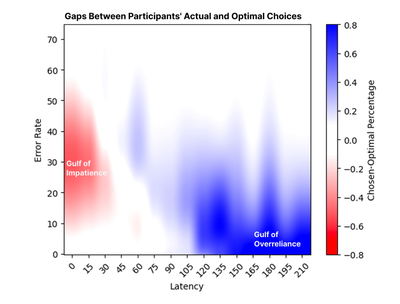
Figure 9: A heat map generated with 15 pairs of sigmoid curves (Figure 8) across 15 latency conditions, illustrating the differences between the percentage of participants’ actual choices of choosing Assisted Fill and the percentage of participants’ optimal choices of choosing Assisted Fill. White areas indicate close to optimal choices, blue areas show overreliance on Assisted Fill, and red areas show underreliance on Assisted Fill. Data used here was collected from participants’ answer to Question 2 before working on Task 3: Given X latency, what is the largest error rate a participant is willing to tolerate for Assisted Fill.
Figure 10: A heat map based on the gap between participants’ answers for Question 1 and Question 2 and their optimal choices. We obtained this continuous heat map by applying bicubic smoothing to the discrete heat map on the left. White areas indicate close to optimal choices, blue areas show overreliance on Assisted Fill, and red areas show underreliance on Assisted Fill.
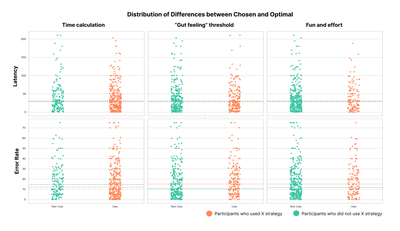
Figure 11: Strip plots illustrating the distribution of differences between chosen and optimal latency (top) and error rate (bottom) by adoption of strategy. The orange strip plots illustrate the distribution of participants who leveraged a certain strategy and the green strip plot illustrate the distribution of participants who did not leverage that strategy. The dashed lines represent the medians of each group. There is not much difference across each pair.
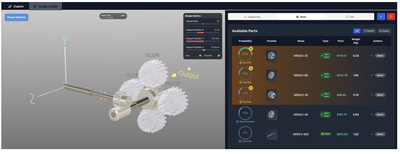
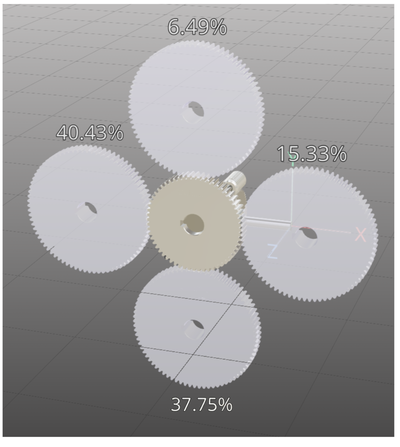
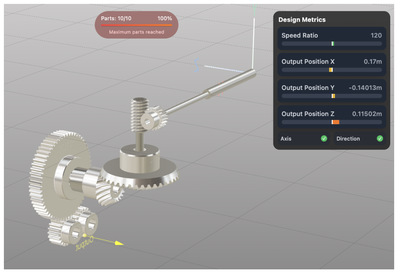
Figure 1: The Copilot Mode interface providing collaborative design refinement with GearFormer, featuring real-time 3D visualization (left), interactive design metrics panel (center top), and intelligent parts recommendation and selection interface (right).
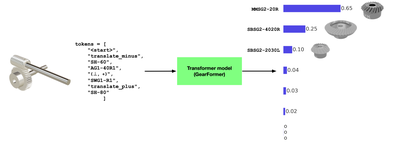
Figure 2: An illustration of GearFormer’s inference process. A tokenized representation of the partially assembled gear mechanism is passed into a transformer model, which predicts the probability distribution over the next possible components. The next component is selected either as the most probable or by sampling from the distribution. The top predictions and their corresponding probabilities are shown on the right.
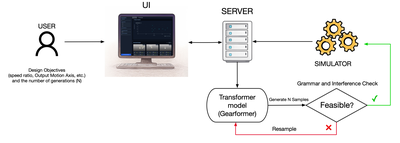
Figure 3: Schematic overview of Explore Mode’s sampling-based workflow. Users define design objectives and constraints,prompting GearFormer to generate multiple candidate assemblies, which are validat
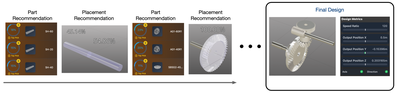
Figure 4: Overview of Copilot Mode’s iterative design workflow. At each step, GearFormer provides ranked part and placement recommendations based on its autoregressive model. Designers select components and positions with confidence overlays, progressively building the assembly. Real-time feedback on feasibility and alignment with design objectives—such as speed ratio and output position—is shown alongside the evolving 3D model. The process continues until a complete, validated gear train is assembled.
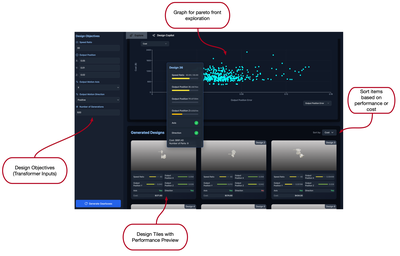
Figure 5: Explore Mode interface, illustrating the Design Objectives panel for specifying transformer inputs (left), an interactivePareto front graph for visualizing trade-offs (top center), Generated
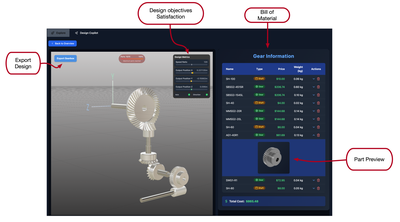
Figure 6: Detailed inspection interface for Explore Mode. A selected design is rendered in an interactive 3D view (left), displaying each gear and shaft. A Bill of Materials (right) lists individual components by name, cost, and weight, while a metrics panel (top center) reports how closely the design meets the user’s speed ratio and position targets.
Figure 7: Example of a gear placement with a confidence score overlay in Copilot Mode.
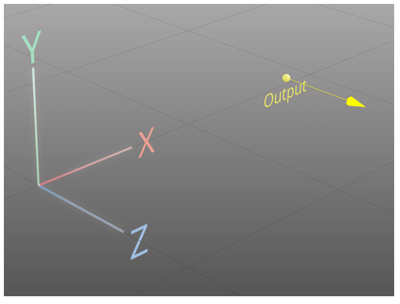
Figure 8: The yellow “Output” arrow visualizes the target position and orientation for the gear train output, serving as a spatial reference point for designers. This directional indicator helps users align their design with the required motion axis and position specified in the design objectives.
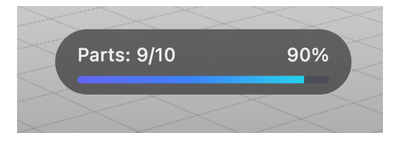
Figure 9: Example of a part usage indicator in the interface (here shown as 9 parts used out of a maximum 10). Exceed- ing the maximum limit can cause a transformer to produce inconsistent tokens due to context constraints.
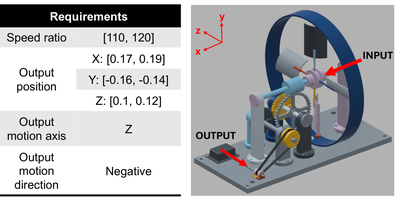
Figure 10: Design task given to the participants.
Figure 11: For each respective mode, (a) average participant ratings [0-5] on their confidence in the designs generated and (b) number of participants who found a feasible solution that met all requirement metrics.
Figure 12: A feasible solution found by a participant (P6) with the Copilot Mode.
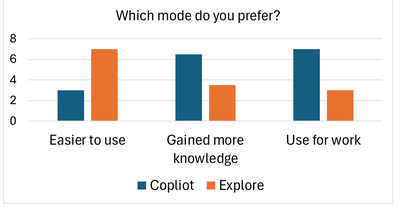
Figure 13: Participants’ preferences on the mode that 1) is easier to use, 2) helped gain more knowledge, and 3) they would use for everyday work.
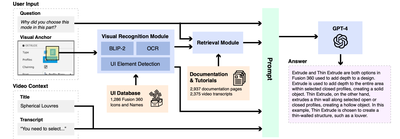
Figure 1: Overall architecture of our question-answer pipeline AQuA, which generates useful responses to questions made insoftware tutorial videos. Questions are accompanied by visual anchors, which a
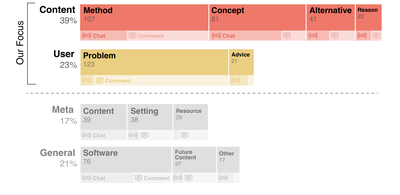
Figure 2: Categories and Types of questions identified from the analysis. Each row represents a category and each block represents a type. Under each block, the areas on the left and right represent live chat and comment data, respectively. Our focus is on Content and User questions, as these are vital for comprehending the tutorial and can often be answered without the involvement of the tutorial authors or software vendor.
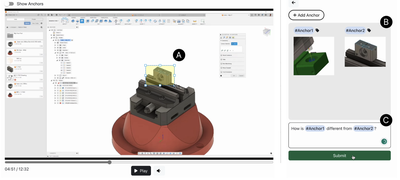
Figure 3: The system used for collecting questions with visual references. (A) Users can draw anchors on parts of the video they want to ask questions about, (B) which will be added to a temporary gallery. (C) Users can refer to each anchor in their questions.
Figure 4: Our Visual Recognition Module is composed of Image Captioning, UI Element Detection, and Optical CharacterRecognition (OCR). We use BLIP-2 [34] to obtain a general description of the visual
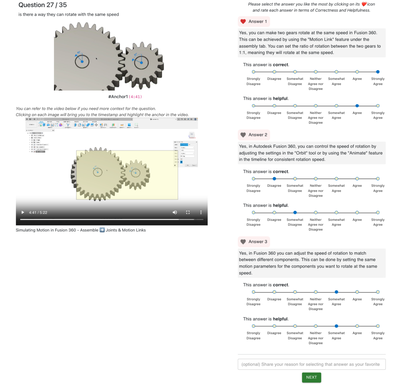
Figure 5: The system used in our pipeline evaluation study. The participant can see the question, the video that the questionwas asked about at the right timestamp and with the visual anchor highlight
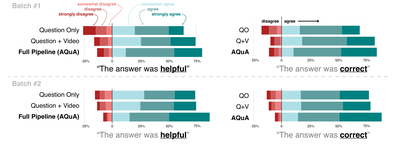
Figure 6: Distribution of Likert scale responses on Correctness and Helpfulness. Full Pipeline shows the highest correctness and helpfulness scores in both batches. Responses of "neither agree nor disagree" are omitted from the chart for clarity and readability.
Figure 7: Results of the favorite answer selection. Answersgenerated from the Full Pipeline were selected as the fa-vorite most often.
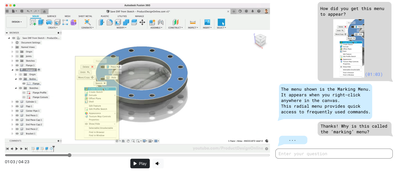
Figure 8: We envision that our pipeline could be leveraged in the future to develop a tutorial video system that supports conversational, chat-like question and answering. Learners could ask questions by referring to specific parts of the video. The system would then generate responses to these questions, while also allowing users to easily ask follow-up questions.
Figure 1: Novice participants were paired in an online experiment and assigned the role of Designer or Maker. The Designer wasshown a target CAD and asked to instruct the Maker how to recreate it, usi
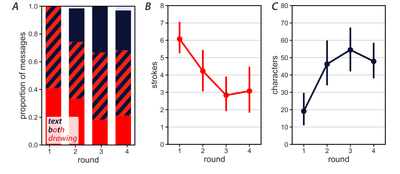
Figure 2: A) Modality use across rounds. Participants generally sent multimodal messages, but leaned more heavily on drawings in earlier rounds; B) The number of strokes sent in instructions decreased across rounds; C) The number of characters increased across rounds.
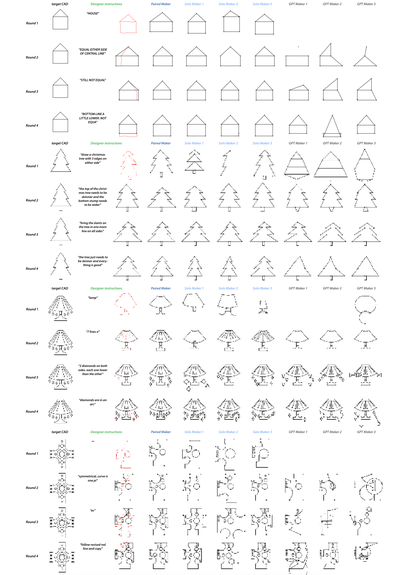
Figure 3: 4 example trials from paired Designers and Makers, with 3 additional responses fromSolo Makers and 3 from GPT-4V. Solo participants followed instructions, improving the current CAD, whereas GPT-4V usually made things worse.
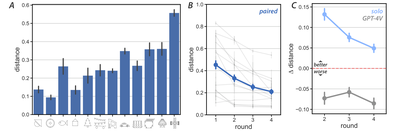
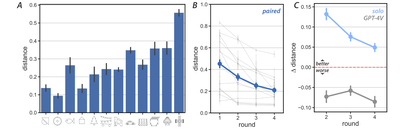
Figure 4: A) Average distance away from target CAD in final round of paired study, sorted by number of elements in target CAD; B) Distances from paired Maker’s reconstruction to target decrease in each round (blue), consistently across stimuli (gray). C) Solo Makers’ modifications reliably reduced distance to target, whereas GPT-4V’s made CAD’s more dissimilar.
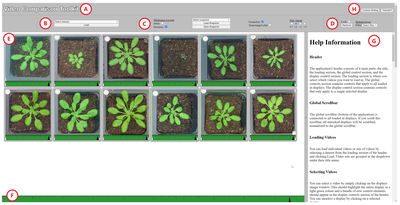
Figure 1: Web-based demonstration application. (A) Title (B) Video selection dropdown (C) Global system options (D)Individual video options (E) Workspace with 12 plant videos (F) Global timeline widge
Figure 2: Coincident-points technique. Videos aremisaligned (a), so points are placed to create an alignmenttransformation and equalize the videos (b).
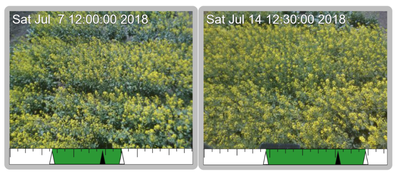
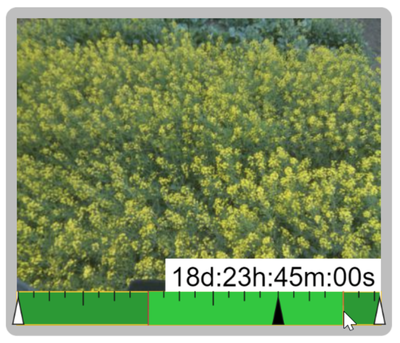
Figure 3: Endpoint adjustment: time-lapse videos of twoCanola varieties, with endpoints adjusted to show flowering.
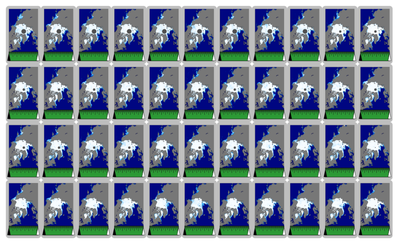
Figure 4: Small-multiples technique showing animations ofsea ice changes, 1979-2022; each video is made up of 365satellite images.
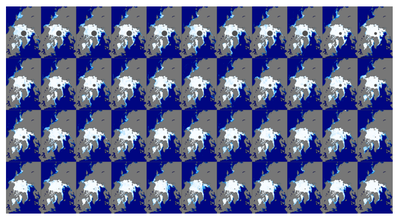
Figure 5: Small-multiples technique with hidden borders.
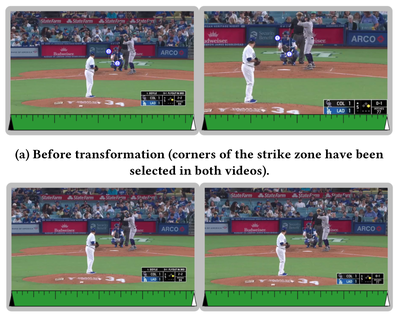
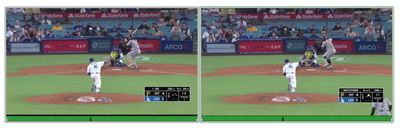
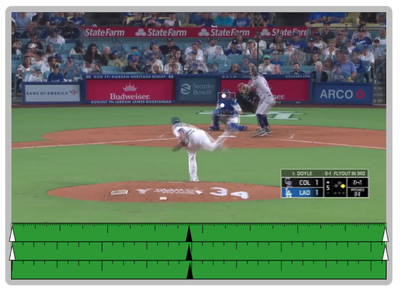
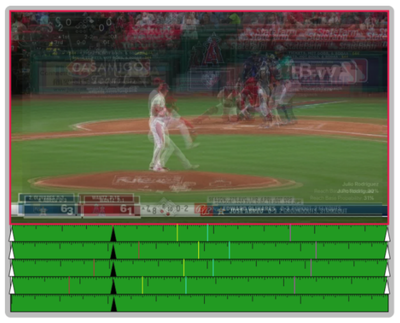
Figure 6: Shadow markers to compare different pitches fromthe same pitcher. A marker (yellow circle) placed in the leftvideo is replicated in the right video.
Figure 7: Superposition video of two pitches from the samepitcher. (Ball brightness has been increased for visibility).
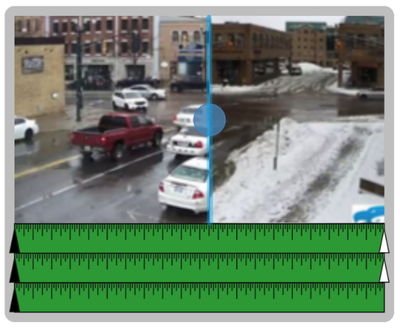
Figure 8: Window-blind overlay showing a horizontal slider,used to compare summer/winter traffic levels.
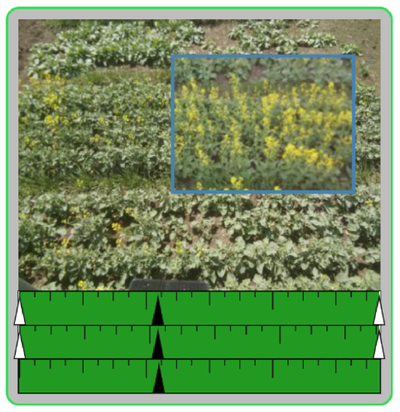
Figure 9: See-through lens showing a specific region in theunderlying video at full opacity.
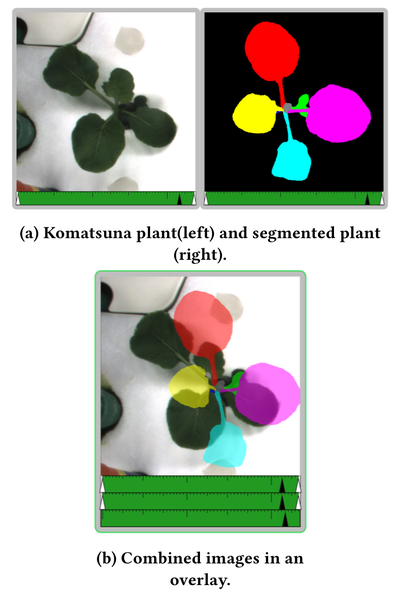
Figure 10: Overlay with image filters, showing one RGB plant image and one segmented image. Image source.
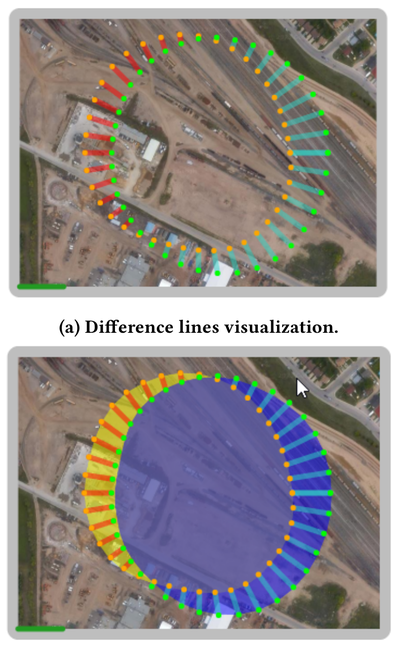
Figure 11: Explicit encodings displaying predicted changesto a pollution spill. Difference lines and areas represent therelationship between predicted and observed point data.
Figure 12: Annotations. Four overlaid pitch videos, withtimeline annotations for beginning of the wind-up (red),release of the ball (yellow), catch by catcher (cyan), and callfrom the umpire (magenta)
Figure 13: Timeline measurement tool, measuring from thestart to end of the flowering cycle (marked withannotations) in Canola.
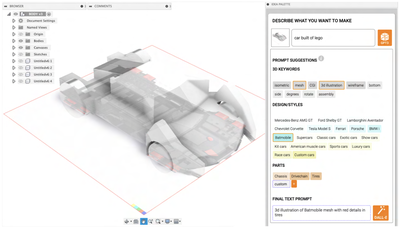
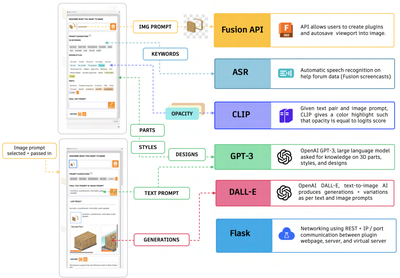
Figure 1: 3DALL-E integrates a state-of-the-art text-to-image AI (DALL-E) into the 3D CAD software Fusion 360. This plugingenerates 2D image inspiration for conceptual CAD and product design workflows
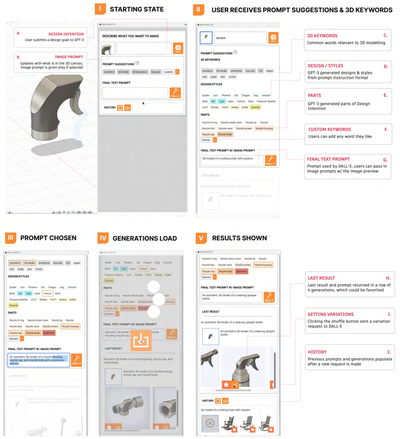
Figure 2: 3DALL-E walkthrough. Step I: Initial state, where users can type their design intentions. Step II: Users are presentedwith prompt suggestions from GPT-3. Step III: Selected suggestions are r
Figure 3: System design showing the architectures involved in 3DALL-E, which incorporates three large AI models into theworkbench of an industry standard CAD software. In the top left panel, we show h
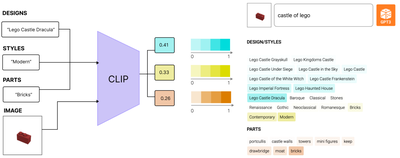
Figure 4: Diagram showing how text highlights were calculated using CLIP with image and text from the prompt suggestions asinput. The CLIP logits score was set as the opacity of each prompt suggestion
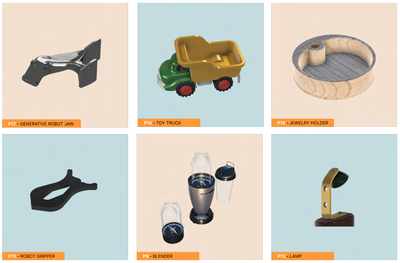
Figure 5: Examples of 3D designs participants brought in during 𝑇𝑒𝑑𝑖𝑡, which was to edit an existing model.
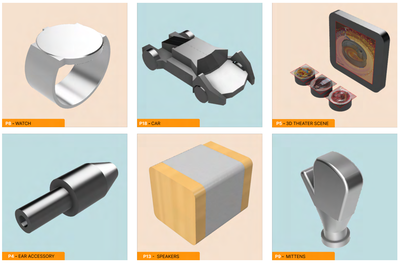
Figure 6: Example of 3D designs participants came up with during 𝑇𝑐𝑟𝑒𝑎𝑡𝑒, which was to create a model from scratch.
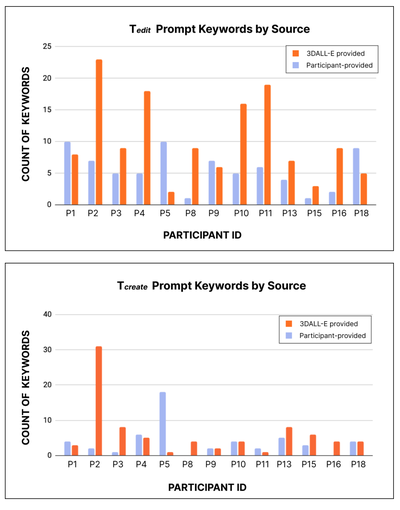
Figure 7: Count of prompt keywords by source (3DALL-E- or participant-provided) for each participant during T.g;; (top) and T-;eate (bottom). 3DALL-E provides at least half of prompt keywords for 9/13 participants in both tasks.
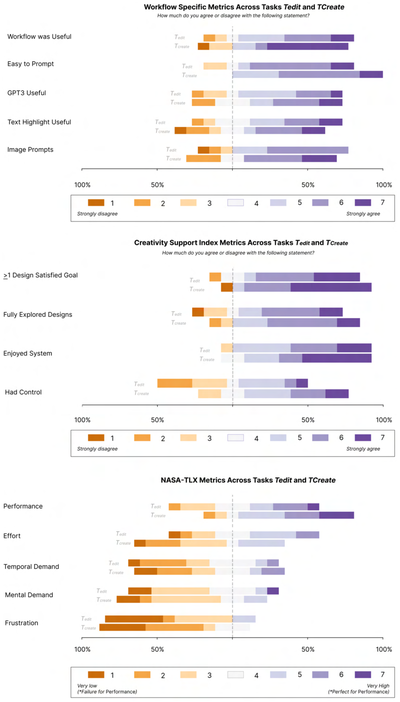
Figure 8: Distribution of Likert scale responses on NASA-TLX, creativity support index, and workflow-specific questions acrossall participants for both 𝑇𝑒𝑑𝑖𝑡and 𝑇𝑐𝑟𝑒𝑎𝑡𝑒. Full questions are in the Appe
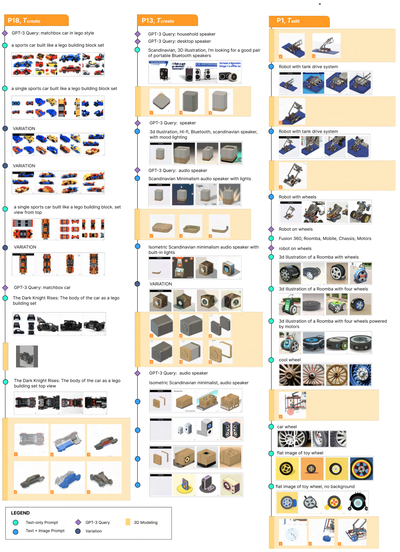
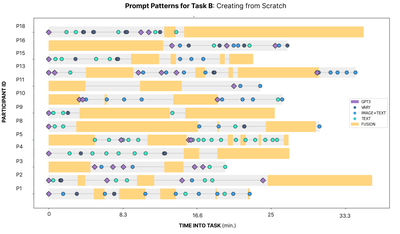
Figure 9: Prompting and 3D modeling workflows of design process of three participants (P18, P13, and P1). P18 created a car,P13 created an audio speaker, and P1 edited a robot. Timelines are vertical
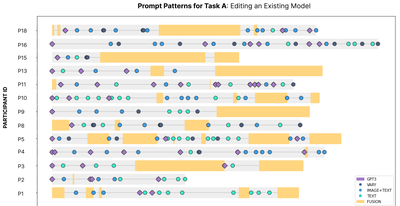
Figure 10: Pattern of generation activity for 𝑇𝑒𝑑𝑖𝑡, when participants edited an existing model.
Figure 11: Pattern of generation activity for Tcreare, when participants created a model from scratch.
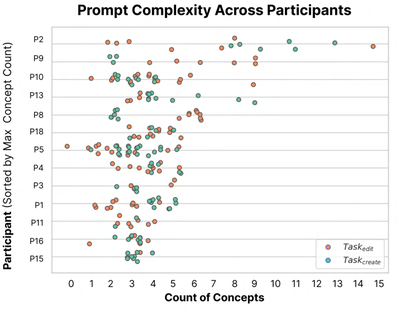
Figure 12: Prompt complexity measured across participants, where complexity is the count of concepts in each text-only and image+text prompt. Participants span the X-axis, sorted by the count of their most complex prompt. The values are jittered to show multiplicity; many prompts mapped to the same number of concepts. Complexity tended to concentrate between two to six concepts, as seen by the density of prompts within that interval. Each datapoint was colored based on prompt task.
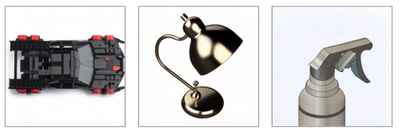
Figure 13: Three DALL-E generations participants (P18, P15,P9) found inspirational from the prompts: “The Dark KnightRises: the body of a car as a Lego building set top view”, “3Drender of a desk lamp
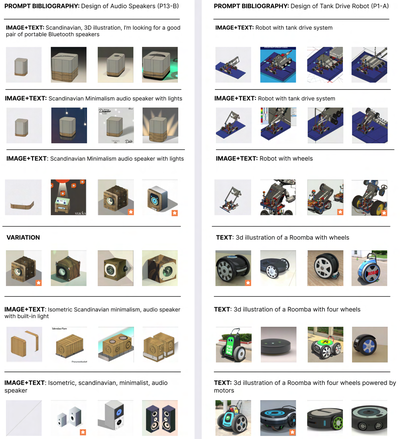
Figure 14: Prompt bibliographies, a design concept we propose for tracking human-AI design history. As prompts become apart of creative workflows, they may be integrated into the design histories alre
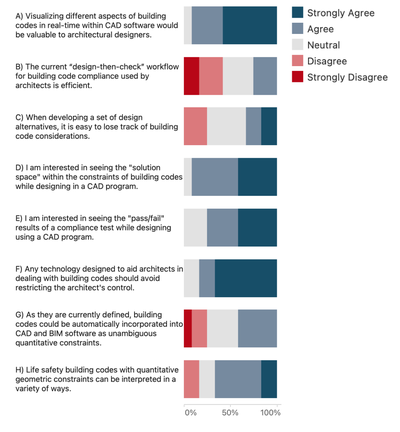
FIGURE 1. Survey question exploring issues related to build- ing code visualization.
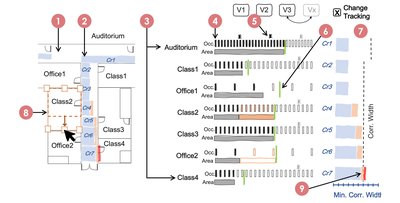
FIGURE 2. Mock-up of concept system to visualize building codes: (1) Floorplan within a CAD program. (2) Minimum corridor width overlays determined by estimated occupants. (3) Room use types. (4) Occupant load calculations shown by room size bar chart and corresponding strip chart showing people. (5) Additional icon markup showing thresholds such as additional doors. (6) Green bars representing client-requested room sizes. (7) Minimum widths of corridor segments determined by occupant load flowing from each room into the path of escape. (8) Change tracking while editing CAD model. (9) Highlighting changes in orange and compliance issues in red relative to previous version compliance issues.
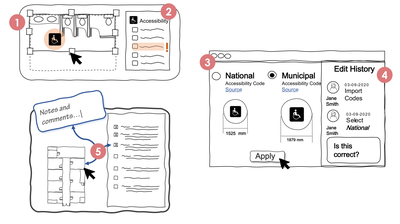
FIGURE 3. A series of mock-ups illustrating a user-driven knowledge management system: (1) Automated compliance checking. (2) Context-relevant building codes. (3) Building code configuration and access to source documentation. (4) Change history and commenting. (5) Annotations linking building codes with CAD models.
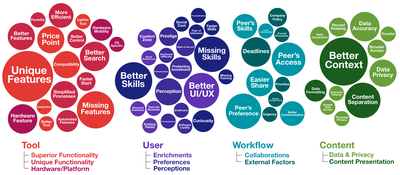
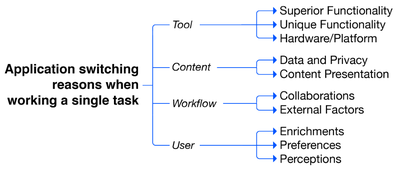
Figure 1: The low-level reasons for application switching captured during this research (colored bubbles) divided into four primarycategories (Tool, User, Workflow, and Content), each with sub-categor
Figure 2: The initial taxonomy of task-centric application switchingwith categories and subcategories.
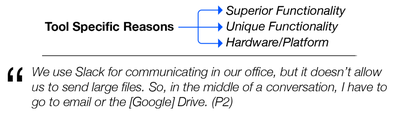
Figure 3: The high-level reasons for application switching that relate to the nature of the tools.
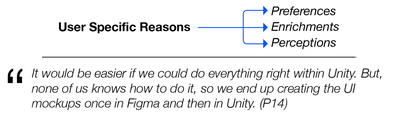
Figure 4: The high-level reasons for application switching that relate to the characteristics of the users.
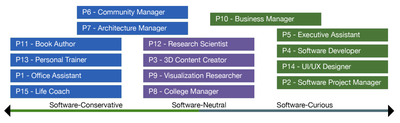
Figure 5: Three groups of users emerged in this research.
Figure 6: The high-level reasons for application switching that are based on the various workflows.
Figure 7: The high-level reasons for application switching that are based on the content.
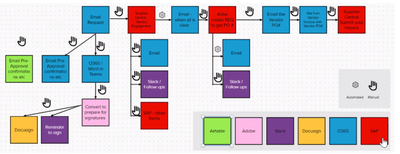
Figure 8: An example of switching among multiple applications illus-trated by P5 to complete the task of getting a contract signed. Theuser has to navigate back and forth among numerous application.
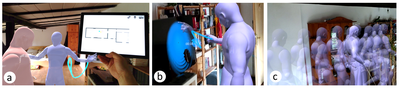
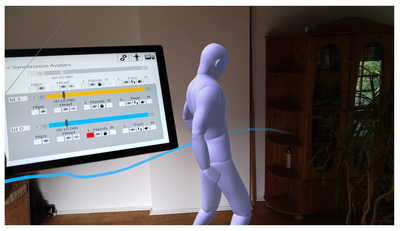
Figure 1: An overview of some of the aspects of AvatAR: (a) The virtual avatars of two persons, one with an active 3D trajectory for the left hand, and the tablet with the foor plan visible, which sho
Figure 2: The core components of AvatAR: The virtual hu-manoid avatar visualizing a person’s detailed posture, a 3D trajectory providing an overview of movement, and the ac-companying handheld tablet
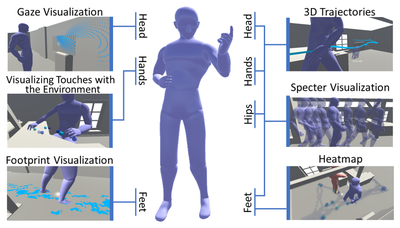
Figure 3: Overview of AvatAR’s various visualization tecl niques and the body parts of the virtual avatar from whic they can be accessed.
Figure 4: (a) One virtual 3D avatar interacting with the environment with another one walking in the background. (b) Marking menu for the avatar’s hand with the item for trajectories being selected. (
Figure 5: (a) Ghost Preview technique with two pinned hand ghosts touching the display. (b) Specter Visualizations technique of just the avatar’s hands, showing past and future time frames as semi-tra
Figure 6: (a) Visualization of interactions with the environment, here showing touches on an interactive display with the center one being highlighted. (b) Visualization of where the feet of two avata
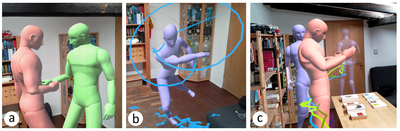
Figure 7: (a) The hands of avatars connecting as people shake hands to greet each other. (b) A person performing a dance choreography with their hand movements visible as a trajectory and the position
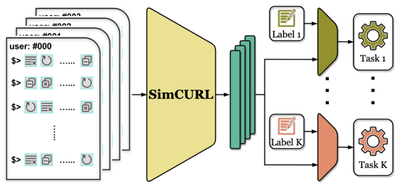
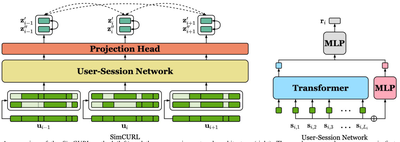
Fig. 1. SimCURL learns user representations from a large corpus of unlabeledcommand sequences. These learned representations are then transferred tomultiple downstream tasks that have only limited lab
Fig. 2.Examples of Fusion 360 command sequence sessions in the dataset. For each example, the left column shows the top-5 most commonly usedcommands. The middle column shows the distribution of comman
rig. 9. AN Overview OF Me oimCUNL method Wert) and the user-session network architecture (right). ine users command sequence Uy; 1S Hrst divided into sessions {s;,;}, from which two augmented views are generated via session dropout. The views are passed through the main network to obtain the representation vectors r/ and r/’, then the projection head to produce z/ and z’’, on which the contrastive loss is applied. Solid and dashed lines denote positive and negative pairs, respectively.
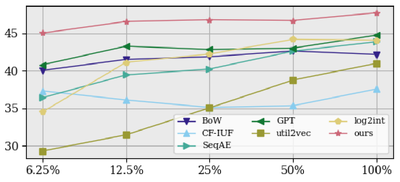
Fig. 4. Few-shot learning: overall Fl-score with varying amount of available supervision in the labeled subset.
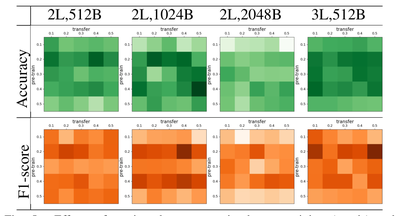
Fig. 5.Effects of session dropout rate in the pre-training (y-axis) andtransfer (x-axis) and stages, network depth (L), and pre-training batch size(B) in Task 1. Darker color means higher number: Acc.
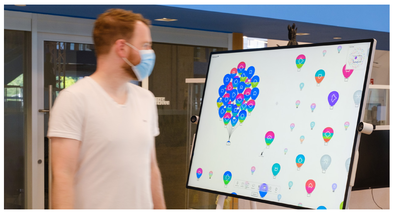
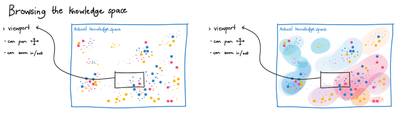
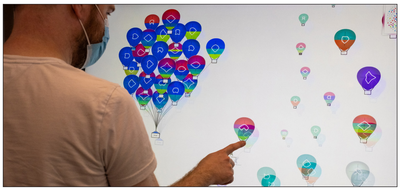
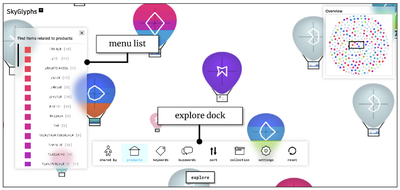
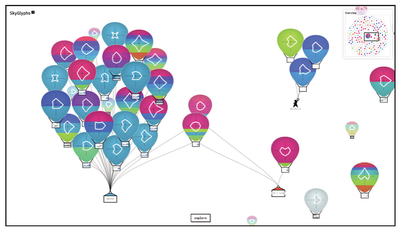
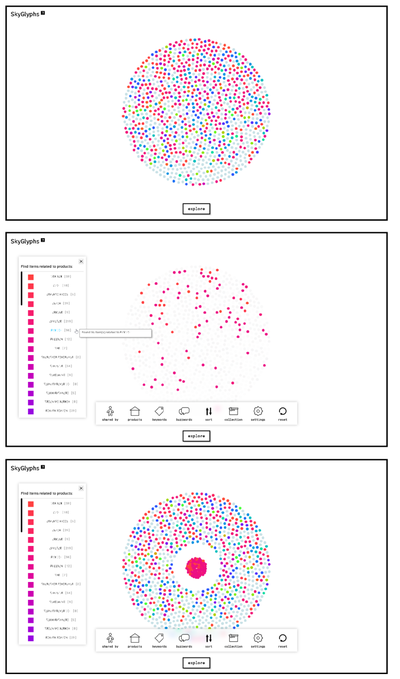
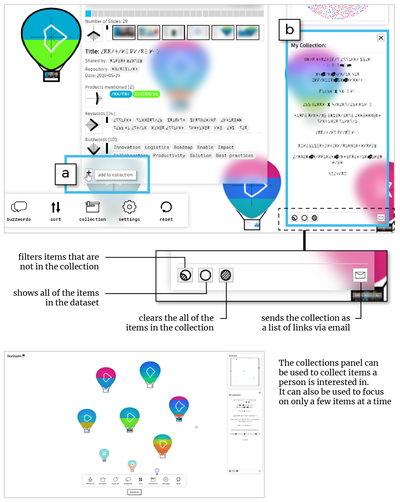
A person walks by a large screen display showing SkyGlyphs, a data visualization that we designed to have a nonconventional data representation to captivate people’s attention and leverage their curiosity to explore a dataset.
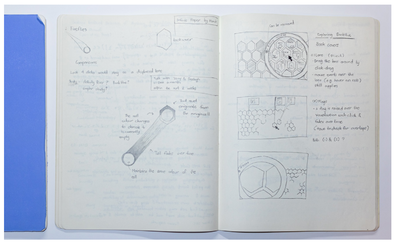
Photo of a datavis designer’s sketchbooks in which they sketch their datavis designs before implementing them.
Skyglyphs: Reflections on the design of a delightful visualization
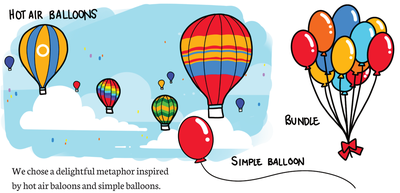
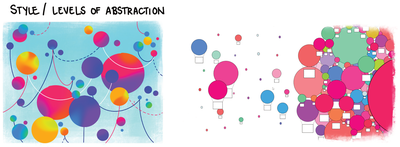
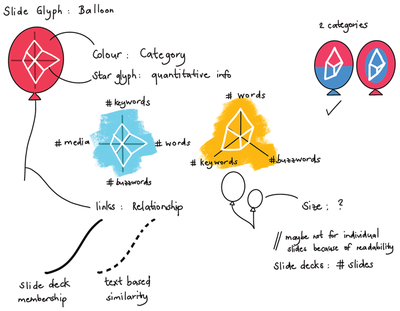
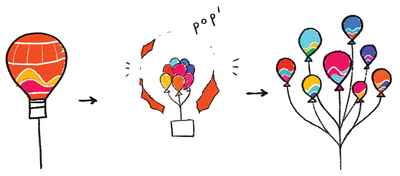
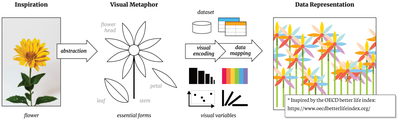
We explored different ways of how to abstract the balloon metaphor, ranging from highly abstracted to more realistic or figurative styles.
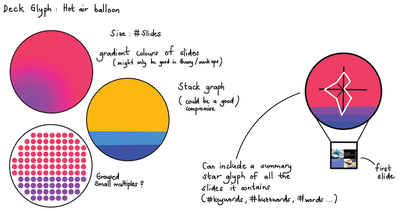
Wealso sketched other possible metaphors from inspirations like fish tanks, swarming insects, and combining familiar abstractions like bubble sets and stackgraphs.
Skyglyphs: Reflections on the design of a delightful visualization
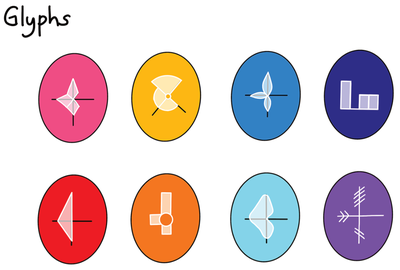
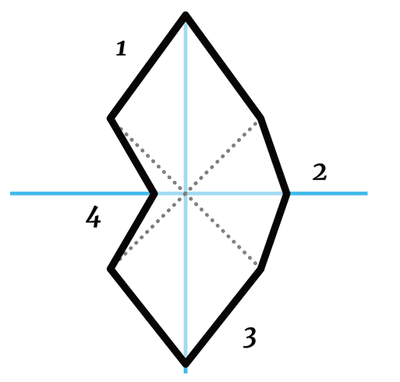
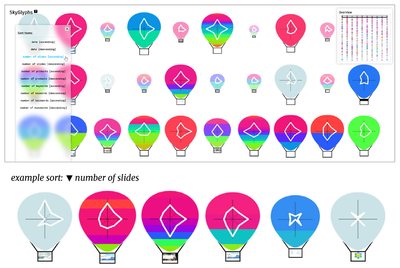
The spiked glyph could be thought of as radial visualization (star plot) with four axes (shown in blue). The shorter axes (shown as dotted lines) act as anchors to create the spikes.
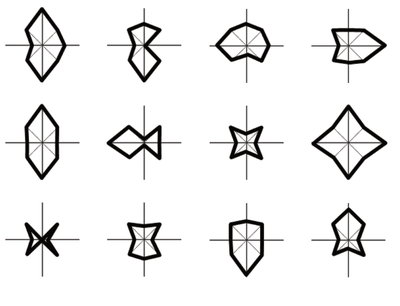
The anchored glyph design allows for interesting shapes to form compared to a typical four-axis star plot that could collapse to a single line or a dot.
Skyglyphs: Reflections on the design of a delightful visualization
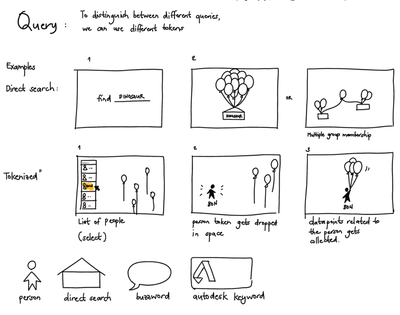
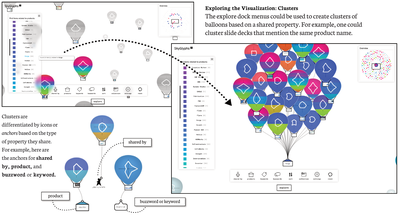
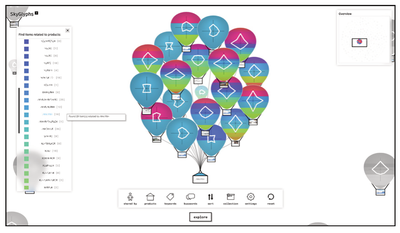
A single balloon cluster based on a mentioned product.
Two clusters with shared balloons.
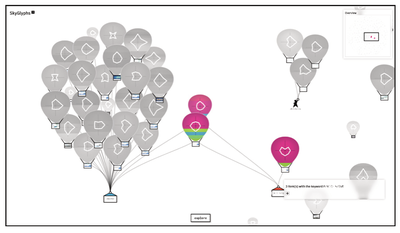
Hovering over a cluster’s anchor will highlight the balloons that belong to it.
Skyglyphs: Reflections on the design of a delightful visualization
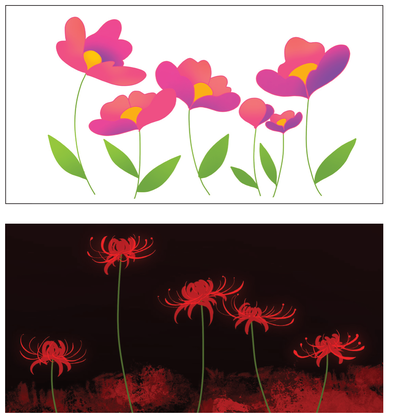
Both of these illustrations use a flower visual metaphor, however both have very different look-and-feel (theme). These characteristics can be intentionally used when designing nonconventional datavis that appeal to different emotions.
Skyglyphs: Reflections on the design of a delightful visualization
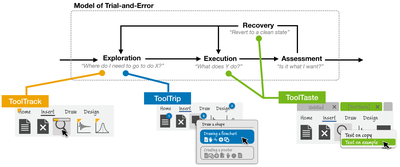
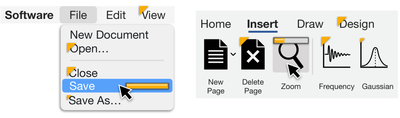
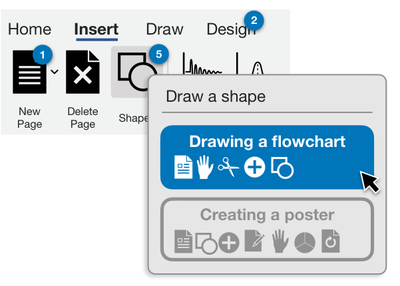
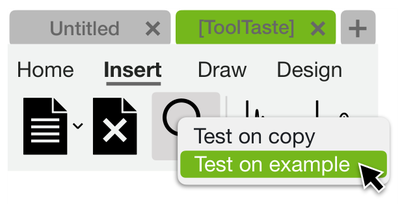
Figure 1: We present a Conceptual Model for trial-and-error and three techniques that improve support for trial-and-error in complex software at the Exploration, Execution and Recovery phases: ToolTra
Figure 2: Our conceptual model of trial-and-error. References to the challenges presented in Section 4.2 are underlined in red. The Exploration and Execution phases are further detailed in Figure 3 and Figure 4 respectively.
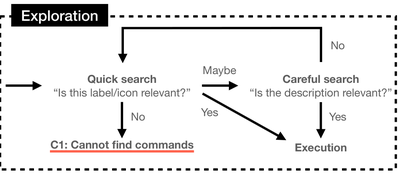
Figure 3: The exploration phase in the conceptual model.
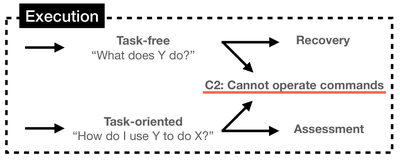
Figure 4: Conceptual model of the execution phase.
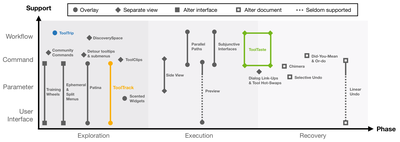
Figure 5: Design space of support for trial-and-error.
Figure 6: ToolTrack shows unexplored commands with a yel­low triangle, and for commands that have been used before, it shows a progress bar indicating how deeply that command has been explored.
Figure 7: ToolTrip ofers workfows that contain a particular command under the mouse cursor, highlighting other com­mands in that workfow with numbered badges.
Figure 8: ToolTaste allows users to test any command, even if it is currently disabled – either on the current document or on an example that has been curated to work with that command.
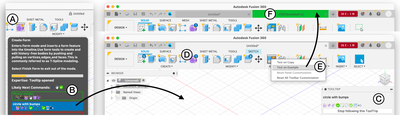
Figure 9: Our prototype implementation in Fusion 360 showing ToolTrack (A), ToolTrip (B, C, D) and ToolTaste (E, F).
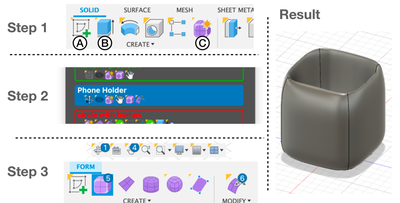
Figure 10: Creating a pen holder by following a ToolTrip ti-tled “Phone Holder”.
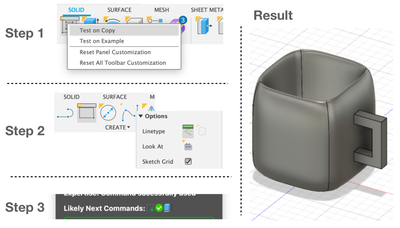
Figure 11: Exploring an alternative approach using ToolTaste to work on a copy, and ToolTrack to prag­matically explore relevant commands and options.
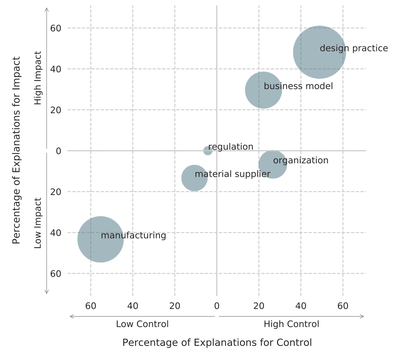
FIGURE 1. The opportunity areas that designers discussed when ex- plaining their groupings for control and impact. The size of the circle corresponds to the number of times this opportunity area was mentioned, while the axis indicate how often this opportunity area was mentioned in relation to how much control (horizontal x-axis) and impact (vertical y-axis).
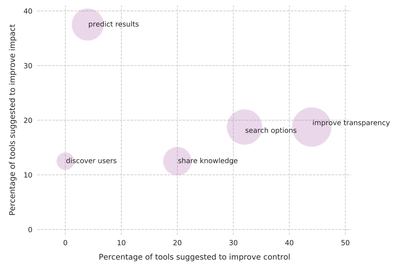
FIGURE 2. Types of tool functions participants suggested to assist sustainable design efforts. The size of the circle corresponds to the num- ber of times this type of function was mentioned, while the axis indicate how often this type of function was mentioned in response to tooling to increase control (horizontal x-axis) and impact (vertical y-axis).
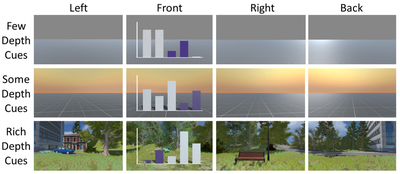
Figure 1. The virtual environments used in Study 1, each with differing levels of depth cues. Participants could look around with the HMD in VR and used the mouse to look around in the screen virtual
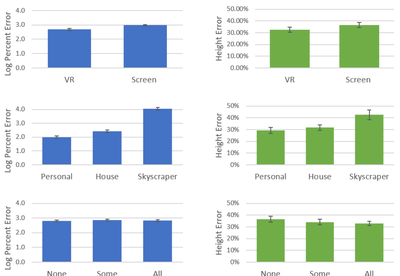
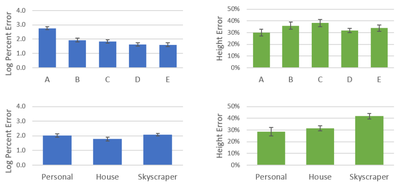
Figure 2. Log percent error (left) and height estimation error (right) for screen/VR (top row), scale (middle row) and level of depth cues (bottom row) used in Study 1. (Note: Error bars show standard
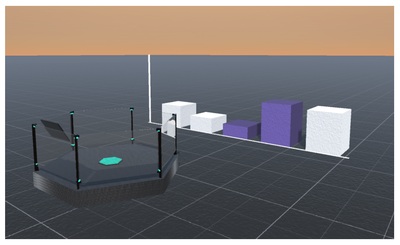
Figure 3. Front platform near personal scale bar chart. Participants would view the world from the center of the platform. In some conditions platforms functioned as elevators.
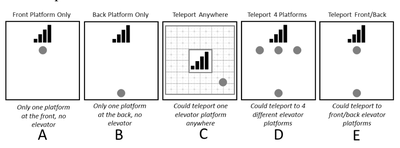
Figure 4. Types of movement allowed in Study 2.
Figure 5. Log percent error (left) and height estimation error (right) for each movement type (top row) and scale (bottom row) used in Study 2. (Note: error bars show standard error.)
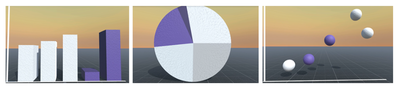
Figure 6. Chart types used in Study 3.
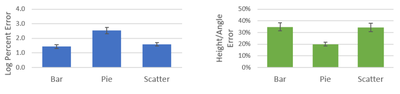
Figure 7. Log percent error (left) and height estimation error (right) for each chart type in Study 3. (Note: error bars show standard error.)
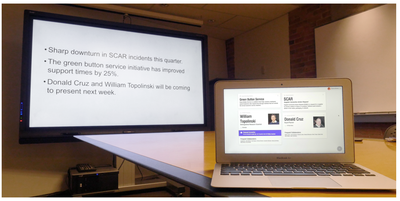
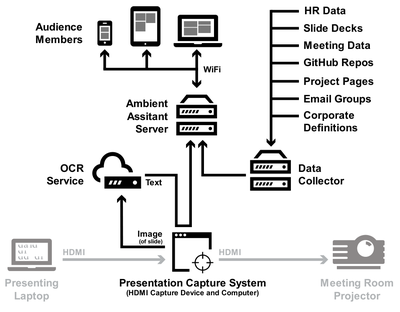
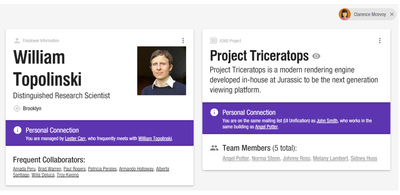
e MeetingMate system. The content being presented is captured and interpreted, then relevant corporate knowledge on the devices of meeting attendees.
Figure 2. Architecture of the MeetingMate system. (components in light grey are part of the existing meeting room infrastructure).
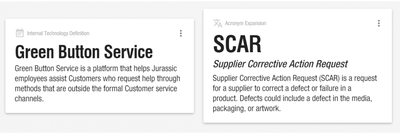
Figure 3. Sample internal technology definition (left) and acronym expansion (right) cards.
Figure 4. Sample employee information card.
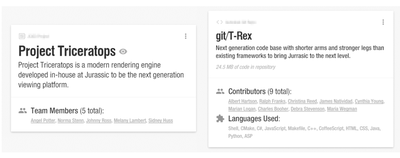
Figure 5. Sample project (left) and repository (right) cards.
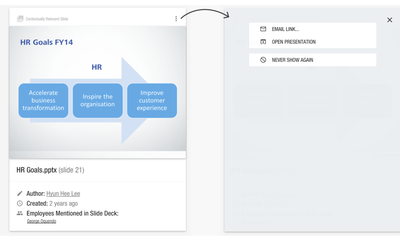
Figure 6. Sample contextually similar slide card (left), and the associated context menu (right).
Figure 7. Sample cards with additional personal connection information.
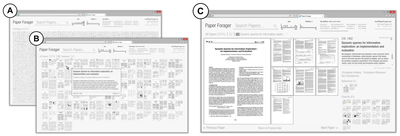
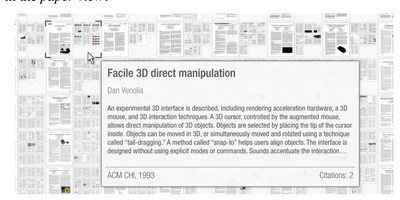
Fig. 1. Three views of the Paper Forager system: (A) the initial state of system showing all 5,055 papers in the sample corpus from the ACM CHI and UIST conferences, (B) the filtered results showing only the papers containing an individual keyword, and (C) a sample paper overview page which further allows a user to click on a page to read the content.
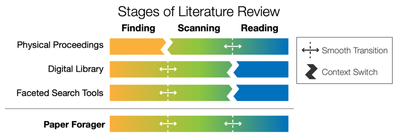
Fig. 2. Four main approaches to paper discovery the context switches required between the various stages of the literature review process.
Fig. 3. [ne interface controls of Paper Forager.
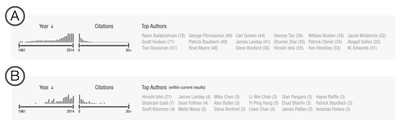
Fig. 4. (A) Histogram filters and Author List for all papers in the CHI and UIST corpus and (B) after searching for the term “tangible”.
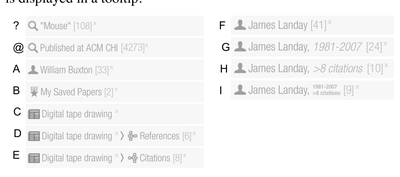
Fig. 5. History tokens for (A) search terms, (B) conferences, (C) authors, (D) saved paper lists, (E) individual papers, (F) references of a paper, (G) citations of a paper, and tokens with filters applied (H-k).
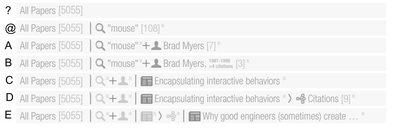
Fig. 6. Initial state of the history bar (A) and changes after a series of operations: (B) searching for “mouse”, (C) clicking on the author Brad Myers, (D) adjusting the year and citation filters, (E) selecting a paper, (F) viewing that paper’s citations, and (G) selecting another paper.
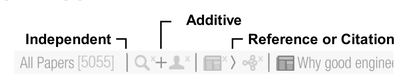
Fig. 7. History token separators.
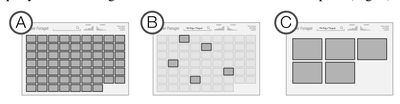
Fig. 8. Stages of the reordering animation. (A) initial state, (B) removed papers fade away, (C) remaining tiles move and resize into new position.
Fig. 9. Example of a paper tooltip.
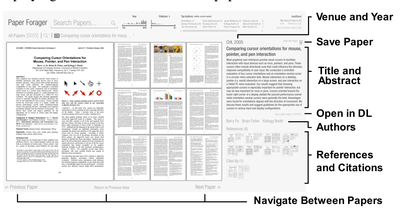
Fig. 10. Interface elements of the single paper view.
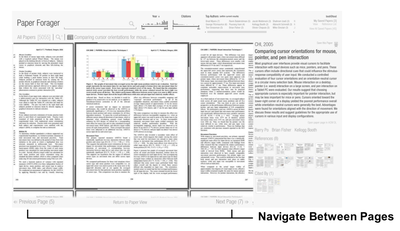
Fig. 11. The page view displays individual pages.
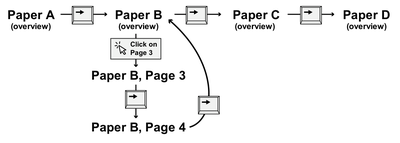
Fig.12. Workflow for navigating between and within papers. (Note: “Paper B” has only 4 pages.)
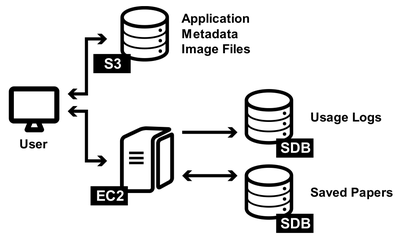
Fig. 13. System architecture diagram.
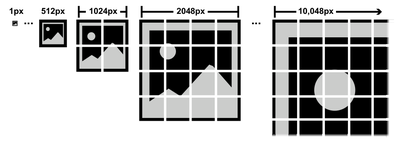
Fig. 14. Image Pyramid data format example.
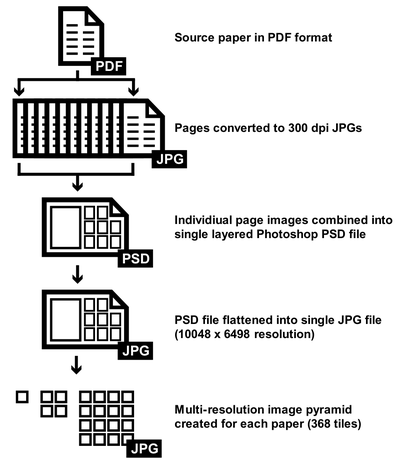
Fig. 15. Data processing pipeline.
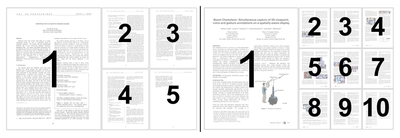
Fig. 16. Sample 5-page (left) and 10-page layouts (right).
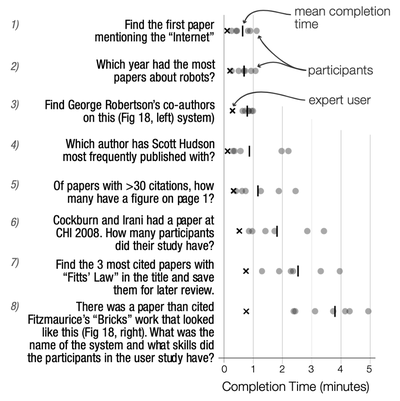
Fig. 17. Task completion times for the 6 study participants, as well as times from one ‘expert’ user.
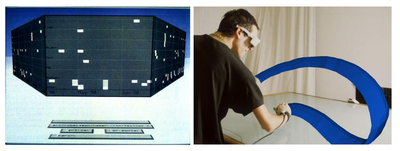
ig. 18. Images used in questions 3 (left) and 8 (right).
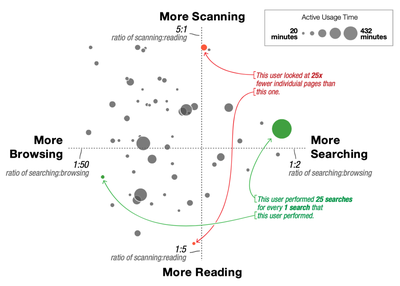
Fig. 19. Usage log analysis showing usage patterns for finding behavior (x-axis) and scanning vs. reading (y-axis).
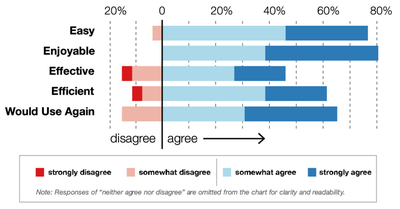
Fig. 20. Results from the subjective questions asked after the external deployment.
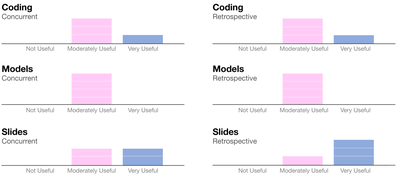
Figure 1: Participants’ ratings of how useful the information they shared was, by domain and condition. The 7-point Likert scale results (between 1-Not Useful, and 7-Extremely Useful) have been aggregated into three categories: Not Useful (1, 2), Moderately Useful (3, 4, 5), and Very Useful (6, 7).
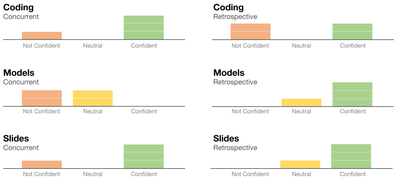
Figure 2: Participants’ ratings of how confident they were that they captured all the important information to share. The 7- point Likert scale results (between 1-Very Not Confident, and 7-Very Confident) have been aggregated into three categories: Not Confident (1, 2, 3), Neutral (4), and Confident (5, 6, 7).
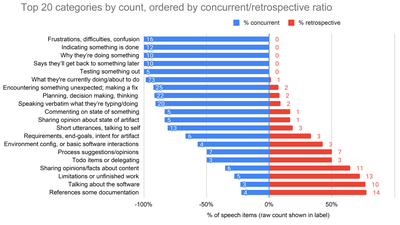
Figure 3: Top 20 categories by count (i.e., all categories with 5 or more speech items), ordered by concurrent to retrospective occurrence ratio. See full data in supplementary material.
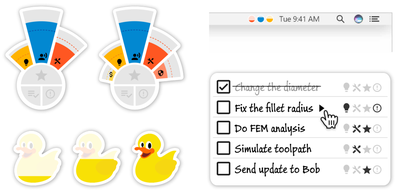
Figure 4: Several possible designs for the user interface of a think-aloud computing system.
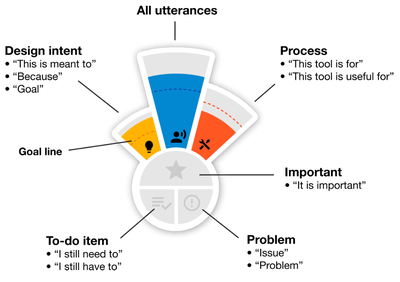
Figure 5: Visual widget that allows people to reflect on the amount they have spoken about different categories of in- formation. Wedges fill up as that element is spoken about, and subtle prompts encourage the user to speak about a topic. The annotations indicate which words will ensure au- tomatic classification into those categories.
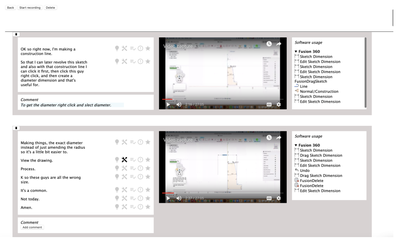
Figure 6: Live archive window, where users can review recorded speech, screen recording, and meta-data from past sessions, as well as the current capture session.
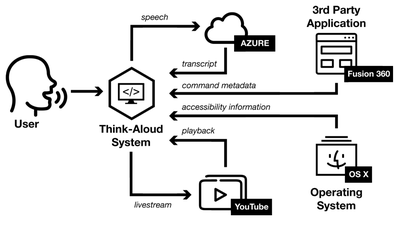
Figure 7: System overview of the implemented think-aloud computing system
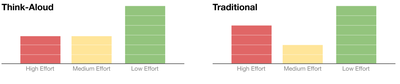
Figure 8: Ratings of efort it took to document knowledge, for think-aloud and traditional conditions. The 7-point Likert scale results (between 1-Very Low Efort, and 7-Very High Efort) have been aggre
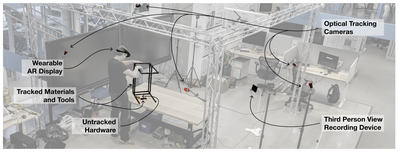
Figure 1: Overview of the AuthAR system setup, highlighting the key hardware components.
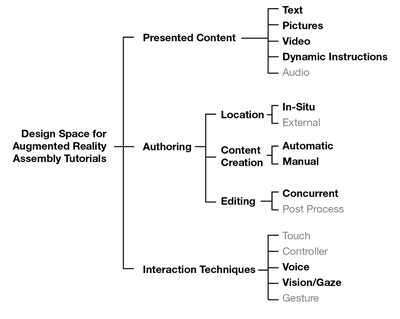
Figure 2: Design Space for AR Assembly tutorials. The design decisions we made are highlighted in black.
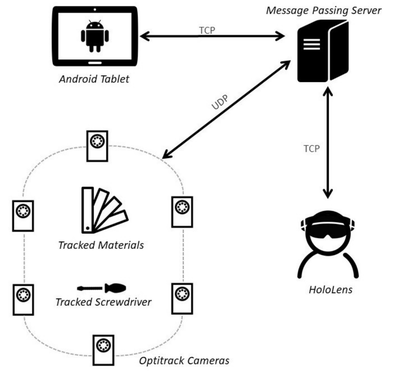
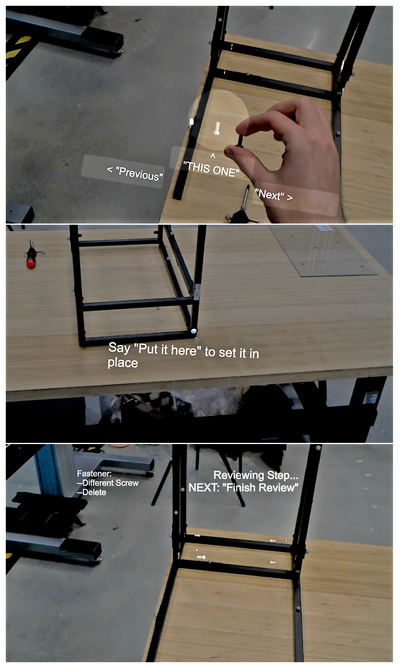
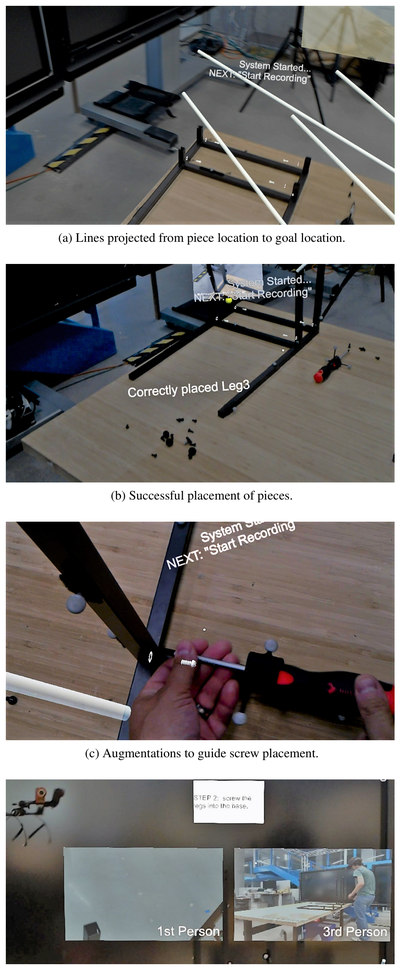
Figure 3: AuthAR System Diagram. A message passing server sends position data of materials and a screwdriver from coordinated Optitrack cameras to the HoloLens. The HoloLens sends video segmenting commands to the Android tablet through the server.
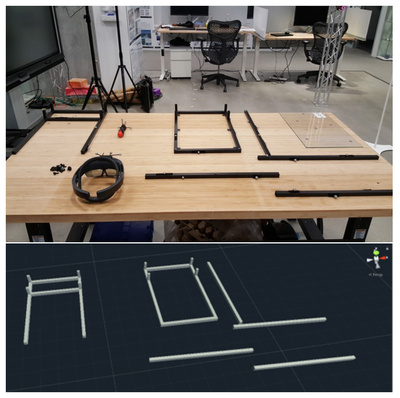
Figure 4: Example configuration of tracked materials in the physicalenvironment (top) and transform data streaming from Optitrack tothe Message Passing Server to provide positional tracking of invisi-b
Figure 5: Simultaneous 3rd person video recording from the An-droid tablet (left) and 1st person video recording from the HoloLens(right).
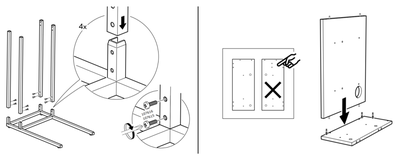
Figure 6: Example usage of callout points in paper-based instruc-tions. Callout points draw attention to the alignment of the holeson the materials (left). Instructions can convey negative examplesof
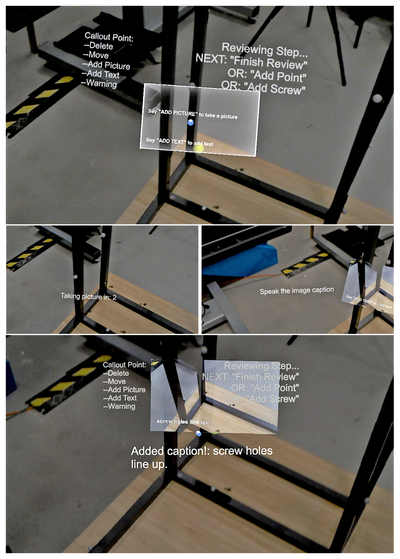
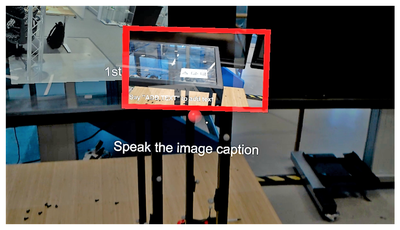
Figure 7: After adding a callout point, that point has a canvas to fillin (top). The author can add a picture (left), and a caption (right)and then has a completed callout point (bottom).
Figure 8: Tutorial author setting a warning about fragile glass usinga red callout point and a red border.
Figure 9: User adding virtual screws to the tutorial. The user canhold the physical screw up to the virtual one for comparison (top),and if the screw hole was not automatically generated, the user can
Figure 10: Example playback of a generated tutorial.
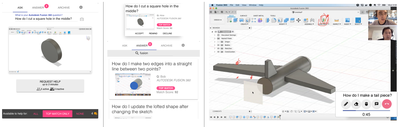
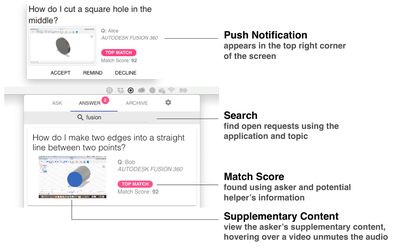
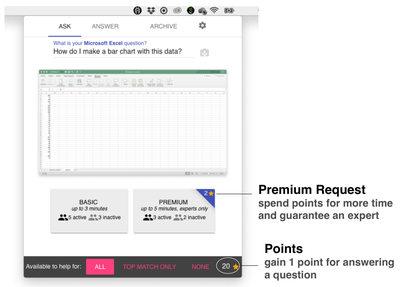
Submit a Help Request Answer Community Questions Connect with a Helper for 3 Minute Help Sessions Figure 1. MicroMentor system enabling rapid help via short 1-on-1 help sessions.
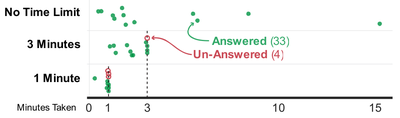
Figure 2. Question times in the formative study, many were successfully answered (rated 4 or 5) in 1 and 3 minutes.
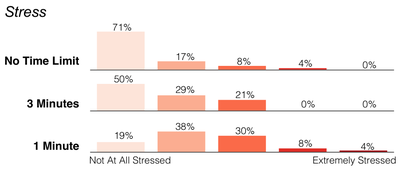
Figure 3. Reported stress levels for each time limit, note that 3 minutes has only slightly higher stress than no limit.
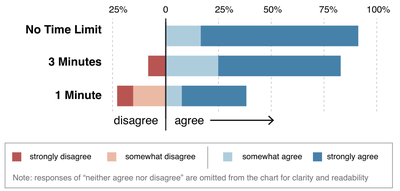
Figure 4: Responses to whether or not the asker felt their questions were successfully answered.
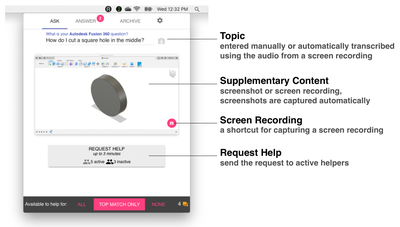
Figure 5: The view the asker sees when submitting a request, showing the topic and supplementary content.
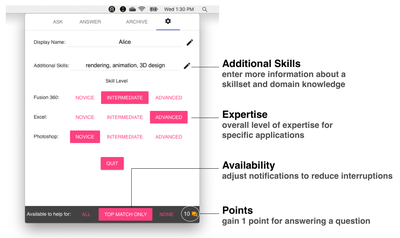
Figure 6: Settings page where users can specify their expertise, availability, and additional skills.
Figure 7. Receiving a help request in two ways, through a push notification, or by browsing a list of open questions.
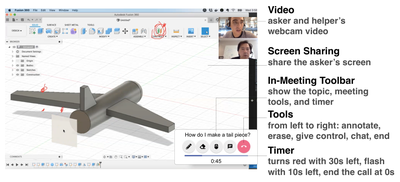
Figure 8. A live help session with active video chat, screen sharing, annotation tools, and a countdown timer.
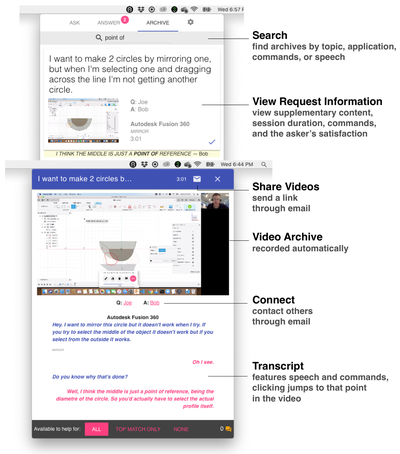
Figure 9. Archive view, where users can search through past help sessions, read the transcript, connect with the helper and share the video with others.
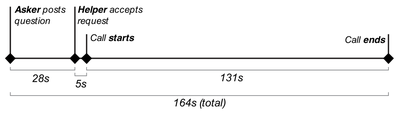
Figure 10: Timeline of an average help session, from the time posting the question to when the call ends.
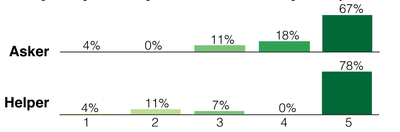
Figure 11. Asker and helper's ratings (out of 5 stars)
Figure 12: Alternative design for ‘premium’ help sessions that could incentivize greater participation from experts.
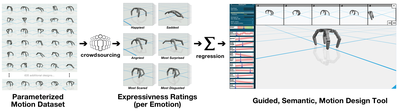
* Figure 1: Overview of the semantic motion design framework: It consists of four main building blocks-- (a) a dataset of parameterized expressive robot motions, (b) a crowdsourcing set-up for estimating the emotional perception of motions in the dataset, (c) regression analysis for establishing relationships between motion parameters and the emotional perception of the resultant motion, and (d) an intuitive design tool backed by these data-driven parameter-emotion relationships.
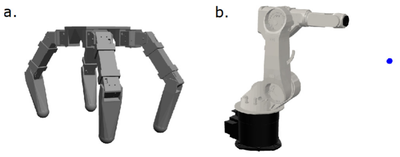
Figure 2: Users can design expressive motions for two distinct types of robots: (a) a quadruped, and (b) a robotic arm, while exploring the space of possible motions.
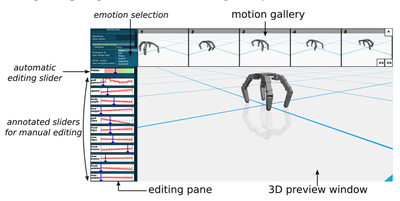
Figure 3: User interface overview. The 3D preview window renders the robot's motion.  The gallery and annotated sliders provide semantically relevant information at design time.
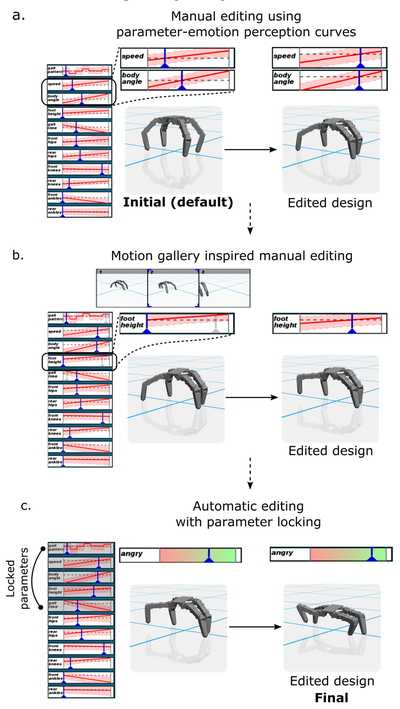
Figure 4: An example workflow designing an angry robot.
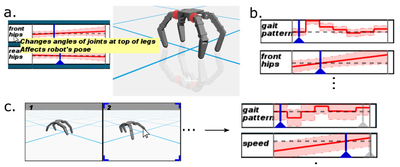
Figure 5: UI elements. (a) Parameter information is displayed as tooltips, and highlighted directly on the robot. (b) Parameter-emotion perception curve (in red) is visualized with an uncertainty band
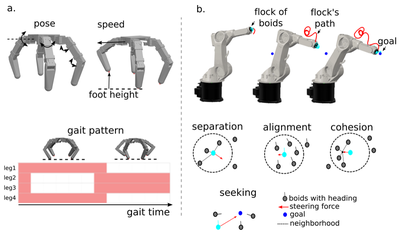
Figure 6: (a) The quadruped’s motion is parameterized using joint poses, walking speed, foot height, gait time, and gait pattern (shown in red). (b) The arm is driven by a Boids flocking simulation. T
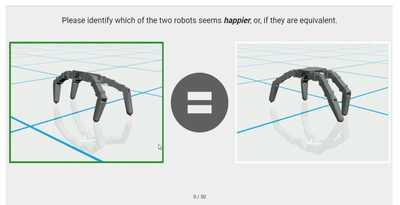
Figure 7: Interface crowd-workers used to judge emotion.
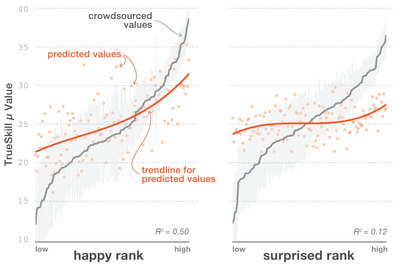
Figure 8: Comparison of predicted emotion values (orange) with their crowdsourced values (gray) for the test samples of the quadruped motion dataset. The best (happy) and worst (surprised) fitting emotion categories are displayed.
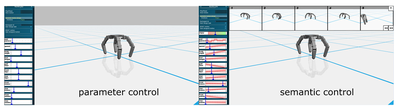
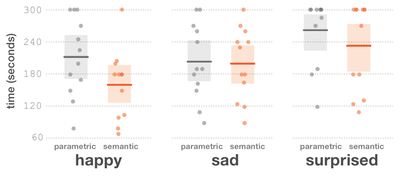
Figure 8: Interfaces used in the study two conditions, parameter (left) and semantic (right).
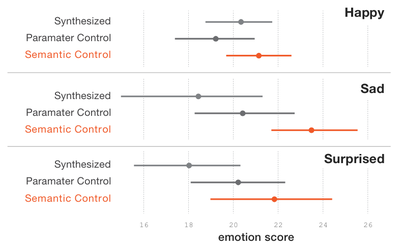
Figure 9: Mean emotion perception scores of the top 5 designs from the original dataset (Synthesized) with those created by the study participants. Bars show 95% CIs.
Figure 10: Individual and average design times are shown using dots and lines respectively, for both of our UIs. Shaded regions represent 95% CI.
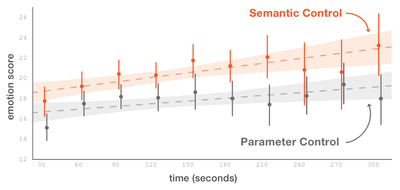
Figure 11: The evolution of the quality of user-designs (bars represent 95% CIs at each time step). The dotted lines represent the linear fit of mean scores over all emotions and participants, and the bands are a 95% CI around the fit.
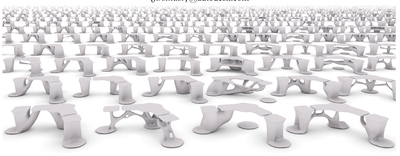
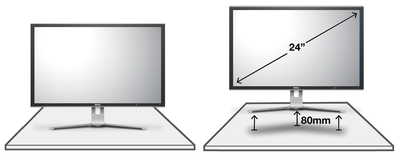
Figure 1. Conceptual illustration of a collection of design variations for a single task: lifting a computer monitor 80mm off a desk.
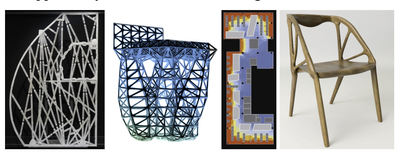
Figure 2. A selection of objects using a divergent generative design approach. From left to right: airplane partition, truss-based chair, office layout, and the Elbo chair.
Figure 3. Sample design task, raising a computer monitor off the surface of a desk.
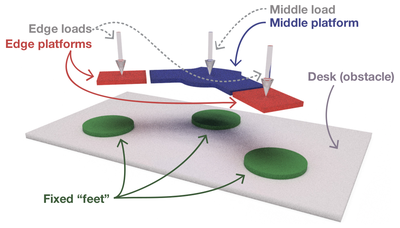
Figure 4. Problem definition describing the locations of the feet, platforms, and desk surface geometry, and the position and direction of the static forces.
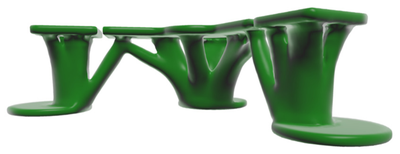
sure 5. A single design, produced with middle and ou ids of 500N each.
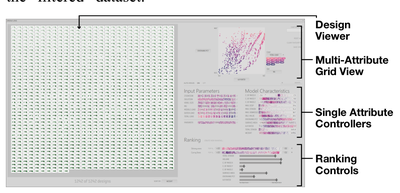
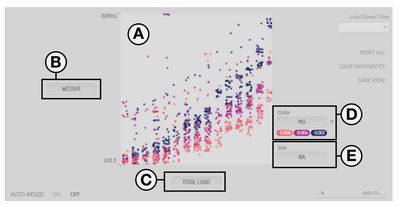
Figure 6. Dream Lens interface.
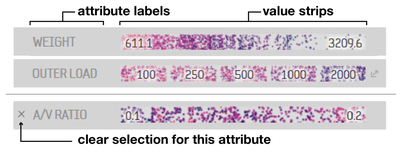
Figure 7. Three example Single-Attribute Controllers. In the bottom one, a selection has been made, as indicated by the ‘x’ button, which will clear the selection.
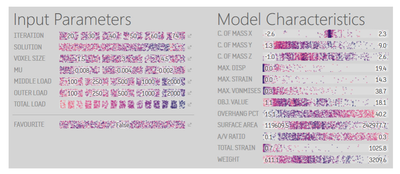
Figure 8. The full collection of single-attribute controls, separated in two columns.
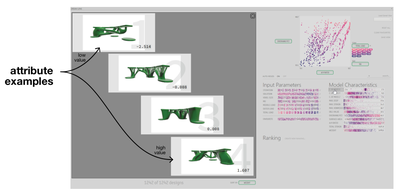
Figure 9. Attribute Example view for Center of Mass X.
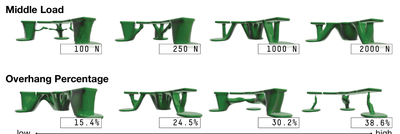
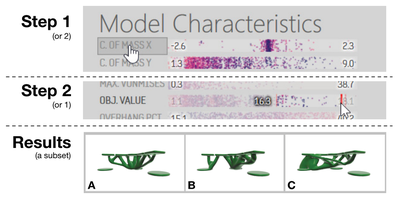
— wa Figure 10. Representative designs for, Middle Load and Overhang Percentage.
Figure 11. Multi-Attribute Grid (MAG) showing the relationship between Weight and Total Load.
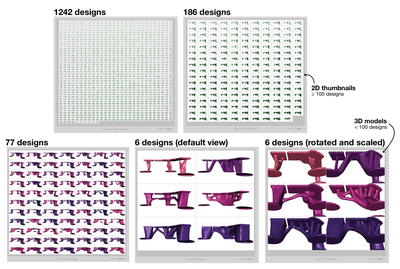
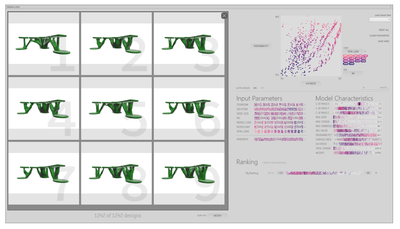
Figure 12. The design viewer with the initial (top left), and filtered views with 1242, 186, 77, and 6 design options.
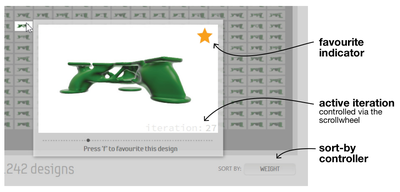
Figure 13. A design tooltip displayed when the cursor is over a model thumbnail.
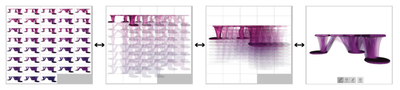
Figure 14. The standard 3D grid view (left), animating to the stacked view (right).
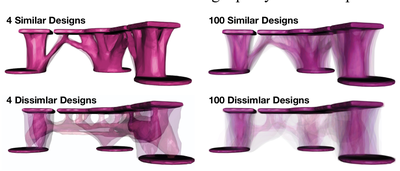
Figure 15. Sample stacked views for 4 (left) and 100 (right), similar (top) and dissimilar (bottom) designs.
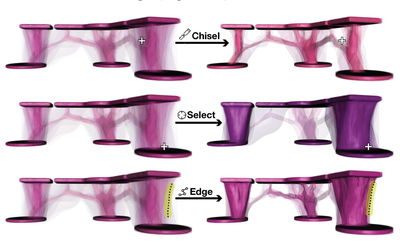
Figure 16. The effects of the chisel, select, and edge tools in the stacked model mode.
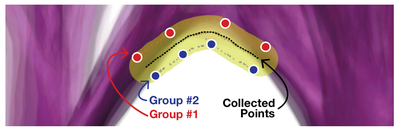
Figure 17. Graphical representation of the edge tool.
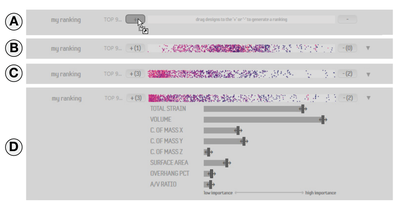
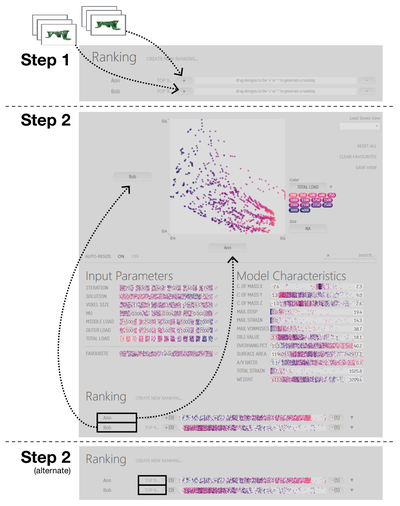
Figure 18. Steps involved in creating a ranking (A-C), and optionally, adjusting the importance weightings of the various attributes (D).
Figure 19. Top Nine view for the specified ranking.
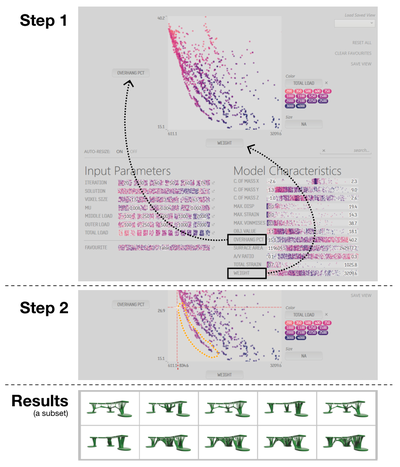
igure 20. Steps to find those designs which best combine < yw weight with a low overhang percentage.
Figure 21. Possible workflow for reconciling preferences of multiple stakeholders.
Figure 22. Possible steps for finding “non-standard” results within the dataset.
Figure 23. The task descriptions and completion times from the lab study. Black bar indicates median completion times.
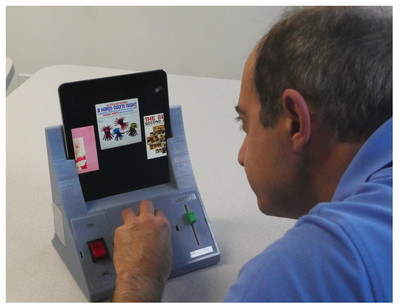
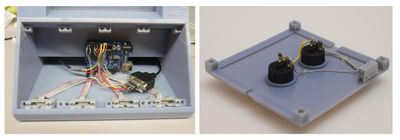
Figure 1: AMI, a reconfigurable tangible music player. By reconfiguring modules in the base, the player can be customized to a user’s specific needs.
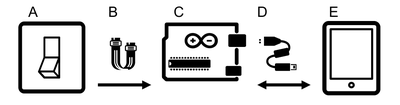
Figure 2: System overview: Input components (A) connect using ribbon cables (B) to an Arduino (C) in the chassis, which communicates via a serial cable (D) to an iPad (E).
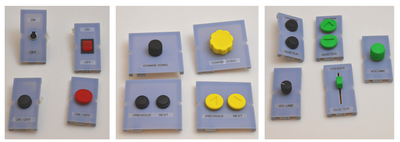
Figure 3: Modular components used with AMI. Left) power components; Centre) tuning components; Right) Volume
Figure 4: Left) Internal view of chassis, showing connectors and circuitry; Right) Wiring for sample input component. 3.2 Display and Audio Software A custom iOS application runs on the iPad to provid
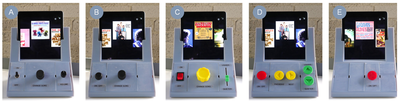
Figure 5: Sample configurations illustrating the adaptability to a variety of needs and use cases of fictitious, simplified personas. These examples serve to highlight how different components may sup
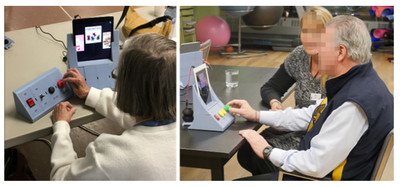
Figure 6: Individuals from each of the two sessions configuring AMI by testing components.
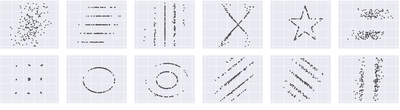
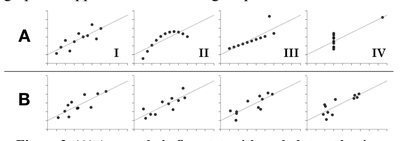
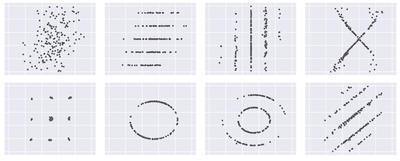
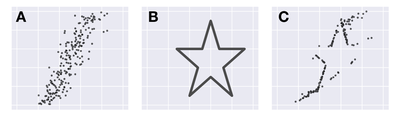
Figure 1. A collection of data sets produced by our technique. While different in appearance, each has the same summary statistics (mean, std. deviation, and Pearson’s corr.) to 2 decimal places. (x =54.02, y = 48.09, sdx = 14.52, sdy = 24.79, Pearson’s r = +0.32)
Figure 2. (A) Anscombe’s Quartet, with each dataset having the same mean, standard deviation, and correlation. (B) Four unstructured datasets, each also having the same statistical properties as those in Anscombe’s Quartet.
Same Stats, Different Graphs: Generating Datasets with Varied Appearance and Identical Statistics through Simulated Annealing
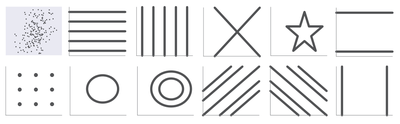
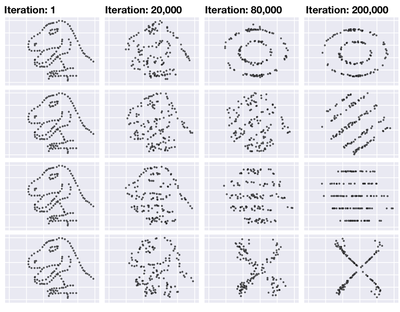
Figure 3. The initial data set (top-left), and line segment collections used for directing the output towards specific shapes. The results are seen in Figure 1.
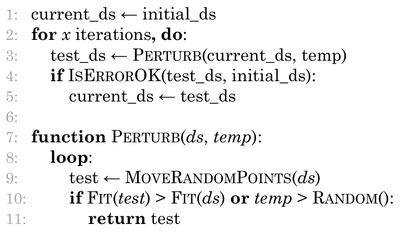
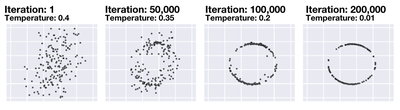
Figure 4. Progression of the algorithm towards a target shape over the course of the cooling schedule.
Figure 5. Example datasets are equal in the non-parametric Statistics of x/y median (53.73, 46.21), x/y IQR (19.17, 37.92), and Spearman’s rank correlation coefficient (+0.31).
Figure 6. Creating a collection of datasets based on the “dinosaurus” dataset. Each dataset has the same summary statistics to two decimal places: (x =54.26, y = 47.83, sdy = 16.76, sdy = 26.93, Pearson’s r = -0.06).
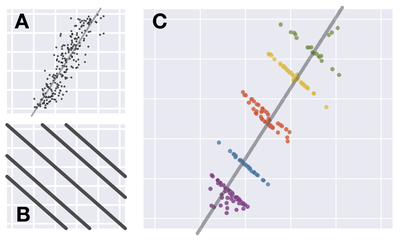
Figure 7. Demonstration of Simpson's Paradox. Both datasets (A and C) have the same overall Pearson's correlation of +0.81, however after coercing the data towards the pattern of sloping lines (B), each subset of data in (C) has an individually negative correlation.
Figure 8. Example of creating a “mirror” dataset as in [8].
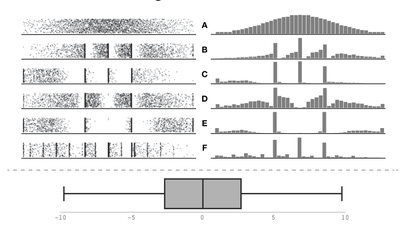
Figure 9. Six data distributions, each with the same 1* quartile, median, and 3" quartile values, as well as equal locations for points 1.5 IQR from the 1% and 3"4 quartiles. Each dataset produces an identical boxplot.
Figure 10. Undesirable outcome (C) when coercing a strongly positively correlated dataset (A) into a star (B).
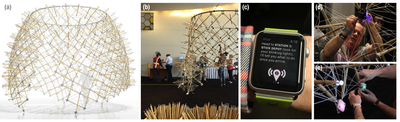
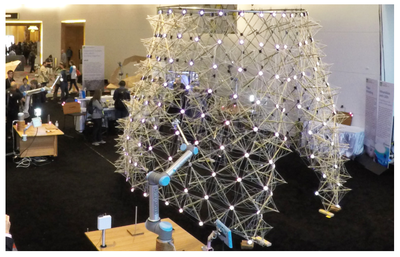
Figure 1. We explore crowdsourced fabrication through the collaborative construction of a 12-foot tall bamboo pavilion (a). The pavilion was built with the assistance of more than one hundred untraine
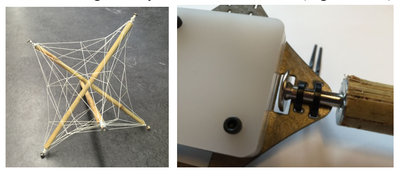
Figure 2. An individual tensegrity module (left), and a connector node (right).
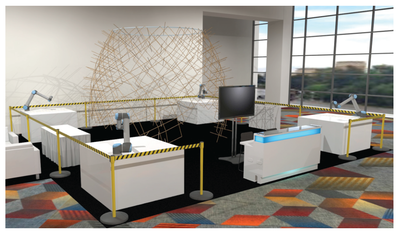
Figure 3. The construction space consisted of a number of stations surrounding the structure being constructed.
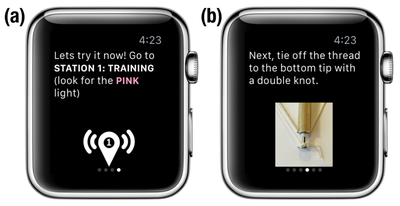
Figure 4. Example guidance screens from the smartwatch app.
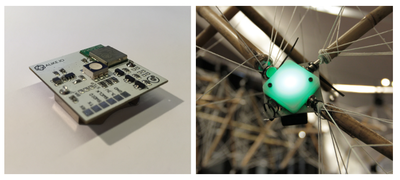
Figure 5. The wireless RGB LED control board (left), and an assembled connector node (right).
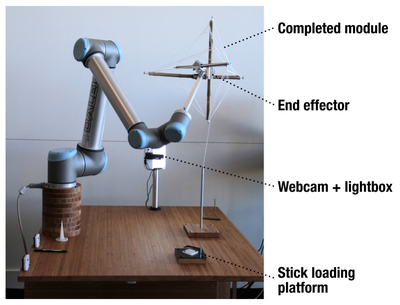
Figure 6. Individual Hive components are made up of three bamboo sticks, with a thread winding holding the module together. The winding is performed by a 6-axis robotic arm.
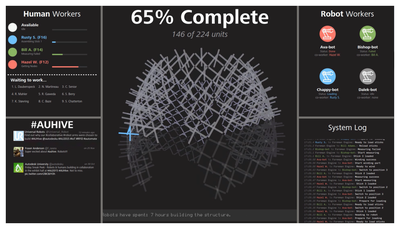
Figure 7. The foreman engine dashboard, displayed at the entrance to the exhibit.
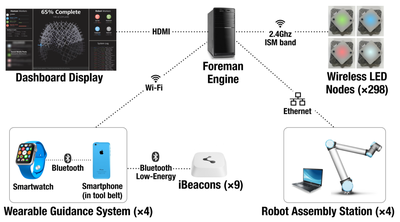
Figure 8. The system architecture.
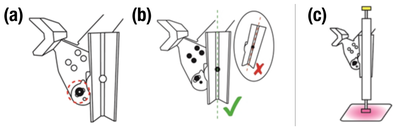
Figure 9. Instruction provided for loading the bamboo sticks. The user loosened a bolt (a) and then adjusted the angle of a clamp (b). (c) An LED on the loading platform indicates which stick to inser
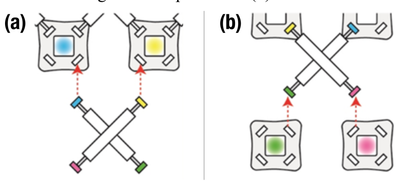
Figure 10. (a) Connector nodes on the structure pulse in colors that indicate the location and orientation to attach a part. (b) The worker’s connector nodes pulse in colors that indicate the end caps
Figure 11. The completed pavilion on Day 3.
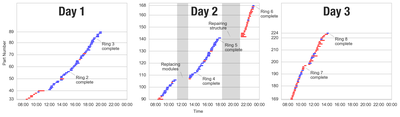
Figure 12. Build progress on the pavilion over the three days of the exhibit. Each line represents the start and end time for one part. Blue lines represent parts built by volunteer participants, while red lines indicate parts built by staff.
Figure 13. Median times for individual steps in the build process (volunteer participants).
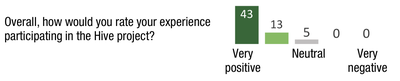
Figure 14. Overall ratings of the building experience.
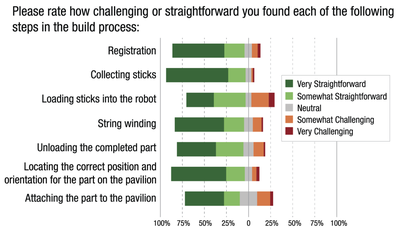
Figure 15. Ratings of individual steps in the build process.
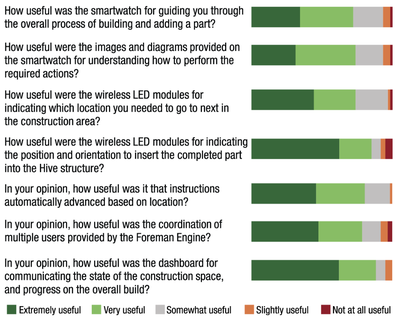
Figure 16. Ratings of individual guidance mechanisms.
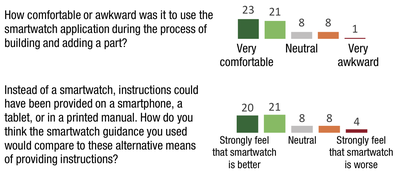
Figure 17. Additional survey questions about the smartwatch.
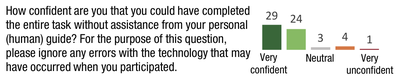
Figure 18. Self-rated confidence that participants could complete the task without assistance.
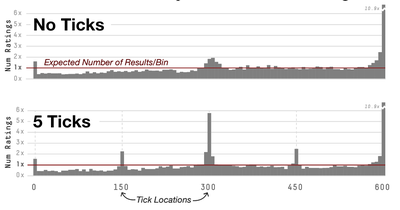
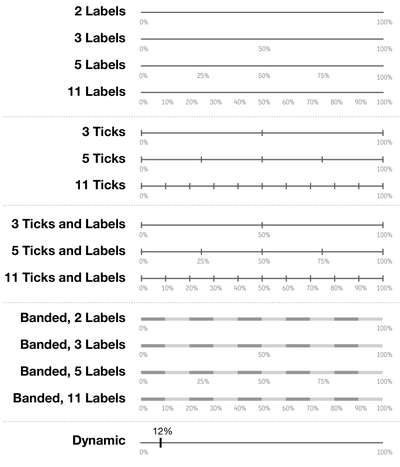
Figure 1. Distribution of survey responses when asked to “rate the blackness” of 50 shades of grey, spread at perceptually equal distances between white and black. The only difference between the surveys is the visual presentation of the slider (on the left), shown with no tick marks, or 5 tick marks. Arrows on the x-axis of the graphs indicate the locations of the tick marks.
Figure 2. 50 shades of grey used for the perceptual judgment task of Study #1, selected at perceptually equal distances using the CIE L*a*b* colour system.
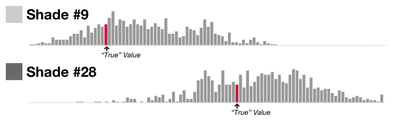
Figure 3. Response distributions for two representative shades of grey from a pilot study.
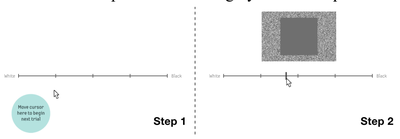
Figure 4. The two steps of a single trial.
Figure 5. Example low and high-bias rating distributions.
Figure 6. Slider conditions used to answer the question "Do Ticks Matter?"
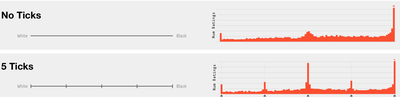
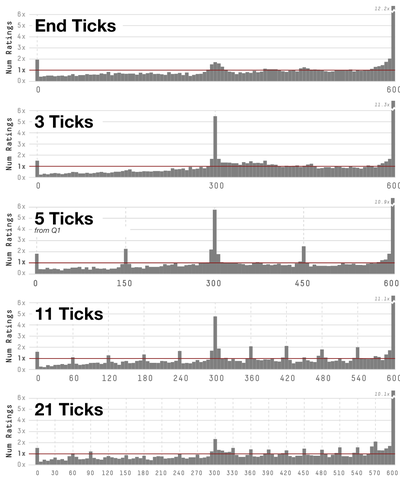
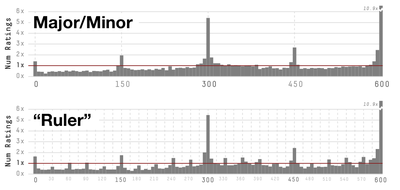
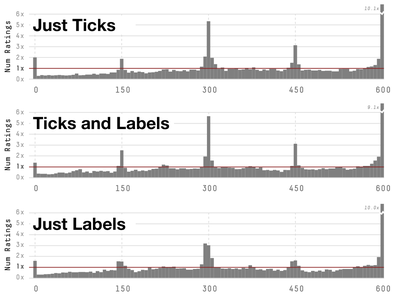
Figure 7. Distribution of responses for the No Ticks and 5 Ticks conditions. The red line at ‘1x’ shows the expected number of results in each bucket of the histogram. The x- axis labels (and dashed lines) show the location of the tick marks displayed on the slider.
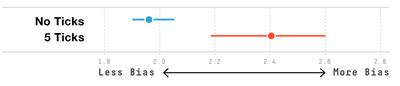
Figure 8. Mean bias scores for the No Ticks and 5 Ticks conditions. Error bars show 95% CIs.
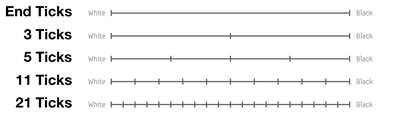
Figure 9. Slider conditions used to investigate the effect on varying the number of ticks.
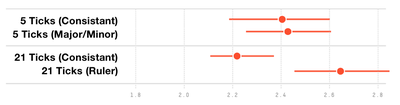
Figure 10. Distributions of responses for the various number-of-tick conditions.
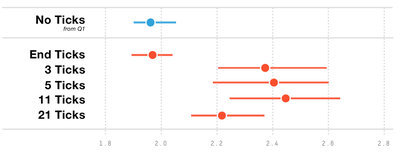
Figure 11. Mean bias scores for varying number of tick marks. Error bars show 95% CIs.
Figure 12. Variations on the visual weight of tick marks.
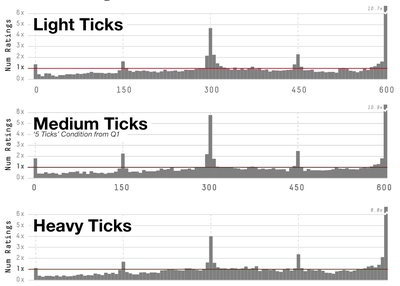
Figure 13. Distributions of responses for the tested weight-of-tick conditions.
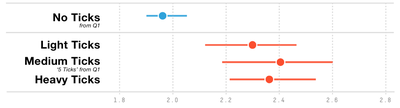
Figure 14. Mean bias scores for varying the weight of the tick marks. Error bars show 95% CIs.
Figure 15. Sliders used to test the effect of “major” and “minor” ticks on the same scale
Figure 16. Results for Major/Minor Tick Mark examples.
Figure 17. Mean bias results for the Major/Minor tick mark conditions.
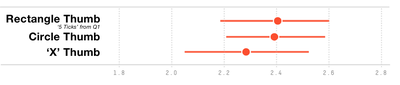
Figure 18. Thumb slider styles used.
Figure 19. Mean bias scores for varying the shape of the thumb slider. Error bars show 95% CIs.
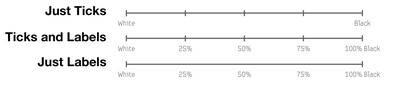
Figure 20. Sliders to test the effect of the combination of labels and ticks.
Figure 21. Results for ticks and/or labels.
Figure 22. Mean bias scores for ticks and/or labels.
Figure 23. Two variations of a “banded” slider.
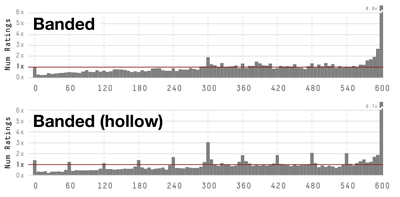
Figure 24. Results for banded slider variations.
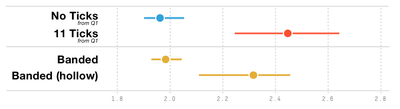
Figure 25. Mean bias scores for the banded and banded (hollow) conditions. No Ticks and 11 Ticks are included for comparison. Error bars show 95% CIs.
Figure 26. Dynamically labelled slider design.
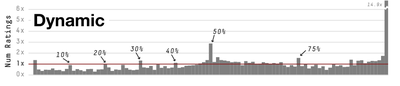
Figure 27. Distribution of results for the dynamic slider.
Figure 28. Bias comparison between Dynamic and No Ticks.
Figure 29. Slider designs tested in the second set of objective precision experiments.
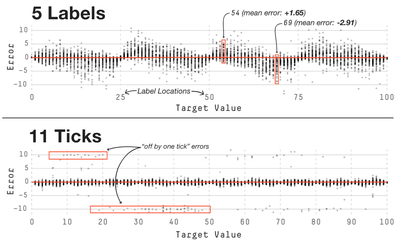
Figure 30. “Error maps” for the 5 Labels and 11 Ticks conditions from the second set of experiments.
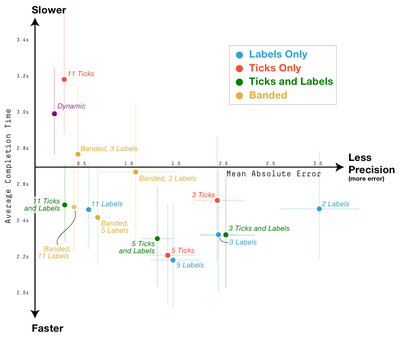
Figure 31. Speed vs. Precision results from the second set of experiments. Error bars show the 95% CIs for completion time vertically, and for mean absolute error horizontally. (Note: horizontal error bars on the most precise conditions are too short to extend beyond the bounds of their mark.)
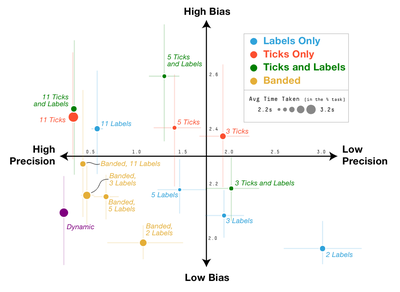
Figure 32. Bias vs. Precision results. Bias is measured using the perceptual judgement greyscale task, while precision (and speed) are measured using the objective percentage finding task. The best combination of properties is “High Precision” and “Low Bias”, in the lower left hand corner.
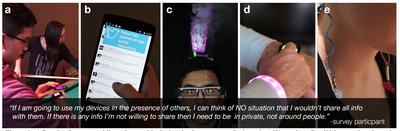
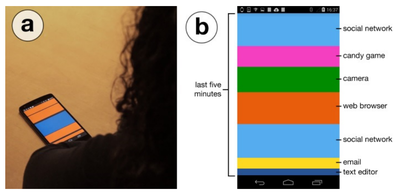
Figure 1. a) People often use mobile and wearable devices in the presence of others. b-e) We explore Candid Interaction through several prototypes for sharing device activity using a range of technolo
Figure 2. Relationship of candid interaction to other types of social interaction in dimensions of Reeves et al. [35].
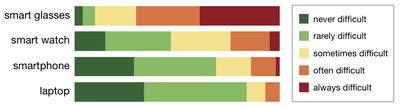
Figure 3. Participant responses on difficulty of determining device activity. According to perceptions, difficulty is related to the size and visibility of the display.
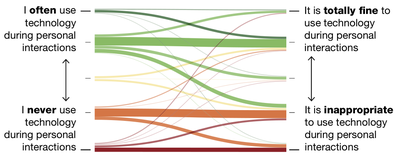
Figure 4. Correlation between Likert Scale responses on how often participants use technology during interpersonal encounters and whether it is appropriate to do so. Colours represent responses on the
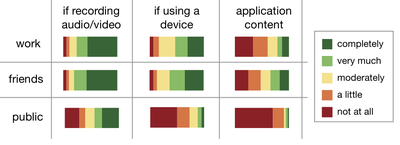
Figure 5. Likert Scale responses about how much information participants are willing to share in various contexts.
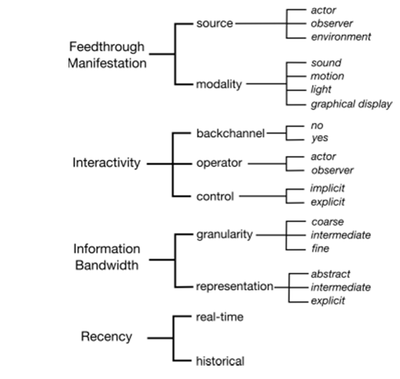
Figure 6. Design space for candid interaction.
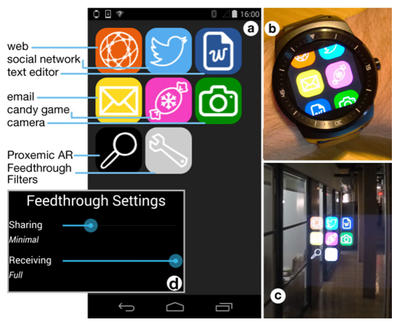
Figure 7. Our homogeneous platform has a similar look and feel on the (a) smartphone, (b) smart watch, and (c) smart glasses. (d) Feedthrough sliders control the extent of information sent and receive
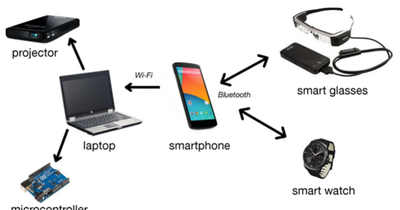
Figure 8. The candid interaction ecosystem links mobile and wearable devices to a laptop, which operates micorocontrollers and projectors in our prototypes.
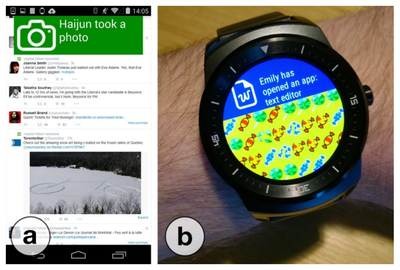
Figure 9. Grounding Notifications show a user’s device activity on a (a) smartphone, (b) smartwatch, or smart glasses.
Figure 10. Lockscreen Stripes encode app usage history (a) into stripes displayed when a smartphone is laid at rest (b).
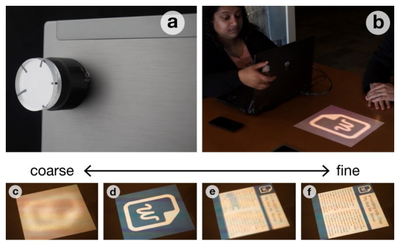
Figure 11. Semantic Focus. a, b) A physical knob controls the clarity of the projected image. c-f) The image gradually transitions from a blurred icon to a clear graphical display.
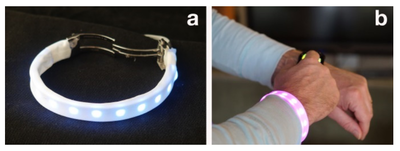
Figure 12. The Status Band apparatus (a) communicates device activity while the hand interacts with a device (b).
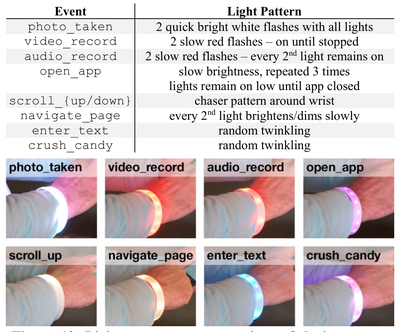
Figure 13. Light pattern representations of device events. Light colours match the associated app unless specified.
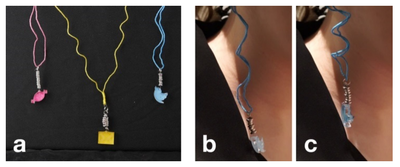
Figure 14. Iconic Jewellery reveals activity in an associated app (a) via motion. When the associated app is used, the jewellery moves from a relaxed (b) to contracted (c) state.
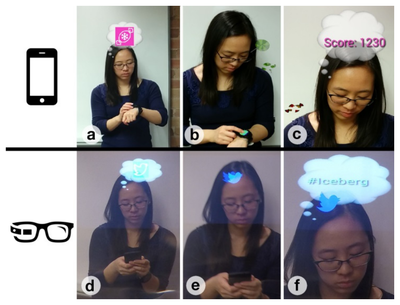
Figure 15. Proxemic AR augments the user’s image with their device activity on a smartphone (a-c) or smart glasses (d-f). Granularity increases as the observer moves from far (a, d) through intermedia
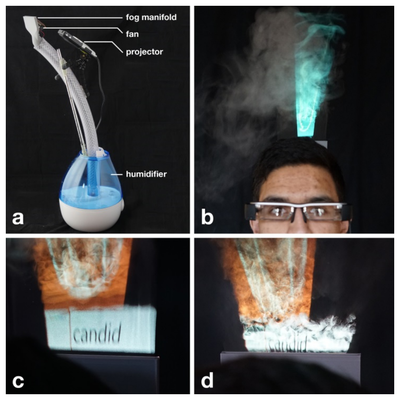
Figure 16. (a, b) The Fog Hat  projects a graphical display above the device user’s head. (c, d) The content of the display can be further obfuscated by turbulence from a fan.
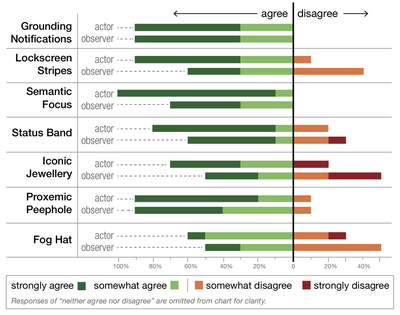
Figure 17. Perceived usability of each prototype. Participants were asked if they could easily use the method as an actor and whether they could interpret information as an observer.
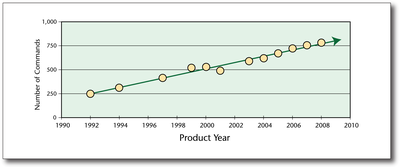
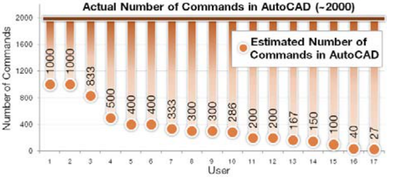
Figure 1. The Number of Commands in AutoCAD.
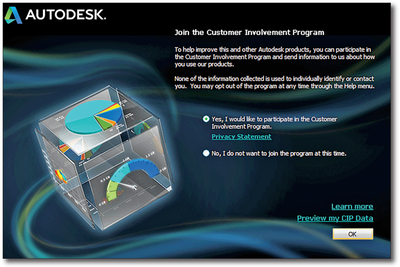
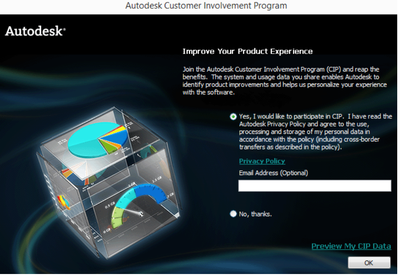
Figure 2. CIP Enrollment Interface in AutoCAD 2012.
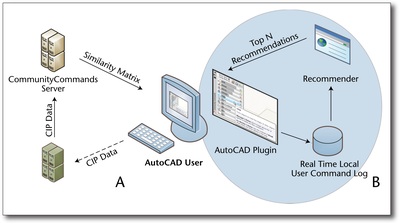
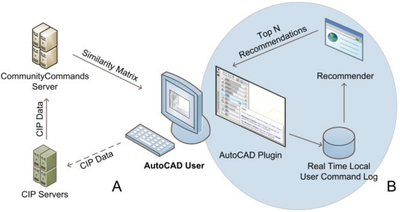
Figure 3. System Architecture.
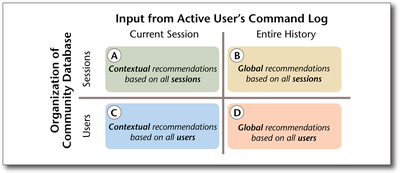
Figure 4. Design Space of Command Recommendation Systems.
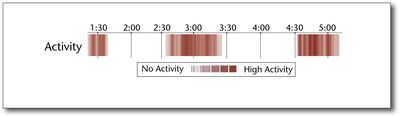
Figure 5. Example User History of a Typical User Showing Distinct Sessions of Activity with Breaks in Activity in Between.
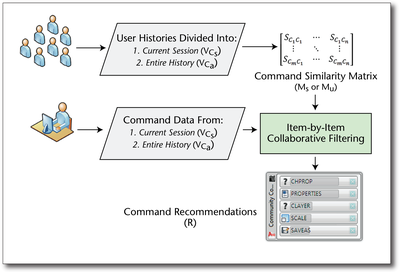
Figure 6. The Recommendation Process with the Two Decision Points of Using User Histories Broken Up into Sessions or Users.
Figure 7. k-Tail Evaluation of a Command Sequence.
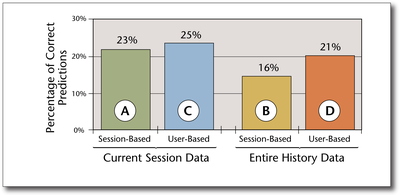
Figure 8. Offline Evaluation of Four Approaches in Figure 5.
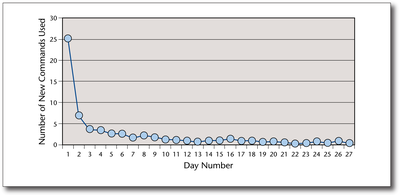
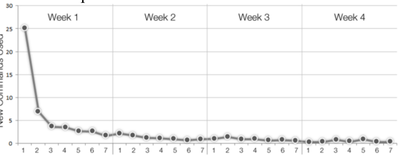
Figure 9. New Command Adoption Rates Based on 27 Users.
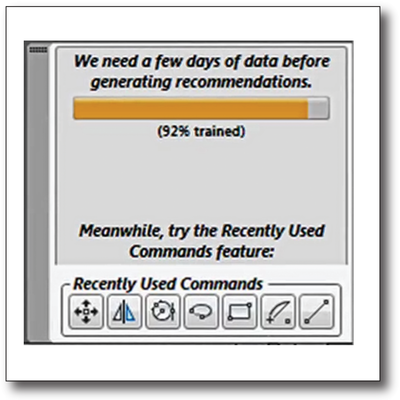
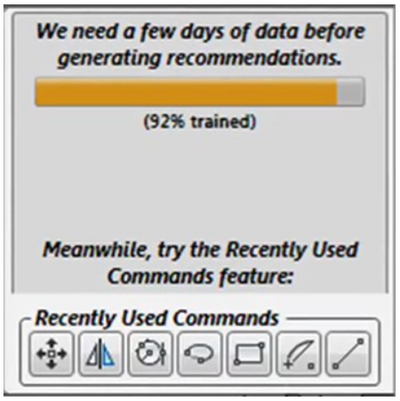
Figure 10. Recommender Training Phase UI.
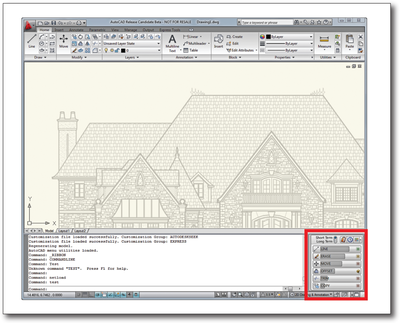
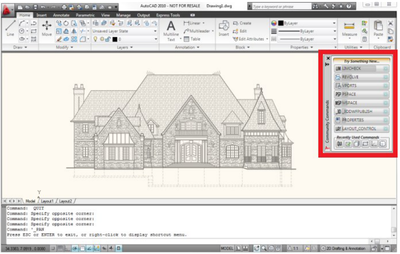
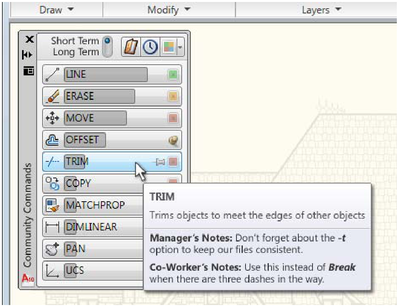
Figure 11. Recommender Plug-In Palette Is Opened in AutoCAD.
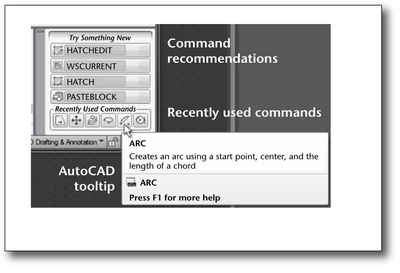
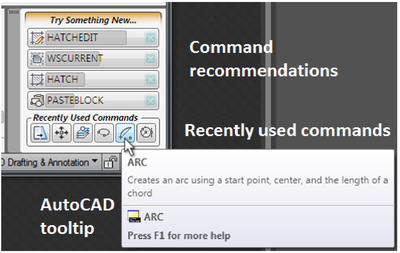
Figure 12. Recommended and Recently Used Commands.
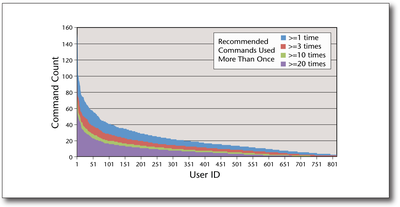
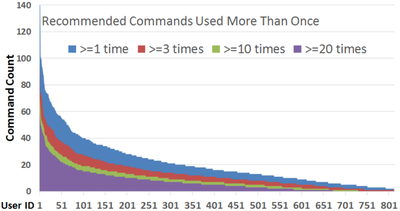
Figure 13. Recommended Command Adoption.
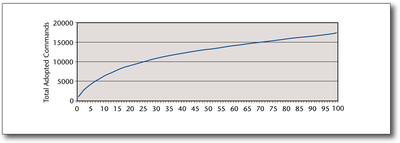
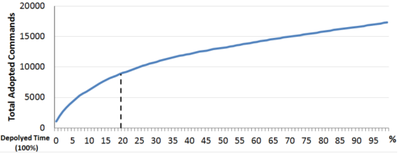
Figure 14. Total Adopted Useful Recommendations Over Deployed Time.
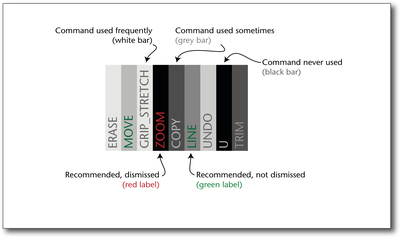
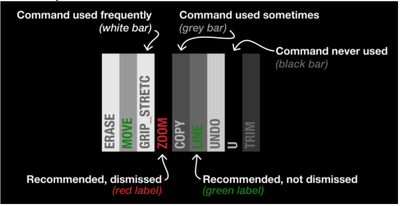
Figure 15. Legend of Software Usage DNA Diagram.
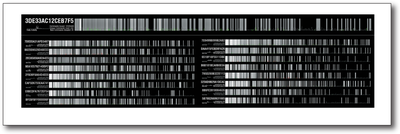
Figure 16. Software Usage DNA Diagrams from the 17 Most Active Users.
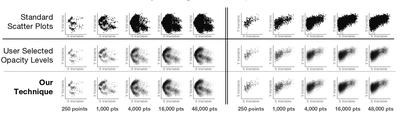
Figure 1. Scatter plots for two data sets (left side and right side) with varying numbers of data points rendered. The top row shows the appearance with an individual point opacity of 100%, while the second and third rows show the crowd-sourced results for the opacity scaling task and the results of our technique respectively.
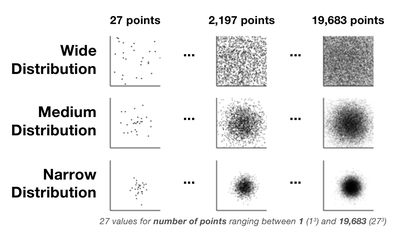
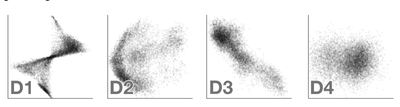
Figure 2. The three distribution types used in the first study, with representative samples from the number of point range.
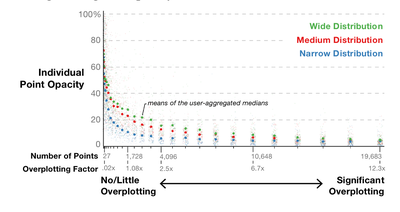
Figure 3. Point opacity values from the first study.
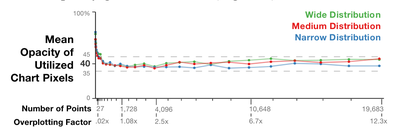
Figure 4. Mean opacity of the utilized chart pixels from the charts produced by the users in Study One.
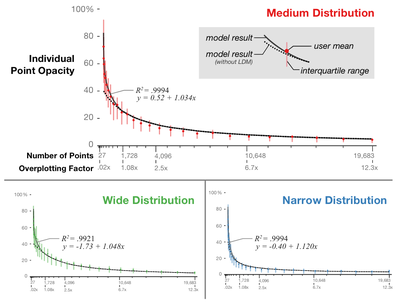
Figure 5. Graph of the algorithmic model results overlaid on the user-generated results.
Figure 6. Distributions of data used for the validation study.
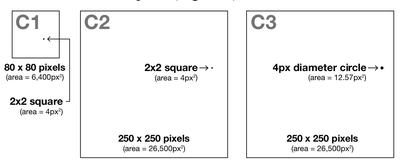
Figure 7. Grid/Dot configurations used for Study Two.
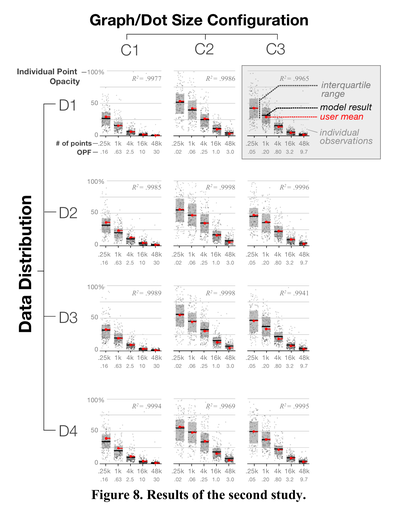
30 02 .06 Figure 8. Results of the second study.
Figure 1. Customer Involvement Program (CIP) Enrollment
Figure 2. System architecture.
Figure 3. Recommender plug-in palette is opened in
Figure 4. Recommended and recently used commands. Tooltip appears when mouse is hovered over the command.
Figure 5. New command adoption rates based on 27 users.
Figure 6. Recommender training phase UI
Figure 7. Recommended command adoption
Figure 8.  Total adopted useful recommendations over deployed time. The horizontal axis shows the percentage of time passed.
ae ere se FU Oe sSlUle_ eee eee ree Figure 9. Legend of software usage DNA diagram
Figure 10. Software usage DNA diagrams from the 17 most active users.
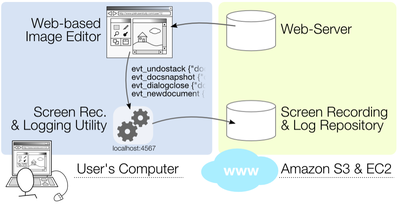
Figure 1. Architecture for remotely gathering synchronized screen recording and log data.
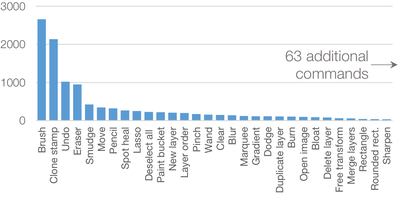
Figure 2. Invocation counts for the 30 most used tools.
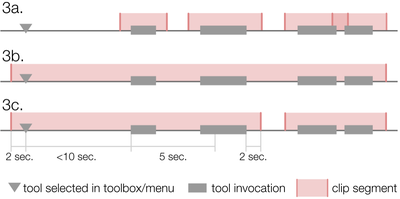
Figure 3. Three clip segmentation approaches. (a) Segment each invocation, (b) Include tool selection and merge contiguous invocations, (c) Our segmentation algorithm.
Figure 4. Distribution of median ratings for all six tools (left), and for each of the tool types (right).
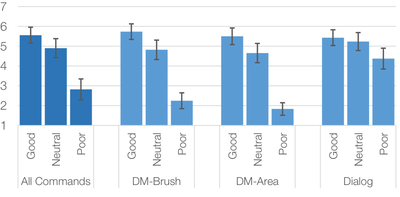
Figure 5. Average clip ratings for each of the expert-rating categories. Error bars show standard error.
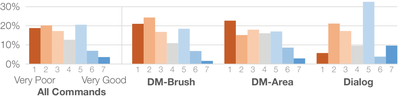
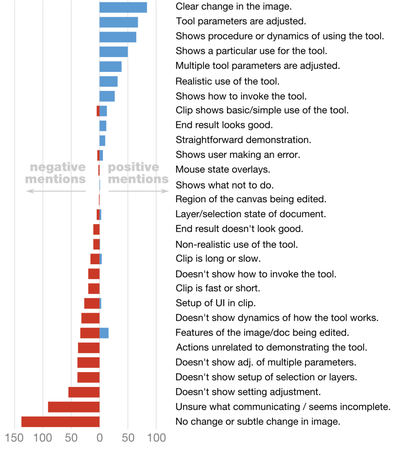
Figure 6. Participants’ rationales for their clip ratings. Blue bars on the right indicate attributes cited as positive. Red bars on the left indicate attributes cited as negative.
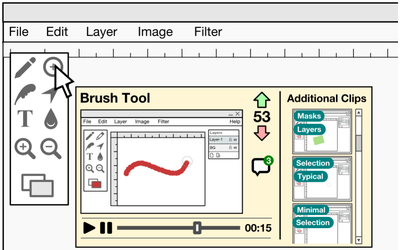
Figure 7. Design sketch showing how tool clips could be collaboratively filtered, and how multiple tool clips could be presented to users.
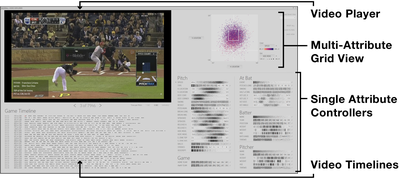
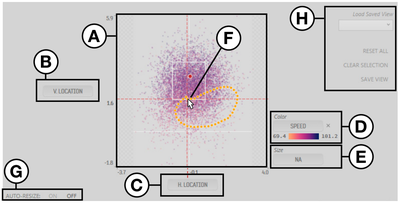
Figure 1. Overview of the Video Lens interface consisting of a video player in the top left surrounded by the Multi-Attribute Grid, Single Attribute Controllers, and Video Timelines which support the
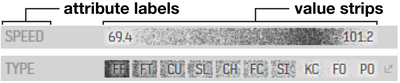
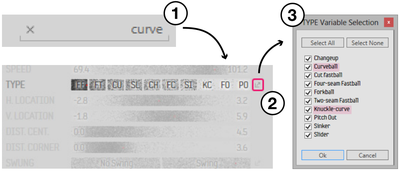
Figure 2. Two example Single-Attribute Controllers. On top, “Speed” is a continuous attribute, and on the bottom, “Type” is a discreet attribute.
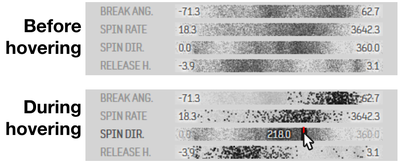
Figure 3. A collection of SACs before and during a hover operation.
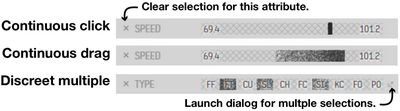
Figure 4. Example selections made in continuous and dis-creet Single-attribute Controllers.
Figure 5. Workflow of the search/highlight feature.
Figure 6. Elements within the Multi-Attribute Grid (MAG) area of the interface.
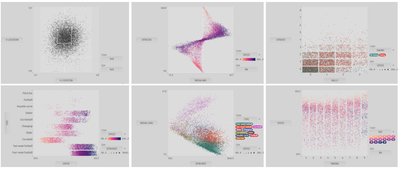
Figure 7. Examples of Multi-Attribute Grid with different combinations of attributes mapped to the dimensions.
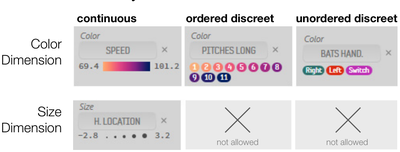
Figure 8. Color and Size dimension appearances for each of the attribute variable types.
Figure 9. A section of the video timelines. The red dot high-lights the event which is currently being played.
Figure 10. Video Playback section of the interface.
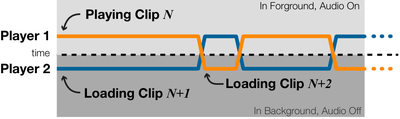
Figure 11. The next video clip in a sequence is always being preloaded by a second background video player.
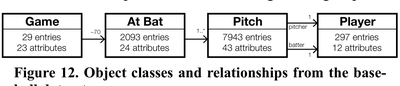
Figure 12. Object classes and relationships from the base-ball dataset.
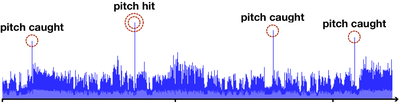
Figure 13. Audio waveform from a 2:15 long section of a baseball game showing the spikes during pitch events.
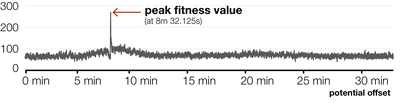
Figure 14. Graph of fitness values for a single game over a range of possible metadata offset times, with the maximum fitness value and time highlighted.
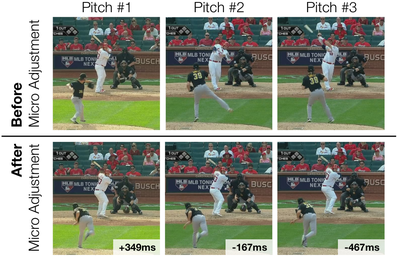
Figure 15.  Frame 0.5 sec into clip for using the one second auto-advance mode for three pitches before and after the au-dio-based timing micro adjustments are applied. (Note the varied position of th
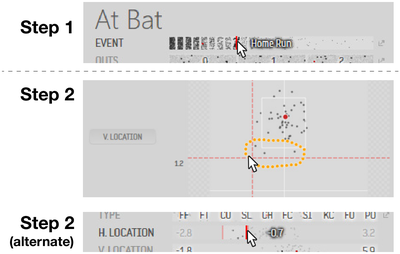
Figure 16. Watching the lowest pitches hit for a homerun.
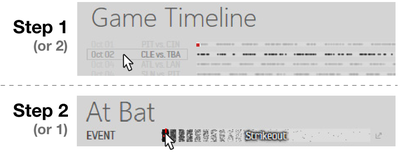
Figure 17. Watching all strikeouts in a particular game.
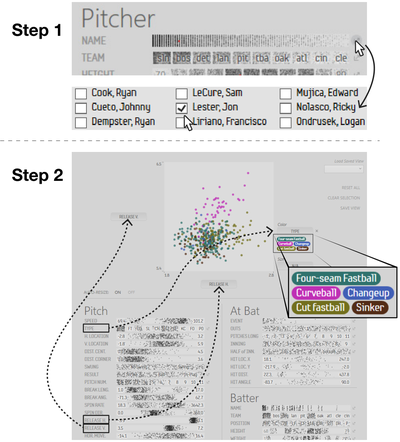
Figure 18. Analyzing the pitches thrown by Jon Lester.
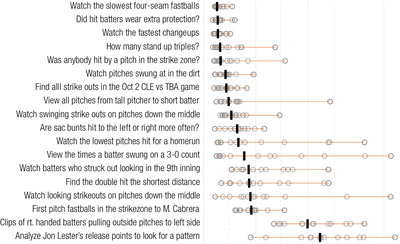
Figure 19. Completion times for each of the study tasks. Me-dian time shown with black bar.
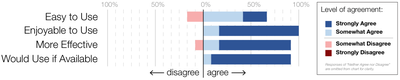
Figure 20. Subjective results from participant survey.
Figure 1. A side-by-side view of the Patina heatmap overlay showing the usage patterns of both the active user and the user community on the left, and the standard underlying Microsoft Word interface
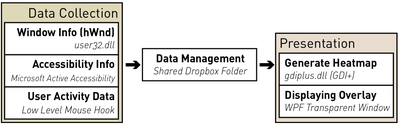
Figure 2. Organization of the Patina System.
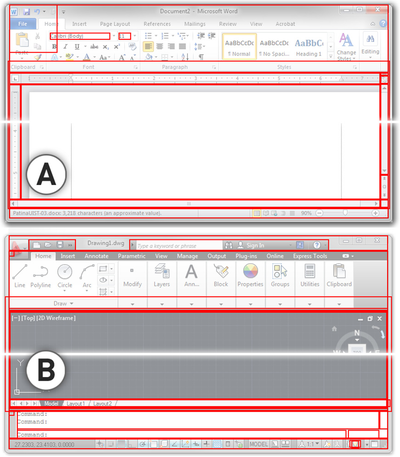
Figure 3. Rectangle information collected from HWND data structures from standard Microsoft Word (A) and Au-toCAD (B) windows.
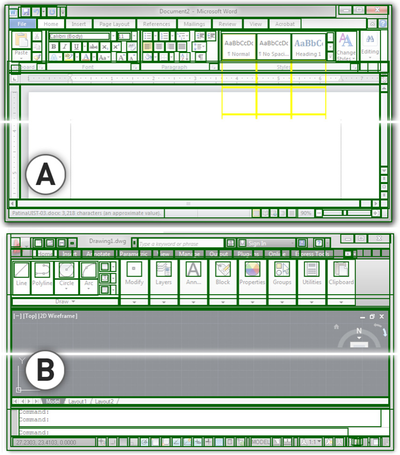
Figure 4. Rectangle data collected from the Accessibility APIs for Microsoft Word (A) and AutoCAD (B) windows. Yellow rectangles indicate regions which are reported as “offscreen”.
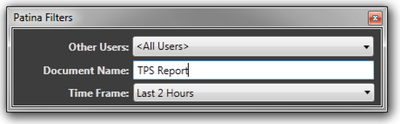
Figure 5. Filters dialog to specify parameters to narrow the data used to generate the heatmaps.
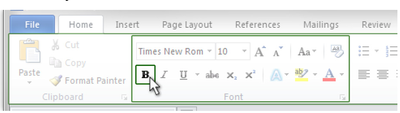
Figure 6. Overlapping rectangular accessibility regions for the “Bold: push button”, with the larger areas being the “Font: toolbar” and “Home: property page”.
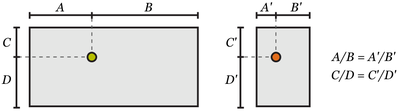
Figure 7. Click point mapping from original control region to current control region.
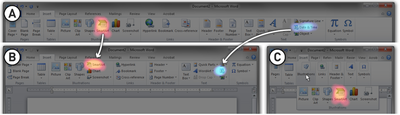
Figure 8. Demonstration of Patina overlay persisting on the correct UI elements after a window resizing, even when the target UI elements change size and position between (A) and (B). During ribbon re
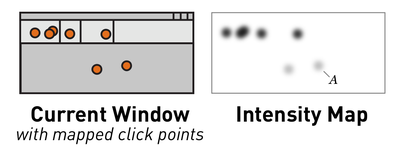
Figure 9. Intensity map creation.The intensity mapping process is done once for the active user’s data and again for the rest of the community data.
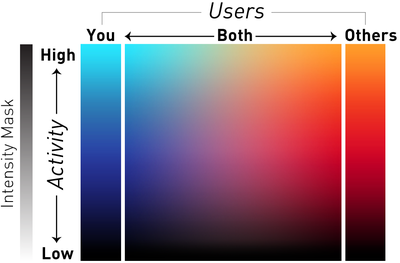
Figure 10. Color mapping used for the heatmaps ranging from low activity to high activity on the vertical axis, and the active user to the community on the horizontal axis.
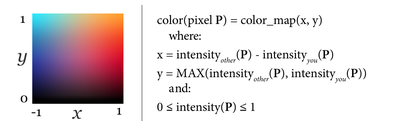
Figure 11. Formula for determining the color of a given pixel in the combined heatmap.
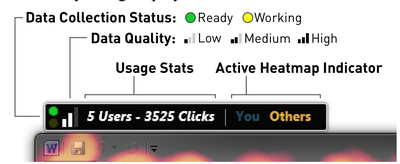
Figure 12. Patina information panel.
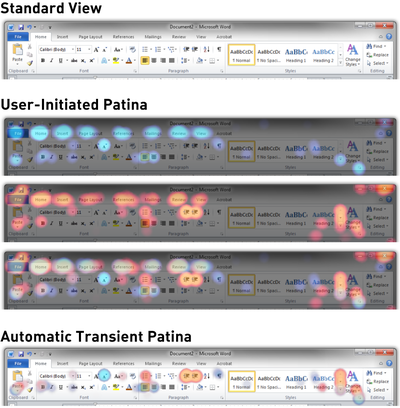
Figure 13. Examples of the different overlay modes.
Figure 14. Combined usage overlay with rectangular re-gions matching over UI elements.
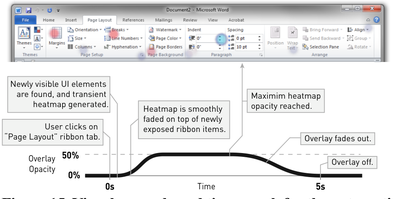
Figure Id. Visual example and time graph tor the automatic transient Patina view.
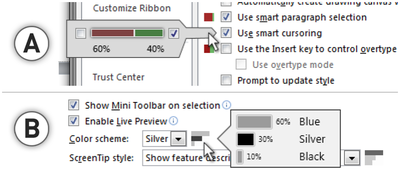
Figure 16. Scented interface for check box (A) and combo box (B) controls.
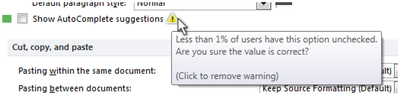
Figure 17. Warning icon and message for setting which are possibly set outside of normal bounds.
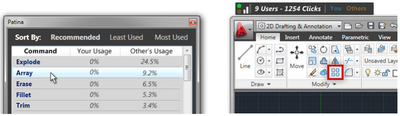
Figure 18. Command recommendation interface (left). Highlighted command in AutoCAD (right).
Figure 19. Scatter plot of the region sizes where clicks oc- curred during the internal deployment.
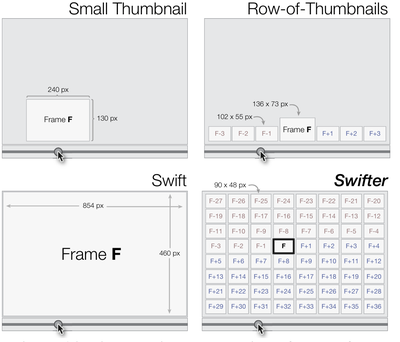
Figure 1. Scrubbing behavior of a traditional streaming video player, the Swift interface [16], and our new Swifter interface, which shows multiple frames around the active timeline location and allows for direct selection of each frame.
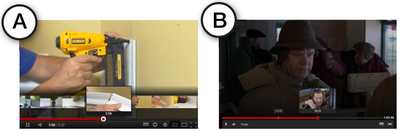
Figure 2. Screenshots of the YouTube (A) and Netflix (B) browser based video players.
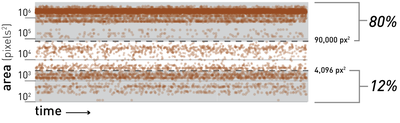
Figure 3. Frames shown (dark lines) and skipped while moving over a 854 pixel wide timeline in 2 seconds with an update rate of 30fps.
Figure 4. Frames shown (dark lines) and skipped while moving over a 854 pixel wide timeline in 2 seconds with an update rate of 30fps with a YouTube-style controller.
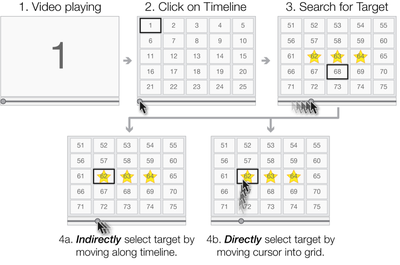
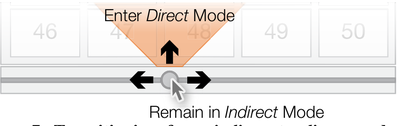
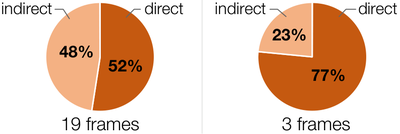
Figure 5. Mechanics of selecting a thumbnail using either the direct or indirect selection method. The cell with the thick outline indicates the currently selected thumbnail.
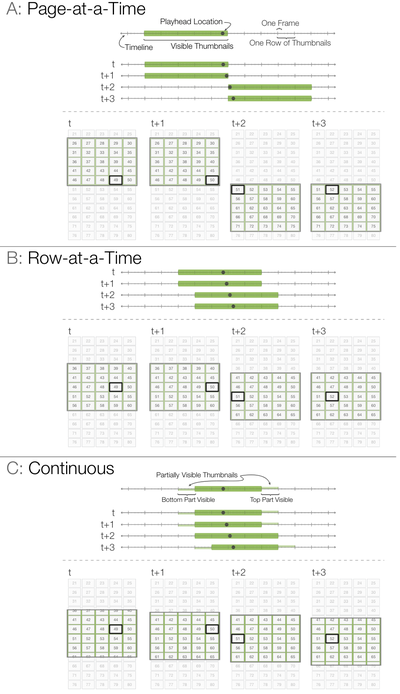
Figure 6. Position of visible thumbnails as the playhead location updates in each of the scrolling techniques.
Figure /. Llransitioning trom indirect to direct modes of frame selection.
Figure 6. Krames displayed while moving Over a 654 pixel wide timeline in 2 seconds with an update rate of 30fps with a Swifter grid of 5x5.
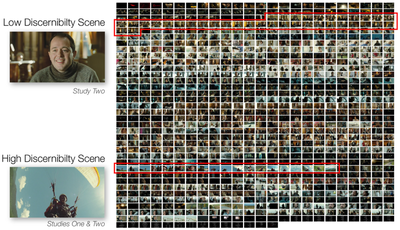
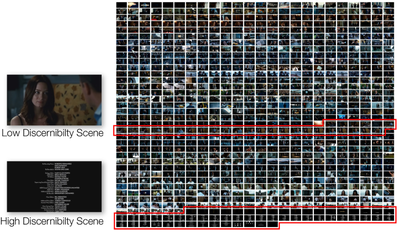
Figure 9. Thumbnail images from the movie The Intouchables, used for studies one and two. The low and high discernibility scenes are highlighted.
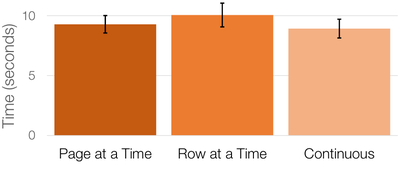
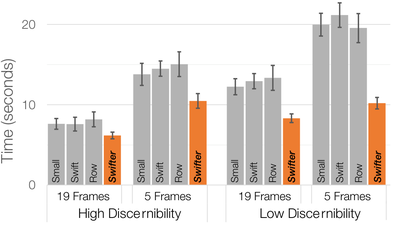
Figure 10. Scrolling techniques performance. (Note: error bars in all graphs report standard error)
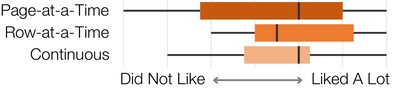
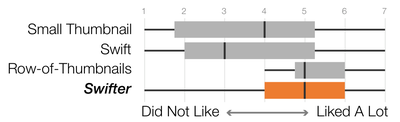
Figure 11. Subjective preference results from Study One.
Figure 12. Selection technique usage based on scene length.
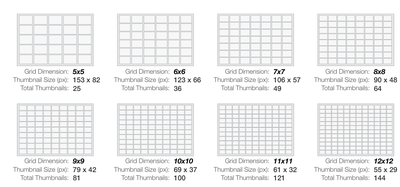
Figure 13. The grid dimension conditions in Study Two.
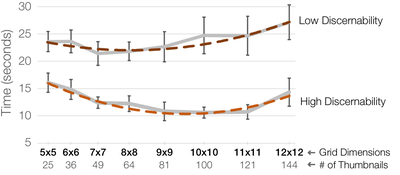
Figure 14. Task performance for High and Low Discernibility scenes with various grid sizes. The dashed lines represent the quadratic best-fit curves.
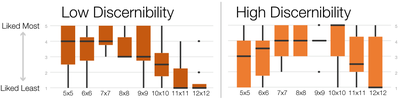
Figure 15. Subjective preference results for the grid dimensions for each of the discernibility conditions.
Figure 16. Pictographic representation of each of the techniques. ‘F’ represents the active frame, while the red and blue labels indicate the offset of frames before and after the selection.
Figure 17. Thumbnail images from The Adjustment Bureau, used in the third study. The high and low discernibility scenes are highlighted.
Figure 18. Completion time results from the third study.
Figure 19. Overall subjective feedback on the techniques used in Study Three.
Figure 20. Results for the question “Which technique did you like the best” for each discernibility/scene length pair.
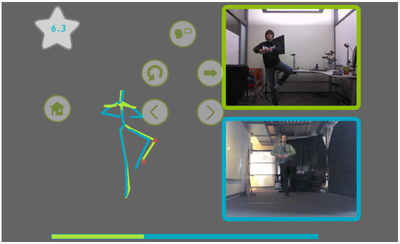
Figure 1: YouMove allows users to record and learn physical movement sequences. An augmented reality mirror provides graphic overlays for guidance and feedback. Note that for this photo the virtual vi
Figure 2: Overview of system design showing projector, layered screen, dynamic lighting, Kinect and user location.
Figure 3: The editing interface allows authors to specify keyframes and global movement parameters. Each keyframe specifies the important joints for that moment, and can be associated with a recording
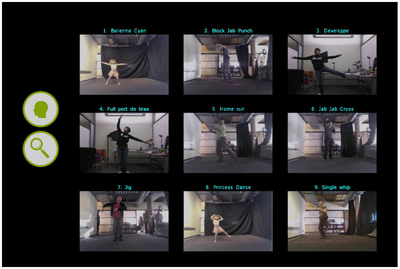
Figure 4: The movement gallery allows users to change profiles, query by example, and select a movement.
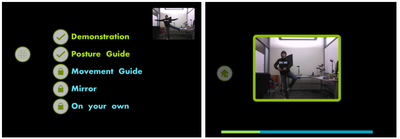
Figure 5: Left) Stage selection interface allowing users to begin one of the unlocked stages. Right) Demonstration stage.
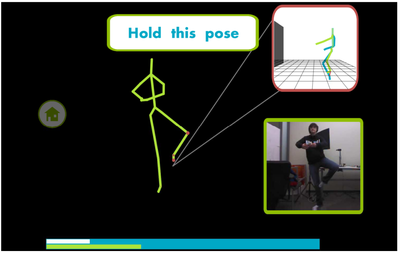
Figure 6: The posture guide requires trainees to maintain a stable posture, matching the position of the trainer. Errors in joint position are indicated by red circles. The callout (top right of figur
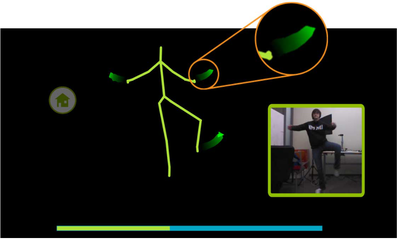
Figure 7: The movement guide encourages the trainee to match the trainer’s movements at full speed, using green ribbons (inset) to cue upcoming movements.
Figure 8: The Post-Stage Feedback screen, showing trainees their overall score, average position (skeleton), and video for each keyframe.
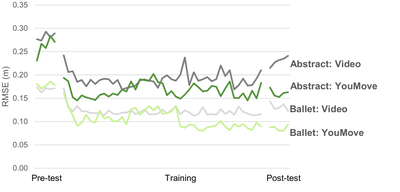
Figure 9: Performance on each trial, for each of the conditions, averaged over all 8 subjects.
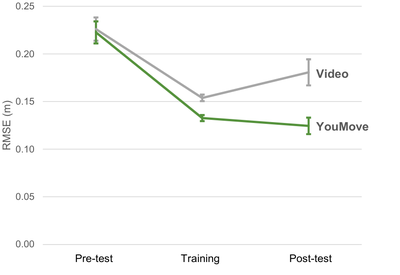
Figure 10: Pre-test, training, and post-test scores for the YouMove and Video conditions.
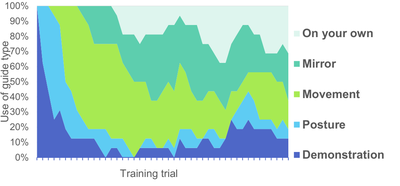
Figure 11: Frequency of use for each guide type for all participants during training with the YouMove system.
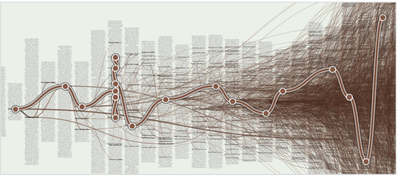
Figure 1. Citeology for Spotlight [9]. (Note: high resolution vector version in Appendix A)
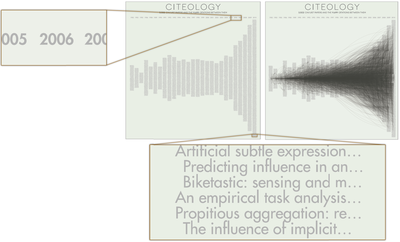
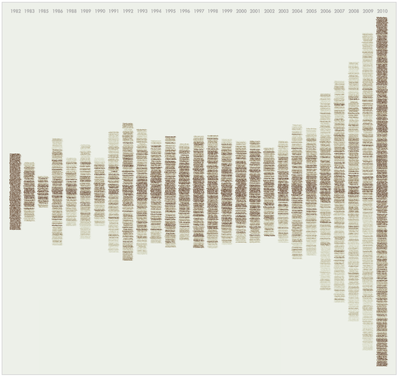
Figure 2. Citeology of all CHI and UIST papers before and after the citation network has been drawn, and a zoomed in view of the years and the paper titles.
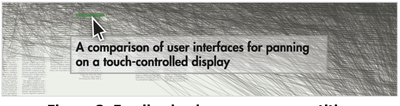
Figure 5. Feeadback when over a paper titie.
Figure 4. Citeologies showing 1, 2, and All generations from the CHI 1995 paper Bricks: laying the foundations for graspable user interfaces [5].
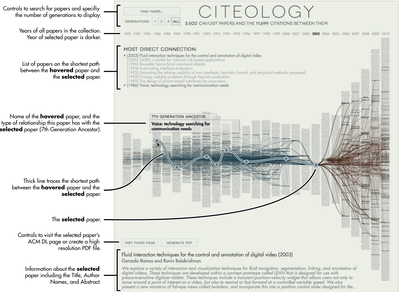
Figure 5. Main Components of the Citeology Interface.
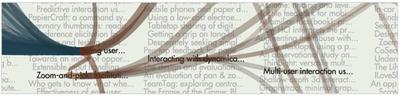
Figure 6. A zoomed in view of a high-resolution exported Citeology.
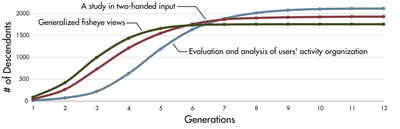
Figure 7. Plot of the number of total descendants up to a given generation for each of the three papers with the most descendants.
Figure 8. Longest most direct path between two CHI papers. (18 generations)
Figure 9. Heatmap of click counts per paper during 3 week deployment. Ligher yellow names were clicked less, and dark red ones were clicked more.
Citeology: Visualizing Paper Genealogy
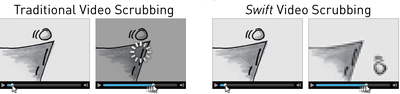
Figure 1. An illustration of the scrubbing behavior of a traditional streaming video player and the Swift player. With the Swift system a quick-to-download low resolution version of the video is displ
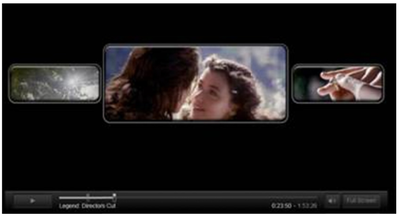
PC version of the Netflix streaming vide
Figure 3. Vidbeginning of most recentlyscene, was oumarked with
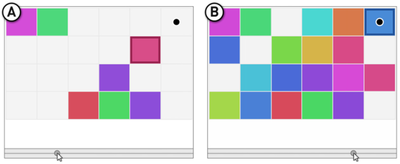
Figure 4. First three scenes in a sequential scene order- ing. The order which the squares fill in is fixed.
Figure 5. First three scenes in an ordered scene ordering. The order which the squares fill in is random.
Figure 6. First three scenes in a random scene ordering. The order which the squares fill in is random.
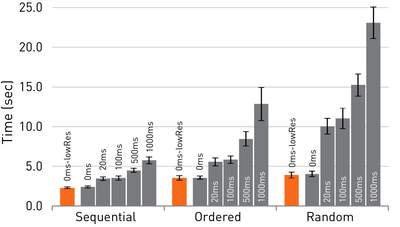
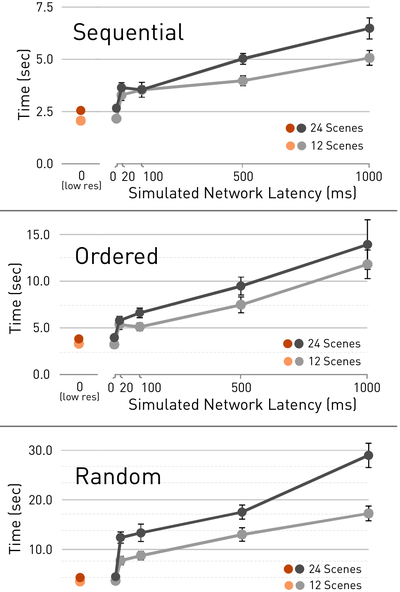
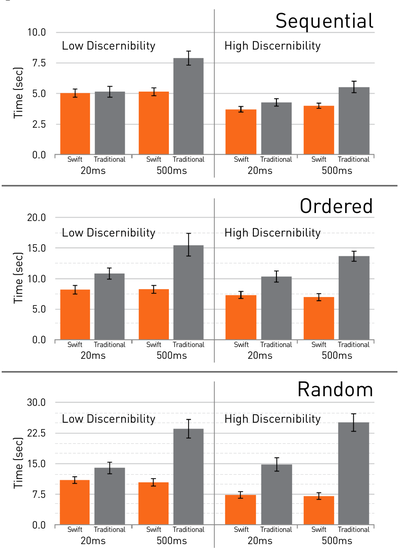
Figure 7. Average median navigation completion times for each combination of video type and ns-latency. (Note: error bars report standard error).
Figure 8. Average median navigation completion time divided into groups based on video type. (Note: error bars report standard error).
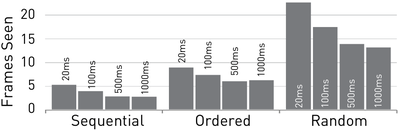
Figure 9. Average number of frames seen per trial.
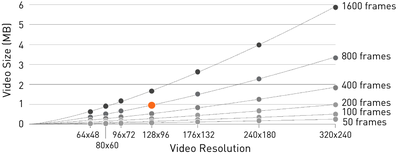
Figure 10. Encoded file sizes using varying resolutions and frame counts.
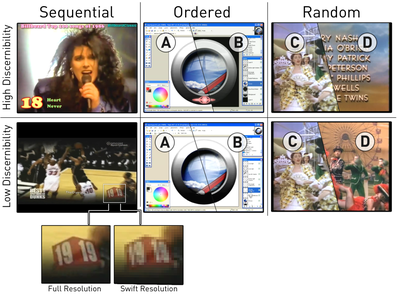
Figure 11. Frames taken from the target scenes for each video type and discernibility combination used in the study. For the ordered examples, (A) is from before the change occurring, and (B) is from after. In the random examples, (C) is a typical scene from the movie and (D) is the target scene.
Figure 12. Results for the three video types. (Note: error bars report standard error).
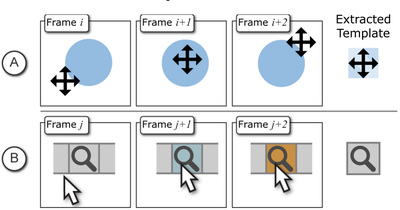
Figure 1. Waken uses frame differencing to extract UI elements, such as cursors (a) and icons (b).
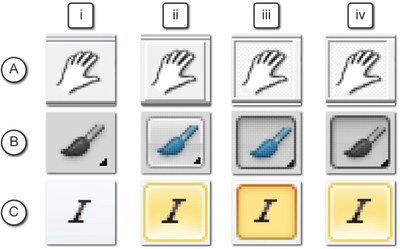
Figure 2. UI Buttons states in a) Google SketchUp, b) Adobe Photoshop, and c) Microsoft Word: i) de-fault, ii) highlighted, iii) clicked, and iv) active.
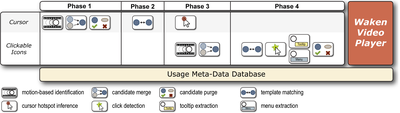
Figure 3. The four main phases of the Waken processing system.
Figure 4. Pixel differences between frames (a) and (b) is show in (c). Applying our filter removes differ-ences due to noise (d).
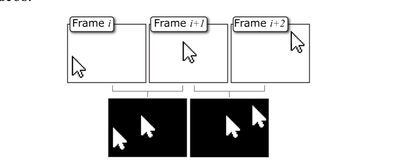
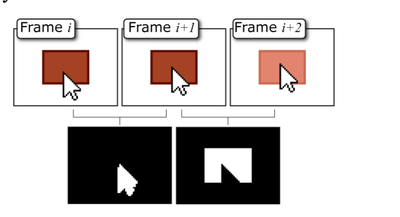
Figure 5. (Top) Consecutive frames and the corre- sponding blobs in each of the two absolute differ- ences when only the cursor moves (Bottom).
Figure 6. Consecutive frames and a) corresponding single blobs in the absolute difference frames when cursor moves a short distance. b) Cursor shapes in intersection of consecutive differences.
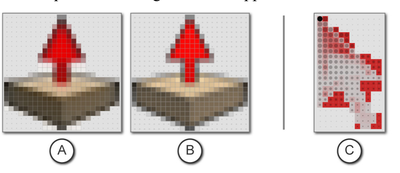
Figure 7. The cursor viewer application visualizes cursor templates we generate. Variance is repre-sented by color in (b) and height in (c).
Figure 8. Typical cursor movement when approach- ing and acquiring an icon and resulting frame differ- ences.
Figure 9. Typical cursor movement when clicking an icon and resulting frame differences.
Figure 10. a) Cursor reconstructed using our algo- rithm on the test data. b) Actual cursor icon. c) Sys- tem cursor with hotspot estimate (solid black dot in- dicates 95% confidence).
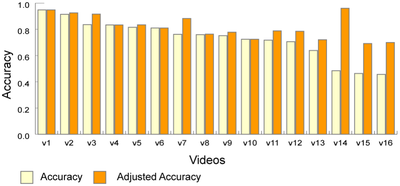
Figure 11. Cursor tracking accuracy by video. Ad-justed accuracy shows results when the low-sampled cursors are removed from the data set.
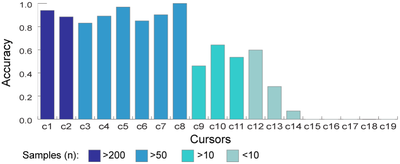
Figure 12. Cursor tracking accuracy by cursor.
Figure 13. The Waken Video Player user interface components. a) The playback area. b) Highlighted cursor. c) Navi-gation panel. d) Event based timelines. e) Cursor highlight toggle.
Figure 14. a) A tooltip is rendered over the video b) Menu contents are rendered over the video.
Figure 15. Cursor and clickable icon recognition from Adobe Photoshop (a) and Microsoft Word (b).
Fig. 1. Number of built-in commands in each AutoCAD yearly release.
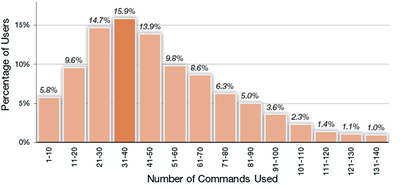
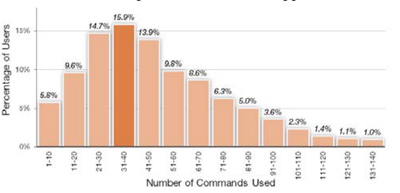
Fig. 2. Histogram of the number of commands used by 4000 AutoCAD users in 6 months. The largest group of users use only between 31 and 40 commands.
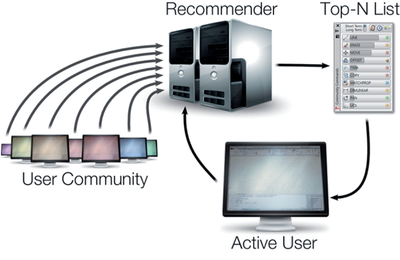
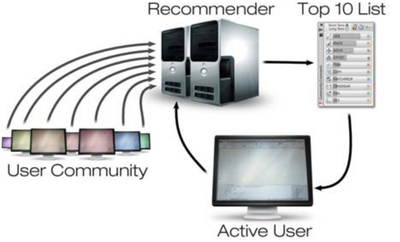
Fig. 3. CommunityCommands system overview.
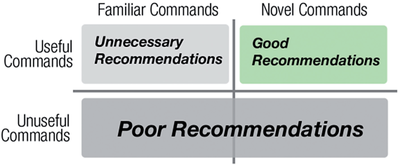
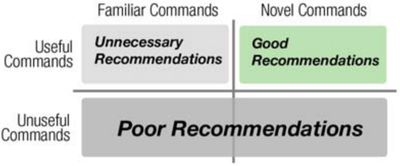
Fig. 4.Map of Good, Poor, and Unnecessary Recommendations.
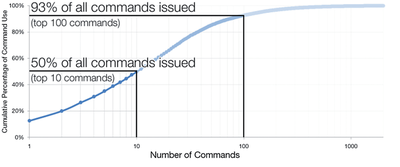
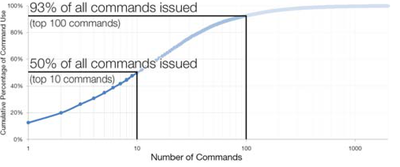
Fig. 5. Cumulative percentage of command counts for AutoCAD commands.
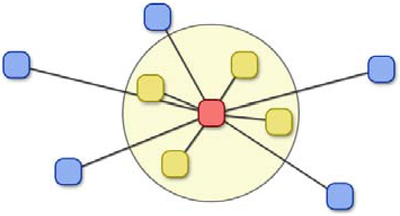
Fig. 6.The active user is in red, and her expected frequency table will be compiled from her most similarneighbors (in yellow).
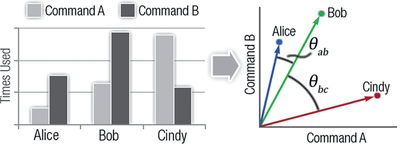
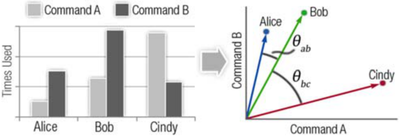
Fig. 7.Simplified example of user similarity. Alice and Bob are more similar than Bob and Cindy as theangle between their command vectors is smaller.
Fig. 8.k-Tail evaluation of a command sequence.
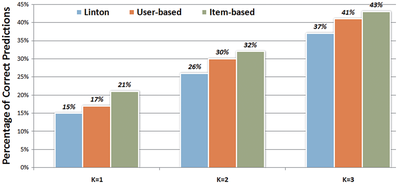
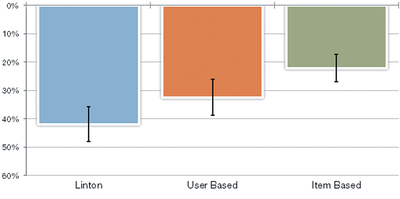
Fig. 9.Offline results showing RecallkT ail, the percentage of times the next new command was predicted ina list of 10 by each algorithm.
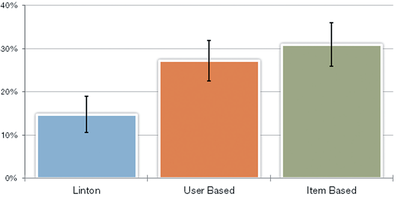
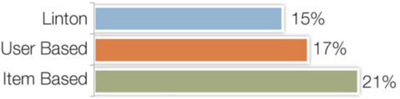
Fig. 10. Percentage of “good” suggestions by technique. Error bars show standard error.
Fig. 11. Percentage of “poor” suggestions. Error bars show standard error.
Fig. 12.Design space of command recommendation systems.
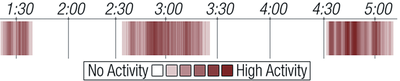
Fig. 13.Example user history of a typical user showing distinct sessions of activity with breaks in activityin between. Red lines indicate the intensity of user activity (darker red means more activit
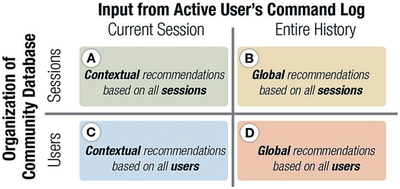
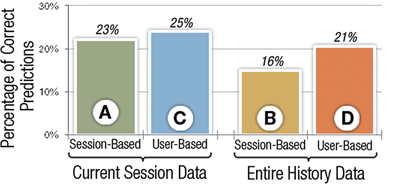
Fig. 14.The recommendation process with the two decision points of using user histories broken up intosessions or users, and looking at the command data from the current session or the entire history
Fig. 15. Offline evaluation of 4 recommendation approaches described in Figure 12 (higher percentages are better).
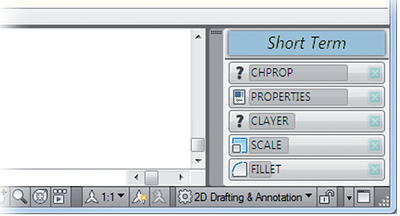
Fig. 16.CommunityCommands palette docked in the bottom right corner beside the command line.
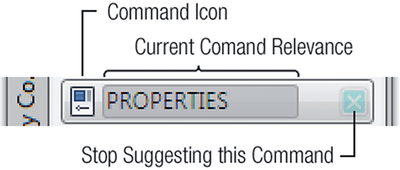
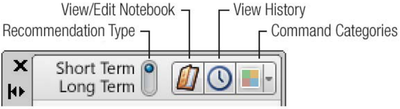
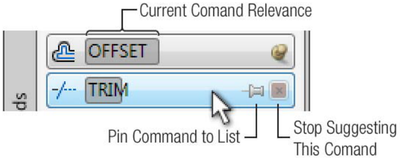
Fig. 17.Components of a suggestion button.
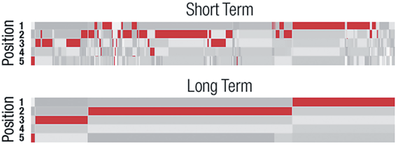
Fig. 18.User interface change between short-term and long-term modes.
Fig. 19.Visualization comparing short-term and-long term recommendations over a 48 hour time period.In the short-term mode the list of commands is changing often to match the user’s context, while in
Fig. 20.Overview visualization showing the command recommendations and interactions of a single userover a two week period.
Fig. 21.Command graph showing a user looking at the “XLINE” tooltip several times and then using, andcontinuing to use the tool.
Fig. 22.Command graph showing a user dismissing the “DDEDIT” after fist inspecting the tooltip.
Fig. 23.User history graph showing two “bursts” of interaction with the recommendation window.
Fig. 24. Number of commands dismissed by each user.
Fig. 25.Average number of previously unobserved commands used each day.
Fig. 26. Average number of new commands used in the last two weeks without, and the first two weeks with, the recommender system.
Fig. 27. Number of new commands actually used compared to the model.
Fig. 28.Average number of new commands used in weeks 5 and 6 split into categories.
Fig. 29. Average number of recommended commands used once and used multiple times for the short-term and long-term algorithms.
Fig. 30.User preference for recommendation mode.
Figure 1. Structure of Ambient Help system. Main application monitor on the left, dynamically updating ambient help display on the right containing 5 videos and a web help page.
Figure 2. Ambient Help interface.
Figure 3. E
Figure 4. V
Figure 5c]. Bymouse button wone could deteused.
Figure 6. Setup of manual help condition.
Figure 7. Port
Figure 8. Average number of useful items found in each of the four task/help system conditions. (Note: Error bars report standard error).
Figure 11]. categories: (6, 7). The he ambient only 1 user
Figure 10. Number of cabinets drawn in the intense task. (Note: error bars report standard error)
Figure 11. Results for “The content of the extra monitor was helpful”.
Figure 12. Results for “The content of the extra monitor was distracting”.
Figure 13. Results for “The content of the extra monitor was distracting” during the ambient help condition in first vs. second task.
Figure 14. Results for “The content of the extra monitor hindered my productivity”.
Figure 15. Number of videos and help pages viewed and found useful in each of the help system conditions. (Note: error bars report standard error)
Figure 16. Results for “A system like <Ambient/Manual> could be useful”.
Figure 1. IP-QAT system interface overview.
Figure 2. Prexperience (D). The rolle
re 3. Dialog for posting a question or tip.
igure 4. Image portion of the posting dialog box.
Figure 5. Interface elements for individual topics.
5. Tooltip interface for quick brow Nhen available, images are also disp
Figure 7. The view/reply window showing the textual post content as well as a link to open the source file (A), the version of the program the post originated from (B) and the relevant commands (C).
Figure 8. Inkeyword seyou marked
Figure 9. C
Figure 10. Distribution of user's pre-existing habits of looking at, and contributing to, online forums.
Figure 11. Mean number of posts contributed per user. (Note: error bars report standard error)
Figure 12. Number of new topics created.
Figure 13. Subjective results for "/t is useful when people post tips, as opposed to only questions and answers." and “I find images helpful for explaining and answering questions.”
Figure 14. Median Time-to-First-Answer (Minutes).
Figure 15. Total number of images used.
Figure 16. Subjective results comparing the /P-QAT and forum community help conditions.
Figure 17. Visualization of all topics created during the study. (Note: this is a vector graphic, zoom in to see in more detail)
Figure 18. Two example conversations. Between two users (A), and many unique users (B).
Figure 19. “Topic Viewed” dots showing a resur-gence of interest in a thread after a new post is made.
Figure 1. Working on the Magic Desk.
Figure 2. Experiment touch regions (top view). A front view of the vertical screen is illustrated in the top-right corner.
Figure 3. A participant performing the experiment in left (a), bottom (b), and screen (c) conditions.
Figure 4. Gesture Task.
Figure 5. Docking Task. The small white circles in pictures show finger positions.
Figure 6. Completion time for Gesture Tasks.
Figure 7. Completion time in one-hand docking.
Figure 8. Mean Completion Time per cell in a region.
Figure 9. Completion time in two-hand docking.
Figure 10. The Magic Desk components.
Figure 11. The content on Multi-functional touch pad for (a) rotating and scaling an object, (b) con-trolling mouse speed, (c) a secondary cursor for se-lecting drawing tool, and (d) a customized tool
Figure 12. Digital Mouse Pad.
Figure 13. (a) A weather forecast window in full-version on the screen. (b) The abstract version of the same window on the table. (c) After a keyboard and mouse were pushed away, a map application aut
Figure 14. Potential configurations for multi-touch desktop computing. a) The entire table is a multi-touch display surface. b) A multi-touch tablet is placed next to the keyboard to be used as an add
Figure 1: Context factors in help needs
Figure 2: Architecture of contextual search system
Figure 3: Search result presentation
Figure 4: Summary panel and in-page aids; Trans-form has been clicked in the navigational controls.
Figure 5: Searches per task by task and mode.
Figure 6: Average total utility per task.
Figure 1. The TwitApp plug-in is displayed as a    palette within AutoCAD.
Figure 2. The TwitApp palette is organized into four tabs: Projects, Search, Post, and Following.
Figure 3. A project (left) and a rich content tweet in TwitApp A) Text message, B) Drawing data file, C) User command history, D) Thumbnail screen im-age, E) Command icons, F) New tweet and total twee
Figure 4. A) Following Tab, B) Project dialog win-dow for a given designer.
Figure 5.Real time search find a new tweet, which used command HATCH.
Figure 6. The Post Tab.
Figure 7. Post new tweet window
Figure 8.The setting dialog provides UI controls to setup the time trigger and the command triggers.
Figure 9.Automatically generated tweet drafts.
Figure 10.A) Live video player window lauched by TwitApp, B) A live broadcasting button (red) displayed over a project control.
Figure 11. TwitApp architecture.
Figure 12. a) Layout of actual TwipApp tweets dis-played by an existing Twitter client. b) Mockup of the same client within a mobile device.
Figure 1. Chronicle. a) main Chronicle window, b) the timeline, c) application/Playback window.
Figure 2. A chronicle. a) before and b) after thumbnails. c) Icons represent the tools used in the revisions. d) layer information. e) hierarchy button.
Figure 3. In playback mode, the video is overlaid directly on top of the main application, with a green skin indicating the mode.
Figure 4. Chronicle UI controls: a) Data probe. b) UI probe. c) Selection probe. d) Refresh Revisions. e) Clear Video. f) Calendar View.
Figure 5. a) Data probe. b) Holding down the control key changes the probe into an in-place lens revealing the previous states under its region, and the user can scroll forwards and backwards in time.
Figure 6. The filter tab provides UI controls to filter by time, layers, users, tools, and workflows.
Figure 7. The expanded timeline, showing a zoomed in view after expanding one of the chronicles. This view represents 25 minutes of usage time.
Figure 8. Sample tooltips for: a) action marker, b) tool marker, c) setting marker, d) save point, e) user marker, f) color marker.
Figure 9. Tooltip for a dialog marker. A red phosphor effect is used to highlight which of the values within the dialog box have been changed.
Figure 10. When the cursor hovers over the ellipse tool event marker, previous setting events which effected that tool are highlighted. A halo [3] indicates the existence of an additional relevant set
Figure 11. The calendar view shows what the document looked like at the end of each day. Note: The illustrated document was created across a span of 4 days, and we manually altered each save date so t
Figure 1. Histogram of the number of commands used by AutoCAD users. The largest group of users only use be- tween 31 and 40 commands.
Figure 2. Map of Good, Poor, and Unnecessary Recom-mendations.
Figure 3. CommunityCommands system overview.
Figure 4. The active user is in red, and his expected fre-quency table will be compiled from his most similar neighbors (in yellow).
Figure 5. Cumulative percentage of command counts for the 2000 AutoCAD commands.
Figure 6. Simplified example of user similarity. Alice and Bob are more similar than Bob and Cindy as the angle between their command vectors is smaller.
Figure 7. k-Tail evaluation of a command sequence.
Figure 8. Offline results showing the percentage of times the next new command was predicted in a list of 10 by each algorithm.
Figure 9. Percentage of “good” suggestions by technique.
OB Figure 10. Percentage of “poor” suggestions.
Figure 11. Subjective importance ratings for properties of a command recommender system.
Figure 12. Actual vs. Estimated commands used.
Figure 13. Actual vs. Estimated number of commands in the entire program.
Figure 14. CommunityCommands UI.
Figure 15. Overall system UI elements.
Figure 16. Individual suggestion UI elements.
Figure 17. CommunityCommands UI docked in the un-used space beside the command line interface.
Figure 1. The SDMouse uses multi-finger input to emulate the functionality of a 3-button mouse.
Figure 2. The Chording Technique.
Figure 3. The Side Technique.
Figure 4. The Distance Technique.
Figure 5. The Gesture Technique.
Figure 6. The Side+Chording Technique.
Figure 7. The Side+Distance Technique.
Figure 8. The Chording+Distance Technique.
Figure 9. The experiment apparatus used for our studies.
Figure 10. Task appearance and instructions. (a) The start position. (b) Drag task. (c) Single click task (d) Double click task. The mouse icon indicates which button to use (in these examples: left, left, right).
Figure 11. Pilot 1 completion times for the activation modes.
Figure 12. Task completion times for Pilot Study 2: one and two finger tracking modes.
Figure 13. Task completion times for Pilot Study 3: Cursor mapping modes.
Figure 14. Task completion times for finger-to-button mapping techniques.
Figure 15. The FingerWorks technique.
Figure 16. The Fluid DTMouse Technique.
Figure 17. Completion times by task.
Figure 18. Completion times by button.
Figure 19. Mouse Wheel Techniques: (a) swiping (b) rotation.
Figure 1: Project team structure visualization generated from email list, showing both physical distribution and hierachical organization.
Figure 2: Larger cross-divisional team of 49 people, shown as shaded nodes, with 94 employees shown in total, leaving 45 managers to connect all team members.
Figure 3. Employee tree for entire company.
Figure 1. A mapping of systems grouped by display-size (vertical) versus design stage (horizontal).
Figure 2. A design studio workshop (left) and meeting room (right) (photography by Ilene Solomon, courtesy Bruce Mau Design).
Figure 3. Design artifact life cycle. ime
Figure 4. The workspace of a graphic designer.
Figure 5. Sketches from (left) automotive design and (right) fashion design.
Figure 6. Sketchbook on a Table PC.
Figure 7, An automotive designer using the tape drawing technique, and our digital ver- sion (from Balakrishnan et al., 1999).
Figure 8. (a) Cross-section modeling on large displays (from Grossman et al., 2001); (b) creating principle 3D curves on large displays (from Grossman et al., 2002).
Figure 9. Left to right: Drawing a curve and extruding it to be a 3D curved surface. Draw- ing a curve on an orthographic view of the curved surface (from Grossman et al., 2002).
Figure 10. Principle 3D curves for the Dodge Viper together with a photograph of a scale model of the car (from Grossman et al., 2002).
Figure 11. Trial environment for our digital design studio prototype (from Fitzmaurice et al., 2003).
Figure 12. (Left to right): The Boom Chameleon, the Boom Chameleon as a 3D podium, and the Elumens Vision Dome (from Fitzmaurice et al., 2003).
Figure 13. The Portfolio Wall (from Buxton, 2007).
Figure 14. SteeringWheels, ViewCube, and ShowMotion.
Figure 15. SteeringWheels (left) exterior navigation, (center) interior navigation, right (both).
Figure 16. (a) HoverCam camera motion path approaching and turning to follow the surface of the object, (b) HoverCam camera motion path and camera look-at direction in an “interior” concave shape, and (c) the HoverCam algorithm showing the Restricted Field of View (FOV) and the Obstacle FOV looking for obstructions to help turn the camera (from Khan et al., 2005).
Figure 17. (Left) Before and after clicking the highlighted corner. (Right) Expanded hit areas for boundary buttons. Clicking anywhere within the green regions will select the corresponding button.
Figure 19. (Left) Sketchboard interface; (right) marking menu with user selecting “park” with the pen.
Figure 20. Sketchboard (left) Compare, (middle) maximize, (right) open in Sketchbook Pro.
Figure 21. Working on Sketchboard from the TabletPC. (Left) using tracking menu; (right) drawing directly on the board (via the TabletPC).
Figure 18. Sketchboard on a number of TabletPCs and a large displays.
Figure 22. The Visualization Studio in Toronto (from Fitzmaurice et al., 2005).
Figure 23. Using the Frisbee with Sketchboard on a 20-foot display (from Khan et al., 2004). Note. The frisbee consists of a telescope and a target. The target pink ring (top right) can be panned and scaled by using controls, under the users hand, on the pink ring in the telescope (bottom left).
Figure 24, (Left) The Telescope contains controls for a “position control” and a “remote control” ring with four “transfer channels” along the perimeter (from Khan, et al., 2004). (Right) The user can click on a remote object within the telescope display and drag it through a transfer channel to the local space.
Figure 25. (Left) The Spotlight technique on a large wall-sized display (enhanced image). (Right) Spotlight components (exterior region, spot edge, spotlight interior region, cur- sor; from Khan, et al., 2005).
Figure 26. A panoramic (composite) image of the Presentation Room.
Figure 27. Presentation Room schematic. Inset: Components of the Progress Clock: (a) elapsed time, (b) slides already displayed, (c) current slide, (d) slides not yet seen.
Figure 1. The PieCursor concept: a collection of tools arranged in a radial pattern Tracking Menu and shrunk to the size of a cursor.
Figure 2. Command wedges chosen by input direction.
Figure o. FieCursor usage sequence tor nignlignting, activating, operating and releasing a commana.
Figure 4. Extended wedge regions (dotted lines).
Figure 5. Comparing the “chunking and phrasing” of interaction events across techniques.
Figure 6. Comparison of interaction techniques.
Figure 7. (front) Tracking Menu (back) PieCursor.
Figure 8. Cursor activity (red = drag; grey = movement, green dot = click).
Figure 9. Seven techniques (three interaction methods with 4 or 8 commands).
Figure 10. Experiment workspace.
Figure 11. Trial sequences: 1, 2, 3. Command and drag direction shown (a) PieCursor4 and BigWheel4 (b) PieCursor8 and BigWheel8 (c) BigWheel8 4+4, (d) Toolbar4, (e) Toolbar8.
Figure 12. Trial performance mean by method.
Figure 13. Trial performance mean by technique and number of commands (4 or 8).
Figure 14. Trial performance mean by method and target size.
Figure 15. Average mouse travel distances (pixels) per trial, grouped by target size and method.
Figure 16. Subjective preference.
Figure 17. (a) flea cursor; (b) mini-arrow; (c) directional arrow.
Figure 1: Common problems when using an Orbit tool: above is top view of 3D scene, below is what the user sees on screen (i) The pivot point is off-screen so the Orbit operation has a similar effect a
Figure 2: Full Navigation Wheel using a tracking menu.
Figure 3: First Contact Dialog.
Figure 4: Six navigation wheels whose tool collection, tool placement and size are based on a user‘s task and skill level.
Figure 5: ViewCube showing orientation for: (a) Top-Front- Right view, (b) view from Bottom looking up, and (c) a view when the scene or object is upside down.
Figure 6: Visual appearance of the green-ball pivot point: (a) in front of a surface –fully visible, (b) on a surface –partially occluded, and (c) behind a surface –fully occluded.
Figure 7: Up/Down tool slider: (a) initially activated, (b) as the cursor is dragged up or (c) down. A ghost slider shows initial position.
Figure 8: Forward tool “perspective” slider: (a) initial state, (b) 50% and (c) 90% to target surface.
Figure 9: 3D canvas with ShowMotion system shown at the bottom and the ViewCube in the top right corner.
Figure 10: Cursor wrapping from bottom to top when moving the cursor downwards (captured in time from left to right).
Figure 11: Using the Rewind Tool. Dragging the cursor left, reverses the user‘s navigation in a smooth continuous fashion. The thumbnail strip provides visual history guidance.
Figure 1. The ViewCube: clicking on the “front” face of the cube rotates the cube and the 3D scene to the front view.
Figure 2. Standard Views (a) are accessible on the ViewCompass (b) where users can click the cones to view the scene from that point of view. Clicking the cube itself would move the camera to the stan
Figure 3. The Glass Cube has a complex set of controls: 14 selectable viewpoints (green arrows) and when “face on” edge segments are selectable and roll the view clockwise or counter-clockwise.
Figure 4. Split view diagram of the ViewCube from a % view explicitly showing all currently selectable views (in this case 19 views are accessible).
Figure 5. ViewCube Selection Feedback. As the cursor moves over the ViewCube, the piece that would be selected if the user clicked the mouse button is highlighted.
Figure 6. Before (left) and after (right): The dashed outline becomes solid to indicate that the camera is exactly at one of the fixed viewpoints.
Figure 7. When moving the viewpoint using the application’s Orbit tool, the cube rotates to match the scene orientation. The current closest fixed view is highlighted. Here, the scene is orbited slightly from almost Front (left) to almost Front-Top- Right (right).
Figure 8. ViewCube Design.  Components are the large center cube with selectable faces, edges, and corners, the triangles pointing “around the edges” to orthogonal faces, the “home” button in the top-
Figure 9. Before (left) and after (right): Clockwise and counter-clockwise controls are shown when at a face view. Clicking the bottom (clockwise) arrow rotates the scene and the cube 90°.
Figure 10. Expanded hit areas for boundary buttons and additional buttons on the ViewCube. Clicking anywhere within the green regions will select the corresponding button.
Figure 11. View proxy images in Google Sketchup.
Figure 12. Label Schemes: text, 2D proxy image, 3D proxy model, and no label.
Figure 13. (a) Top: experiment screen. (b) Bottom: the List condition for (left to right) 6 Views with Text Labels, 6 Views with 2D Image Labels, 26 Views with Text Labels, and 26 Views with 2D Image
Figure 14. Mean (All Users): List and ClickCube had little difference but the ArcBall was almost twice as fast at the List method.
Figure 15. Subject Preferences: the ArcBall and the 3D Model label type were preferred, and the Image buttons were favored over the Text buttons.
Figure 1. Office Central picture window at the Computer History Museum installation. The screen in this kiosk-style application shows an “advertisement” for a remote person who is available to chat.
Figure 2. Storyboard sketches of an Office Central picture window in a corporate break area. The top image shows an advertisement for a person interested in talking about software. The bottom image sh
Figure 3. In the Office Central Lounge, the four RFID antennas are visible above the doorframe and above the Picture Window display.
Figure 4. As visitors enter the lounge, the antenna on the top left of the doorframe detects their presence. The one on the top right detects when someone leaves the space.
Figure 5. Music ad.
Figure 6. Ad for a virtual space. This one corresponds to the physical space of the same name. When remote people join, they will see video of the space.
Figure 7. Interacting in the virtual lounge. Nicole and Mike are standing in front of the picture window in the physical lounge, as seen by their photos in the person radar (bottom left). They are cha
Figure 8. The labels that the RFID tags were affixed to were rolled to keep the tags away from people’s bodies. The tags are located directly under the Office Central logo.
Figure 9. The registration application associates RFID tag IDs with a person’s name and email address.
Figure 10. Picture-taking ad with camera and PowerMate.
Figure 11. Using the application.
Figure 12. Person ad. One press on the PowerMate initiates an audio connection with the person advertising.
Figure 1. The Spotlight technique on a large wall-sized display (enhanced image).
Figure 2. Components: The spotlight consists of a darkened exterior region, a fully transparent inner region, and a cursor.
Figure 3. Simplified State Transition Diagram.
Figure 4. Searchlight Mode: A beam is drawn from the center of the display to the spotlight to further assist the user in quickly acquiring the target.
Figure 5. Wall-sized Display Hardware Configuration. Total screen size is 648 sq. ft. (72 ft. by 9 ft.).
Figure 6. Experimental set-up. Three field-of-view angles were tested: 108°, 180°, and 240°.
Figure 7. Close-up of sample trial for Cursor, Spotlight, and Searchlight conditions (left to right). Note that the cursor is present in all techniques.
Figure 8. Experiment Set-up. Cursor, Spotlight, and Searchlight Conditions (Top to Bottom).
Figure 9. Mean performance on large display.
Figure 10. Mean performance on standard 21” monitor.
Figure 11. Subjective preference for both the wall-sized display and the desktop display when asked if they liked a given technique.
Figure 12. Spotlight Designs (a) Multi-light. (b) Circular. (c) Curtain. (d) Cone-light. (e) Searchlight. (f) Shape-light. (g) Multiple Searchlights. (h) Multiple Cone-lights. (i) Elliptical Shape-sea