ViewCube: A 3D Orientation Indicator and Controller
Abstract
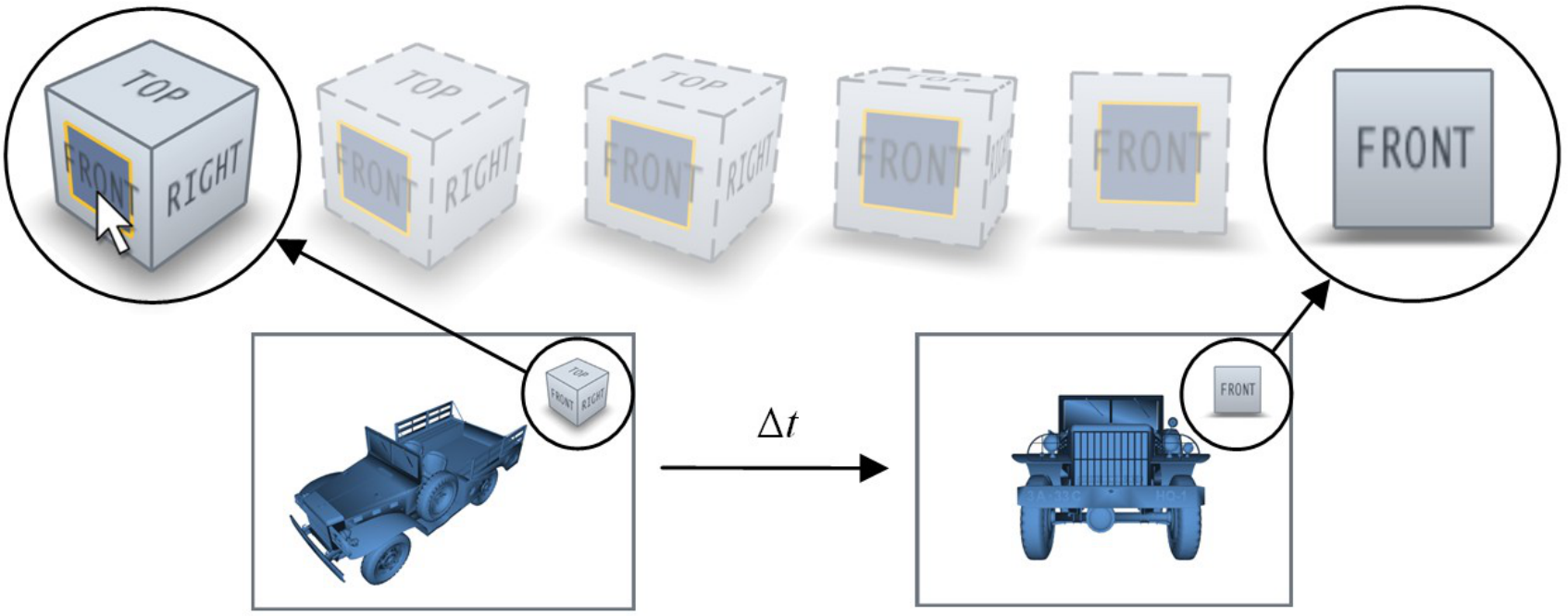
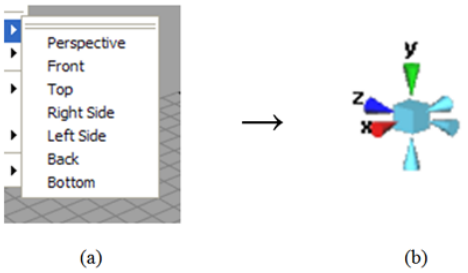
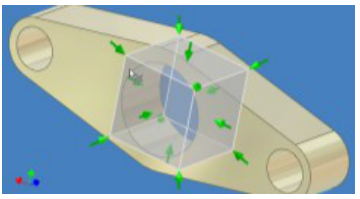
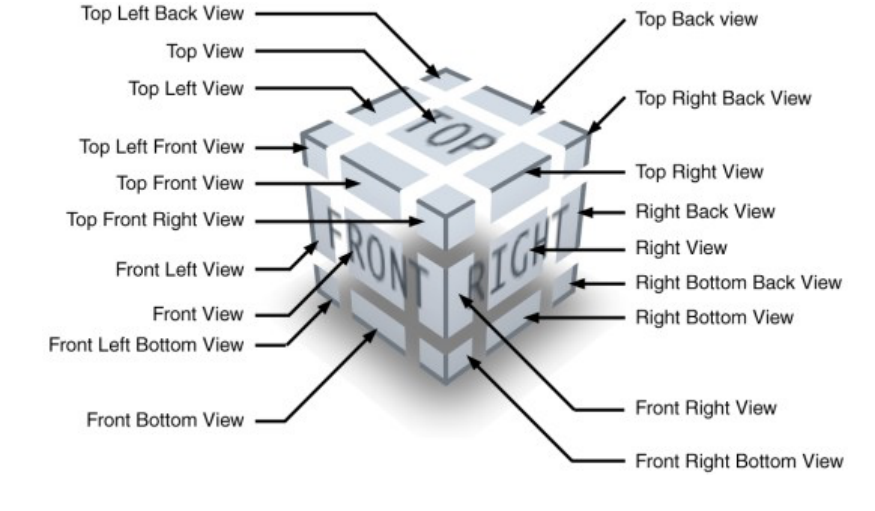
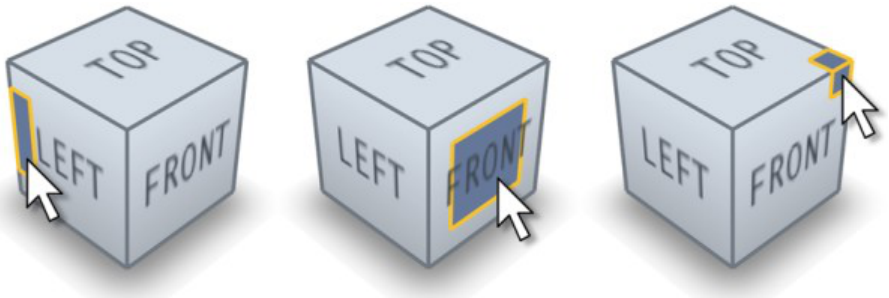
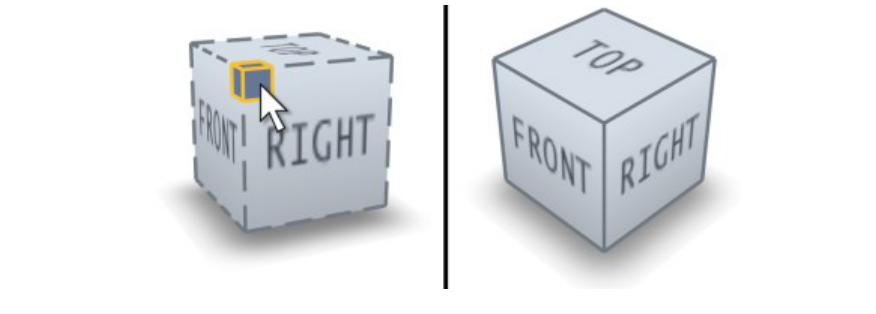
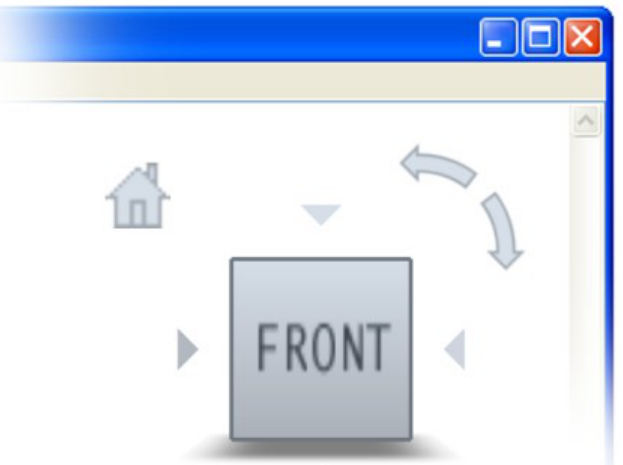
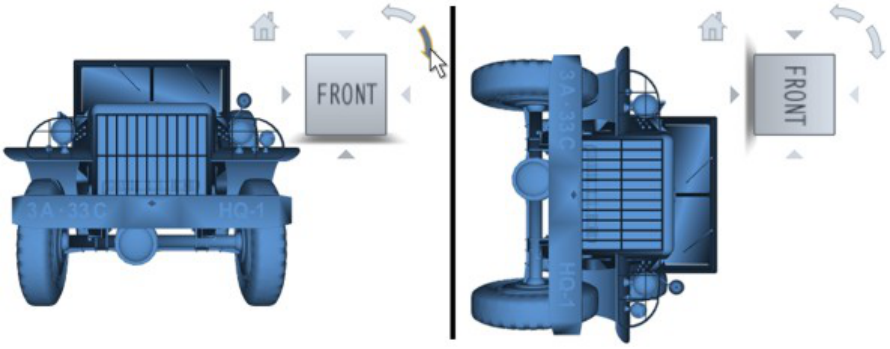
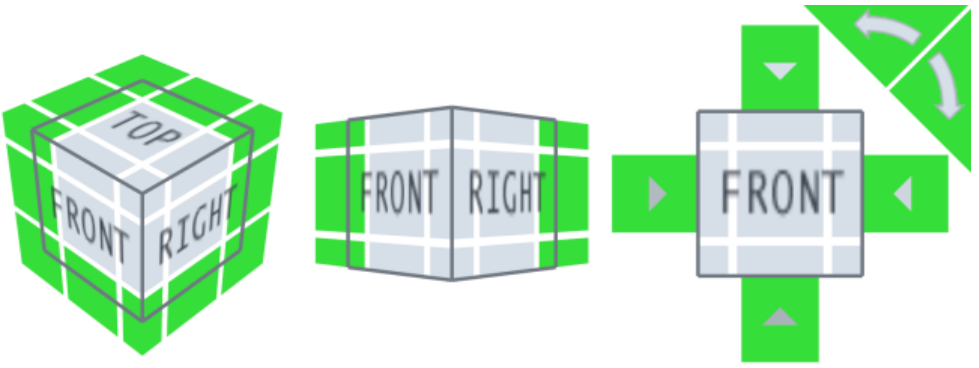
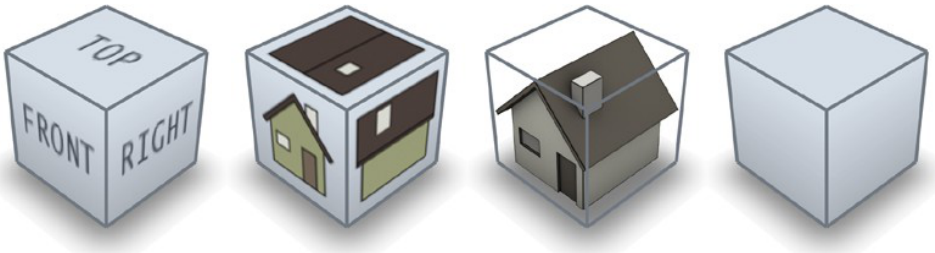
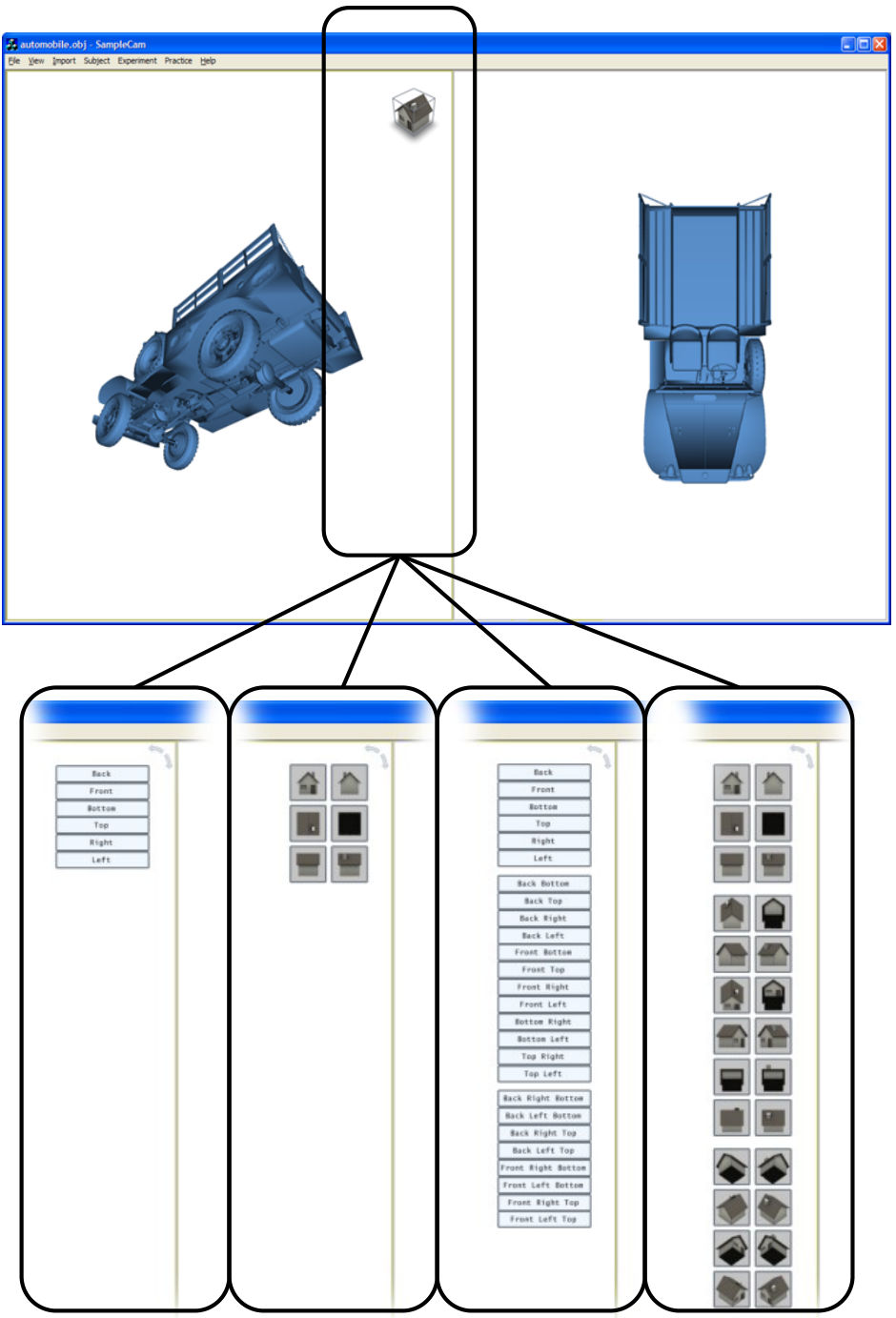
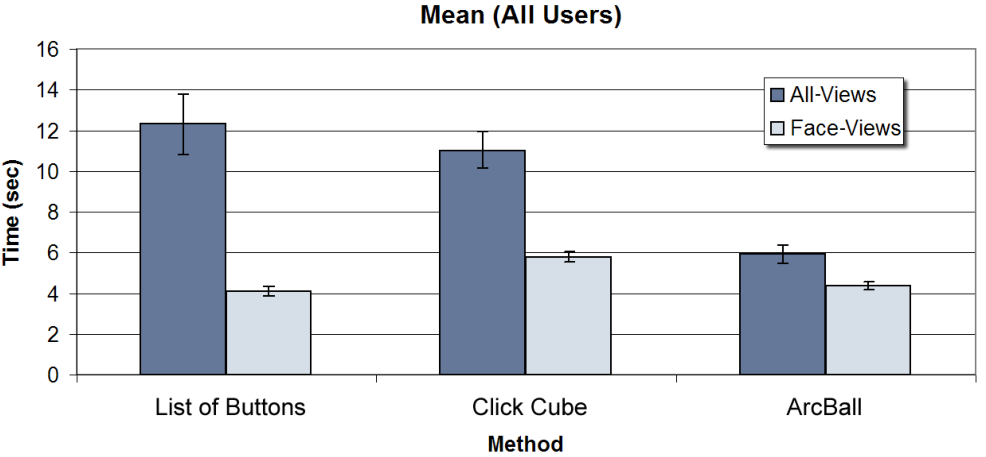
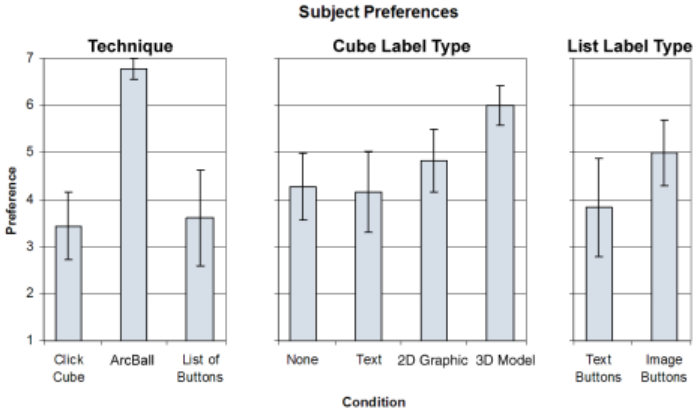
Literally hundreds of thousands of users of 2D computer-aided design (CAD) tools are in the difficult process of transitioning to 3D CAD tools. A common problem for these users is disorientation in the abstract virtual 3D environments that occur while developing new 3D scenes. To help address this problem, we present a novel in-scene 3D widget called the ViewCube as a 3D orientation indicator and controller. The ViewCube is a cube-shaped widget placed in a corner of the window. When acting as an orientation indicator, the ViewCube turns to reflect the current view direction as the user re-orients the scene using other tools. When used as an orientation controller, the ViewCube can be dragged, or the faces, edges, or corners can be clicked on, to easily orient the scene to the corresponding view. We conducted a formal experiment to measure the performance of the ViewCube comparing: (1) ArcBall-style dragging using the ViewCube for manual view switching, (2) clicking on face/edge/corner elements of the ViewCube for automated view switching and (3) clicking on a dedicated row of buttons for automated view switching. The results indicate that users prefer and are almost twice as fast at using the ViewCube with dragging compared to clicking techniques, independent of a number of ViewCube representations that we examined.
Figures

BibTeX
@inproceedings{10.1145/1342250.1342253,
 abstract = {Literally hundreds of thousands of users of 2D computer-aided design (CAD) tools are in the difficult process of transitioning to 3D CAD tools. A common problem for these users is disorientation in the abstract virtual 3D environments that occur while developing new 3D scenes. To help address this problem, we present a novel in-scene 3D widget called the ViewCube as a 3D orientation indicator and controller. The ViewCube is a cube-shaped widget placed in a corner of the window. When acting as an orientation indicator, the ViewCube turns to reflect the current view direction as the user re-orients the scene using other tools. When used as an orientation controller, the ViewCube can be dragged, or the faces, edges, or corners can be clicked on, to easily orient the scene to the corresponding view. We conducted a formal experiment to measure the performance of the ViewCube comparing: (1) ArcBall-style dragging using the ViewCube for manual view switching, (2) clicking on face/edge/corner elements of the ViewCube for automated view switching and (3) clicking on a dedicated row of buttons for automated view switching. The results indicate that users prefer and are almost twice as fast at using the ViewCube with dragging compared to clicking techniques, independent of a number of ViewCube representations that we examined.},
 address = {New York, NY, USA},
 author = {Khan, Azam and Mordatch, Igor and Fitzmaurice, George and Matejka, Justin and Kurtenbach, Gordon},
 booktitle = {Proceedings of the 2008 Symposium on Interactive 3D Graphics and Games},
 doi = {10.1145/1342250.1342253},
 isbn = {9781595939838},
 keywords = {desktop 3D environments, 3D widgets, 3D navigation, virtual camera},
 location = {Redwood City, California},
 numpages = {9},
 pages = {17–25},
 publisher = {Association for Computing Machinery},
 series = {I3D '08},
 title = {ViewCube: A 3D Orientation Indicator and Controller},
 url = {https://doi.org/10.1145/1342250.1342253},
 year = {2008}
}